
Before you add/change sessions in your program, please remember to unpublish your Program when uploading new sessions, so that changes aren't visible to anyone viewing the program while you're doing this task.
Click on Conference > Program > Builder, then click the Published label at the top left of the table and select Unpublish from the drop-down menu.
When you have made the changes to your program, please come back here and do the same as above, but select Publish to republish your program.
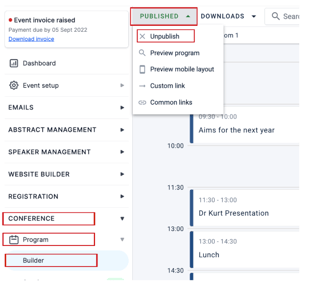
Now you can start amending your program.
From your dashboard, navigate to the left-hand menu and click on Conference > Program > Sessions from the drop-down menu.
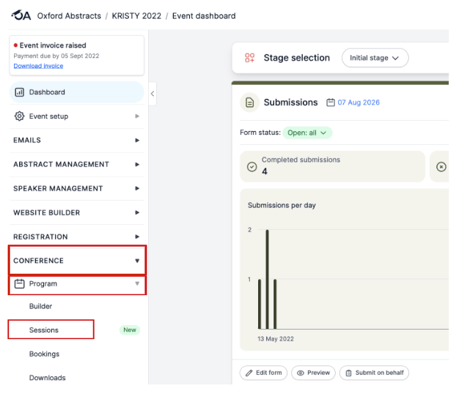
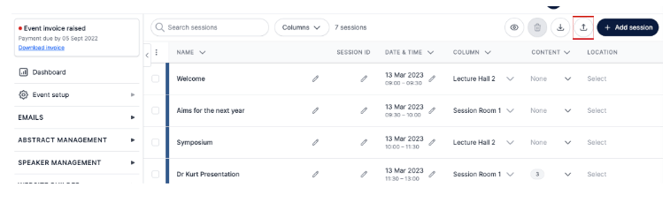
On the next screen, click on the Upload Arrow found at the top right of the screen to upload your sessions.
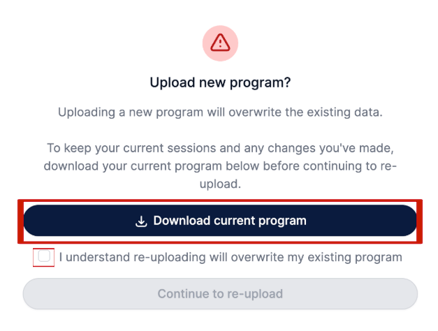
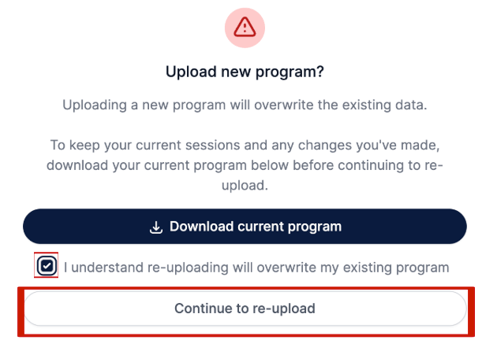
If you already have sessions added to your program, a screen will pop up explaining that uploading a new program will overwrite the existing data.
To keep your current sessions and any changes you've made, download your current program below before continuing to re-upload.
Download your current program into a spreadsheet so you can edit it, add your new sessions, and then re-upload.
Click the Download button, then tick the Box to confirm that re-uploading will overwrite your existing program.
On the downloaded spreadsheet, add the new sessions and session information.
Anything on the spreadsheet marked with an asterisk is mandatory information that must be added.
Please watch the YouTube video at the top of this article for full details about information to include on the spreadsheet.
When you have finished adding the sessions to the spreadsheet, save it and return back to the Session page on Oxford Abstracts. Found under Conference > Program > Sessions on the left-hand menu.
Click on the Upload Arrow found at the top right of the screen to upload your sessions.
Then click the Continue to re-upload button, and tick the Box to confirm that re-uploading will overwrite your existing program.
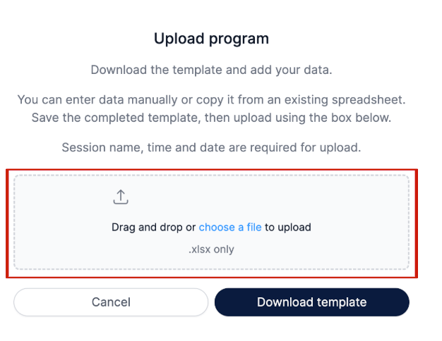
Now drag and drop the spreadsheet you saved into the drag-and-drop box on the next pop-up.
Once this has been added, the session table will include the new information from the spreadsheet, and your program will automatically update accordingly.
If you require further help, please contact our Support Team via this form.