---
title: How To Use Speaker Management
description: In this article, you’ll learn what Oxford Abstracts Speaker Management is, how to set it up and use it for your event.
---
[Skip to content](https://help.oxfordabstracts.com/knowledge/how-to-use-speaker-management#main-content)
English
Show submenu for translations
[Didn't find the help you need?](https://help.oxfordabstracts.com/knowledge/kb-tickets/new?hsLang=en) [Customer portal](https://help.oxfordabstracts.com/tickets-view?hsLang=en)

Open main navigation
Close main navigation
- English
Show submenu for translations
- [Didn't find the help you need?](https://help.oxfordabstracts.com/knowledge/kb-tickets/new)
- [Customer portal](https://help.oxfordabstracts.com/tickets-view)
- Go to oxfordabstracts.com
Go to oxfordabstracts.com
How can we help?
- There are no suggestions because the search field is empty.
1. [Oxford Abstracts Knowledge Base](https://help.oxfordabstracts.com/knowledge?hsLang=en)
2. [The Conference Platform](https://help.oxfordabstracts.com/knowledge/the-conference-platform?hsLang=en)
# How To Use Speaker Management
## In this article, you’ll learn what Speaker Management is, how to set it up and use it for your event.
**What is Speaker Management?**
Speaker Management allows event admins to collect, manage and display invited speakers and their talks separately from the standard submission process.
To enable Speaker Management, you need to have switched to the new session overlay design.
View our video showing you how to use Speaker Management, or continue reading below for step-by-step instructions.
**Skip To:**
**[How To Create The Invited Speaker Form](https://help.oxfordabstracts.com/knowledge/how-to-use-speaker-management#create-form)**
**[How To Add Invited Speakers](https://help.oxfordabstracts.com/knowledge/how-to-use-speaker-management#add-speakers)**
**[How To Manually Add Invited Speakers](https://help.oxfordabstracts.com/knowledge/how-to-use-speaker-management#manually-add-speakers)**
**[The Invited Speaker Table Explained](https://help.oxfordabstracts.com/knowledge/how-to-use-speaker-management#speaker-table-explained)**
**How To Add Invited Speakers To Your Event Program**
---
**How To Create The Invited Speaker Form**
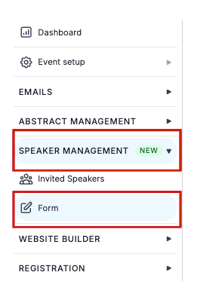
From your dashboard, navigate to the left-hand menu, click Speaker Management, then click Form in the dropdown menu.
On the next screen, you’ll be able to create your form.
There are questions already set up that you can use, change the order of or delete.
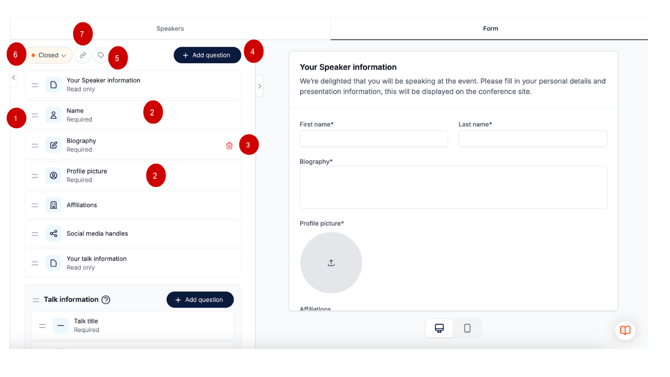
1. To c**hange the order of the questions**, **click** on the **two lines** to the left of the question and d**rag and drop** to where you want it.
2. To **edit a question**, simply **click on the question box**; it will pop out into its own screen to the right. Fill in the necessary information and **click Save** at the bottom.
3. To **delete a question**, hover over it and **click the red bin icon** that appears to the right of the question.
4. You can **add a question** by clicking on the Add Question button.
5. **Speaker role labels** enable you to name and categorise your invited speakers. These labels will be visible on the conference platform. Simply **click on the tag icon** at the top of the page, fill in the fields that appear in the pop-up screen and click Save.
6. To set the **speaker form** to ‘**Open**’ means speakers can complete the form. To do this, **click the Orange button** at the top and **select Open**. This button will turn green. To **close the form** (stop speakers from completing and submitting their forms), c**lick on the green button** saying Open and **select Closed**.
7. To c**opy the link to the speaker form** for you to paste on your website/social media or to an email, **click the link button** at the top of the page.
You can always preview your form to the right of the screen.
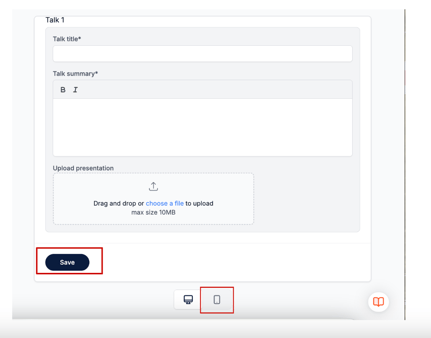
**When you’ve finished** completing it, scroll down to the bottom and **click Save**.
You can also **preview how the form will look on a mobile device**. Click on the phone icon to view.
---
**How To Add Invited Speakers**
Once you have created your form, you can send the invited speaker form link to people for them to fill in their details and talk information.
When completed, they will click Save, and the form will be automatically sent back and appear on the speaker table.
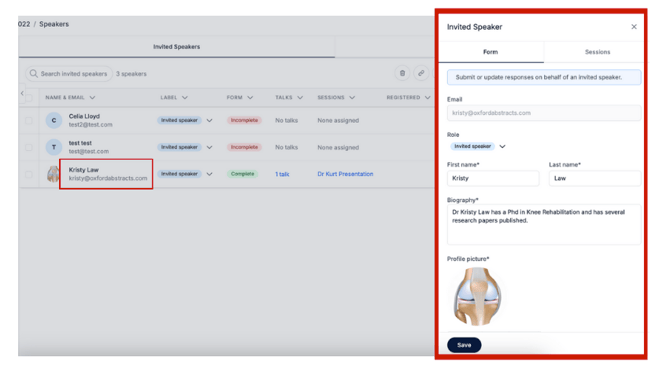
To **view and edit completed forms**, go to the speaker table, by clicking on the Speaker management tab in the left-hand menu, and select Speakers from the drop-down list.
On the next screen, you’ll see prospective speakers who have sent in their completed forms. **Click on the speaker's name**, and t**heir form will pop up to the right of the screen**.
**How To Manually Add Invited Speakers**
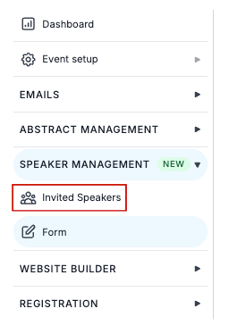
To manually add your speakers, from your dashboard, navigate to the **left-hand menu, click Speaker Management, then select Invited Speakers.**
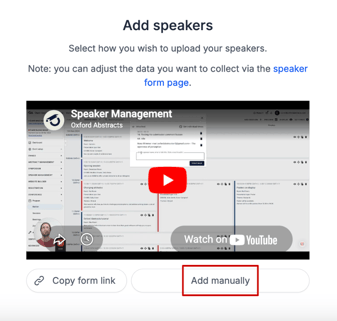
If it’s the first time you’re manually adding a speaker, you'll see a box with a helpful video showing you how to use Speaker Management. Underneath this, there is a button called, **Add Manually**.
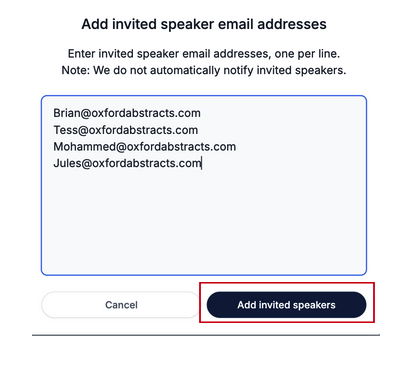
**Click this button**, and **add your speaker email addresses, each on a separate line**, and **click the Add Invited Speaker Button.**
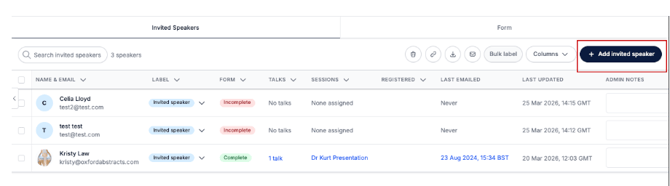
Your **invited** **speakers will now appear on the Invited Speaker Table** (found under the speaker management tab on the left-hand menu).
When you have started to populate your speaker list, to **add any other speakers manually**, go to the speaker table, **click the Add Invited Speaker button** at the top right of the table, and follow the instructions in the above paragraph.
---
**The Invited Speaker Table Explained**
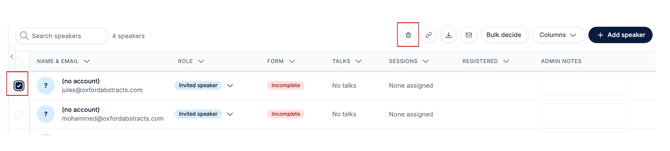
To delete an invited speaker, click the box to the left of their name & email address. And then click the bin icon at the top of the page.
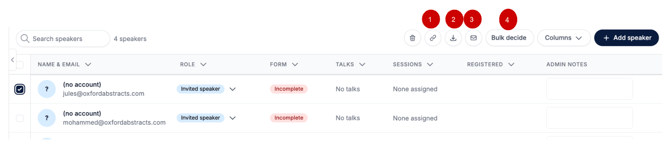
1. **Copy the link to your invited speaker form** by clicking on the link icon.
2. **Export and download your speaker list** via CSV by clicking on the download arrow icon.
3. **Email selected speakers** by clicking on the envelope icon.
4. You can **bulk decide speaker roles** by clicking in the box to the left of the speaker name and clicking the bulk decide button.
The **Role** tells you what speaker role has been assigned to the speaker.
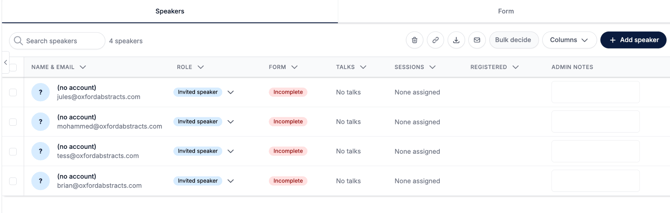
The **Form** column indicates whether the invited speaker has filled out the speaker form.
The **Talk** column indicates if they have a talk.
The **Session** column indicates whether they have been assigned a session.
The **Registered** column indicates whether the speaker has registered.
---
**How To Add Invited Speakers To Your Event Program**
From your dashboard, go to the left-hand menu and click on **Conference \> Program \> Builder.**
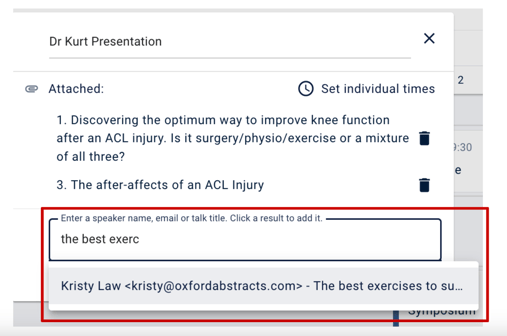
**Click on a session** and **scroll down** to the bottom of the panel and **click on Attach Speakers.**
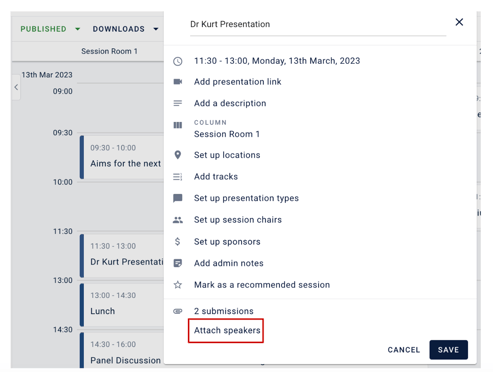
On the next screen **type into the box** **either the speaker name, email, or talk title**, you’ll see a little box appear underneath with all queries relating to what you are typing.
**From this list, select which one you want to add and click Continue and then click Save**.
When you or an attendee now clicks on that session, they will see the speaker and talk you’ve added.
If you need any further help, please contact our Support Team via this **[Contact Form.](https://oxfordabstracts.com/resources/contact-support/)**
- [Introduction to the Oxford Abstracts tools](https://help.oxfordabstracts.com/knowledge/introduction-to-the-oxford-abstracts-tools?hsLang=en)
- [Getting Started and Creating an Account](https://help.oxfordabstracts.com/knowledge/getting-started-and-creating-an-account?hsLang=en)
- [FAQ](https://help.oxfordabstracts.com/knowledge/faq?hsLang=en#main-content)
- [Zoom](https://help.oxfordabstracts.com/knowledge/faq?hsLang=en#zoom)
- [Support](https://help.oxfordabstracts.com/knowledge/support?hsLang=en#main-content)
- [Guidance for submitters](https://help.oxfordabstracts.com/knowledge/support?hsLang=en#guidance-for-submitters)
- [Guidance for committee members](https://help.oxfordabstracts.com/knowledge/support?hsLang=en#guidance-for-committee-members)
- [Guidance for symposia submitters](https://help.oxfordabstracts.com/knowledge/support?hsLang=en#guidance-for-symposia-submitters)
- [Guidance for the conference platform](https://help.oxfordabstracts.com/knowledge/support?hsLang=en#guidance-for-the-conference-platform)
- [Guidance for exhibitors and representatives](https://help.oxfordabstracts.com/knowledge/support?hsLang=en#guidance-for-exhibitors-and-representatives)
- [FAQs for users](https://help.oxfordabstracts.com/knowledge/support?hsLang=en#faqs-for-users)
- [Account Administrator Functions](https://help.oxfordabstracts.com/knowledge/account-administrator-functions?hsLang=en)
- [Getting Started With Your Event](https://help.oxfordabstracts.com/knowledge/getting-started-with-your-event?hsLang=en)
- [The Submission Stage](https://help.oxfordabstracts.com/knowledge/the-submission-stage?hsLang=en#main-content)
- [Preparing for the submission stage](https://help.oxfordabstracts.com/knowledge/the-submission-stage?hsLang=en#preparing-for-the-submission-stage)
- [Designing your submission form](https://help.oxfordabstracts.com/knowledge/the-submission-stage?hsLang=en#designing-your-submission-form)
- [Collecting submissions](https://help.oxfordabstracts.com/knowledge/the-submission-stage?hsLang=en#collecting-submissions)
- [Managing submissions](https://help.oxfordabstracts.com/knowledge/the-submission-stage?hsLang=en#managing-submissions)
- [The Reviewing Stage](https://help.oxfordabstracts.com/knowledge/the-reviewing-stage?hsLang=en#main-content)
- [Preparing for reviewing](https://help.oxfordabstracts.com/knowledge/the-reviewing-stage?hsLang=en#preparing-for-reviewing)
- [Managing reviews](https://help.oxfordabstracts.com/knowledge/the-reviewing-stage?hsLang=en#managing-reviews)
- [The Decision Stage](https://help.oxfordabstracts.com/knowledge/the-decision-stage?hsLang=en#main-content)
- [Preparing for the decision stage](https://help.oxfordabstracts.com/knowledge/the-decision-stage?hsLang=en#preparing-for-the-decision-stage)
- [Recording decisions](https://help.oxfordabstracts.com/knowledge/the-decision-stage?hsLang=en#recording-decisions)
- [Emails](https://help.oxfordabstracts.com/knowledge/emails?hsLang=en#main-content)
- [Creating emails](https://help.oxfordabstracts.com/knowledge/emails?hsLang=en#creating-emails)
- [Sending emails](https://help.oxfordabstracts.com/knowledge/emails?hsLang=en#sending-emails)
- [Creating Exports, Reports and Abstract Books](https://help.oxfordabstracts.com/knowledge/creating-exports-reports-and-abstract-books?hsLang=en)
- [The Conference Platform](https://help.oxfordabstracts.com/knowledge/the-conference-platform?hsLang=en#main-content)
- [Setting up your conference platform](https://help.oxfordabstracts.com/knowledge/the-conference-platform?hsLang=en#setting-up-your-conference-platform)
- [The Professional Conference features](https://help.oxfordabstracts.com/knowledge/the-conference-platform?hsLang=en#the-professional-conference-features)
- [Publishing and managing your conference](https://help.oxfordabstracts.com/knowledge/the-conference-platform?hsLang=en#publishing-and-managing-your-conference)
- [Downloading event timetable](https://help.oxfordabstracts.com/knowledge/the-conference-platform?hsLang=en#downloading-event-timetable)
- [Timezones](https://help.oxfordabstracts.com/knowledge/the-conference-platform?hsLang=en#timezones)
- [Creating announcements for your virtual conference](https://help.oxfordabstracts.com/knowledge/the-conference-platform?hsLang=en#creating-announcements-for-your-virtual-conference)
- [Delegate Registration](https://help.oxfordabstracts.com/knowledge/delegate-registration?hsLang=en#main-content)
- [Publish event](https://help.oxfordabstracts.com/knowledge/delegate-registration?hsLang=en#publish-event)
- [Refunding attendees](https://help.oxfordabstracts.com/knowledge/delegate-registration?hsLang=en#refunding-attendees)
- [Editing Ticket Orders](https://help.oxfordabstracts.com/knowledge/delegate-registration?hsLang=en#editing-ticket-orders)
- [Creating & editing delegate registration events details page](https://help.oxfordabstracts.com/knowledge/delegate-registration?hsLang=en#creating-editing-delegate-registration-events-details-page)
- [downloading invoice and receipts](https://help.oxfordabstracts.com/knowledge/delegate-registration?hsLang=en#downloading-invoice-and-receipts)
- [Multi-Stage](https://help.oxfordabstracts.com/knowledge/multi-stage?hsLang=en)
- [Symposia](https://help.oxfordabstracts.com/knowledge/symposia?hsLang=en#main-content)
- [Preparing for symposia submission](https://help.oxfordabstracts.com/knowledge/symposia?hsLang=en#preparing-for-symposia-submission)
- [Collecting and reviewing symposia](https://help.oxfordabstracts.com/knowledge/symposia?hsLang=en#collecting-and-reviewing-symposia)
- [Managing symposia](https://help.oxfordabstracts.com/knowledge/symposia?hsLang=en#managing-symposia)
- [Guidance For Reviewers](https://help.oxfordabstracts.com/knowledge/guidance-for-reviewers?hsLang=en#main-content)
- [Guidance For Reviewers](https://help.oxfordabstracts.com/knowledge/guidance-for-reviewers?hsLang=en#guidance-for-reviewers)
- [Attending an Event](https://help.oxfordabstracts.com/knowledge/attending-an-event?hsLang=en)
- [Integrations](https://help.oxfordabstracts.com/knowledge/integrations?hsLang=en)
[](http://oxfordabstracts.com)
oxfordabstracts.com Help Center
Copyright © 2026, Oxford Abstracts