
Exploring the poster gallery
The Poster Gallery offers an online space where delegates can search, view and download (subject to settings) poster submissions.
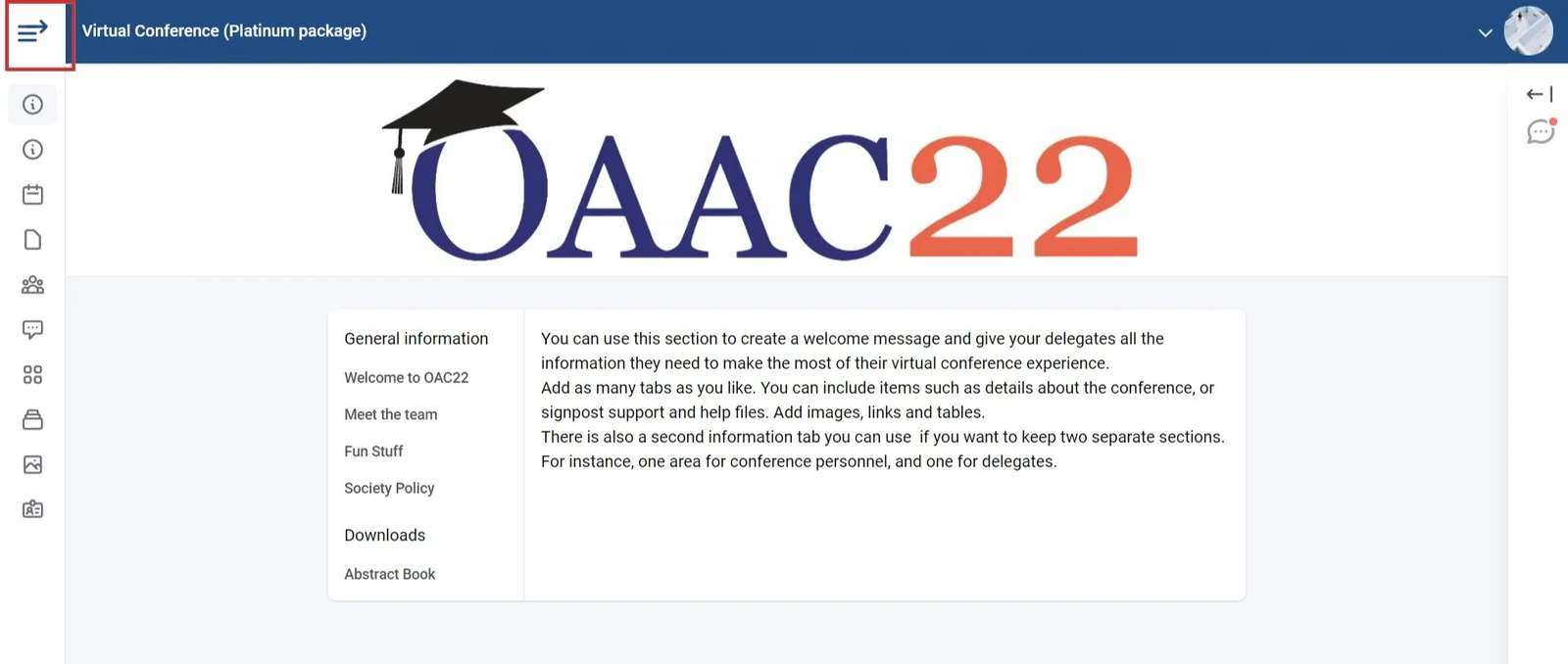
Once you have created an account and logged in to the conference you will be taken to the welcome screen. Click the icon in the top left hand corner of the screen, shown below to reveal the full menu.
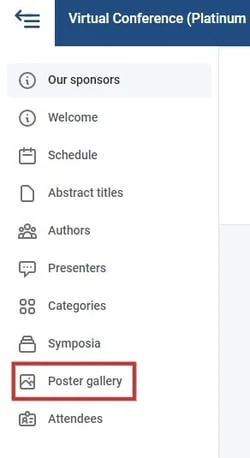
Click on the Poster Gallery link.
The Poster Gallery screen will now be on view. Click on any of the posters to view further details and downoad (if enabled).
There are various view, filter and search options, as shown below.
1) Enter any keyword. This can be a partial string (eg. 'ana' would return 'analysis')
2) Choose from list or table view.
3) Order alphabetically or by submission ID / program code.
4), 5),6) Filter according to these options and 7) by pre-set keywords.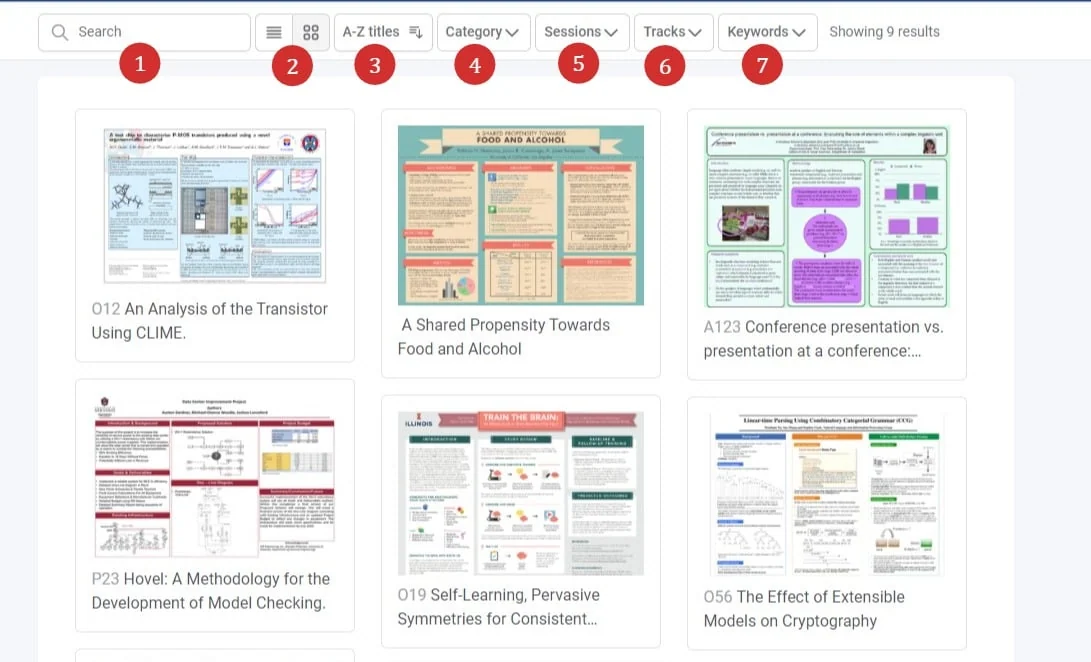
Viewing posters#
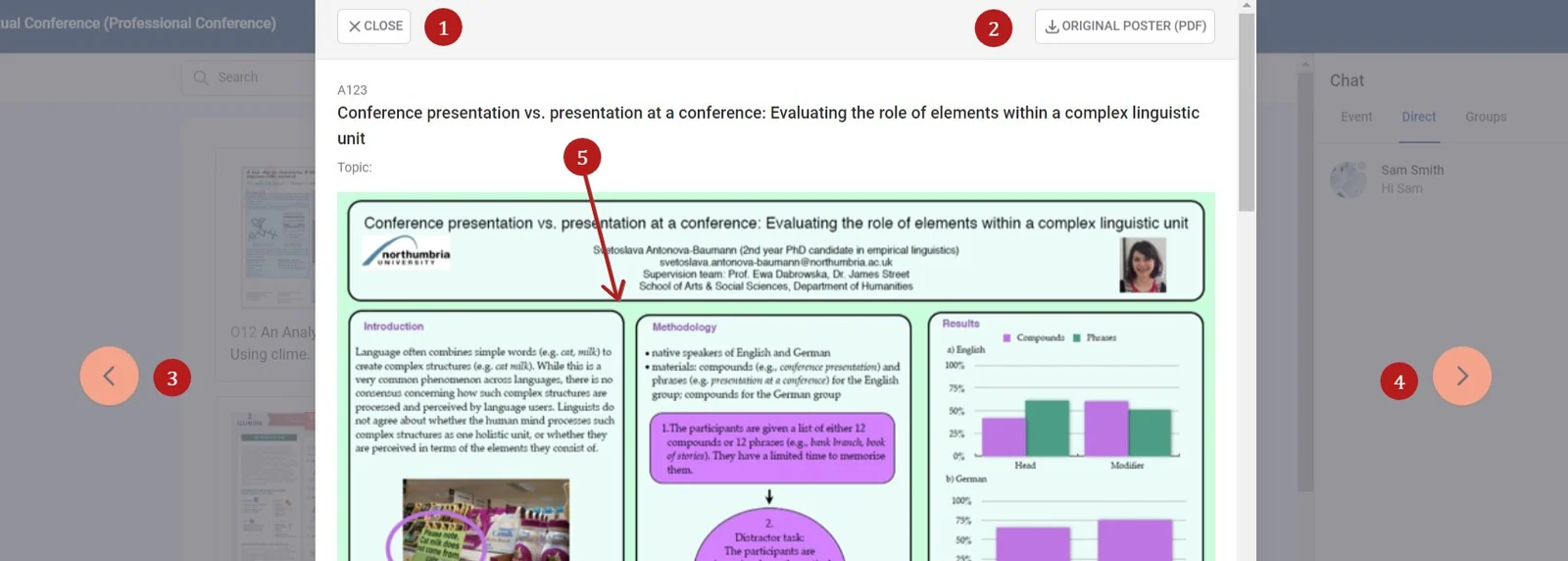
Once you click on a poster, you will be view the poster, along with the details of the submission. You can then select the following options.
1) Close to return to the gallery view.
2) Download the poster (if settings allow).
3) Skip to previous poster 4) Skip to next poster
5) Click on the poster for more options (see below).
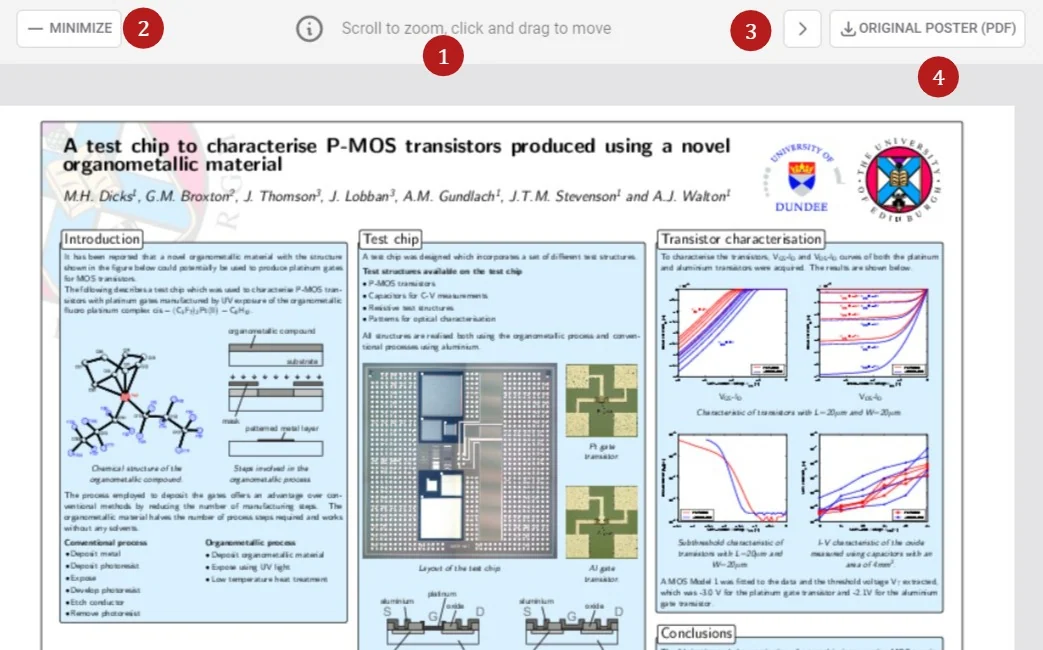
Clicking on the poster allows you to
1) Zoom and drag around your screen
2) Return to the previous poster / details view
3) Skip to next poster
4) Download (if settings allow)
Was this article helpful?
Contact supportRelated
Still stuck? Send us a ticket
Tell us what you're trying to do and one of our support team experts will come back to you promptly with the solution.