
Creating coupon codes for delegate registration
Learn how to create coupon codes (discount codes) for tickets for delegate registration.
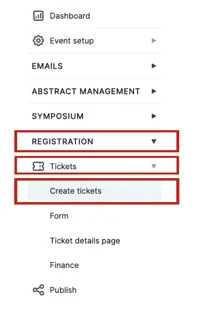
From your dashboard, click on Registration → Tickets → Coupons
You can also reach this from the Coupons tab at the top of the ticket screens.
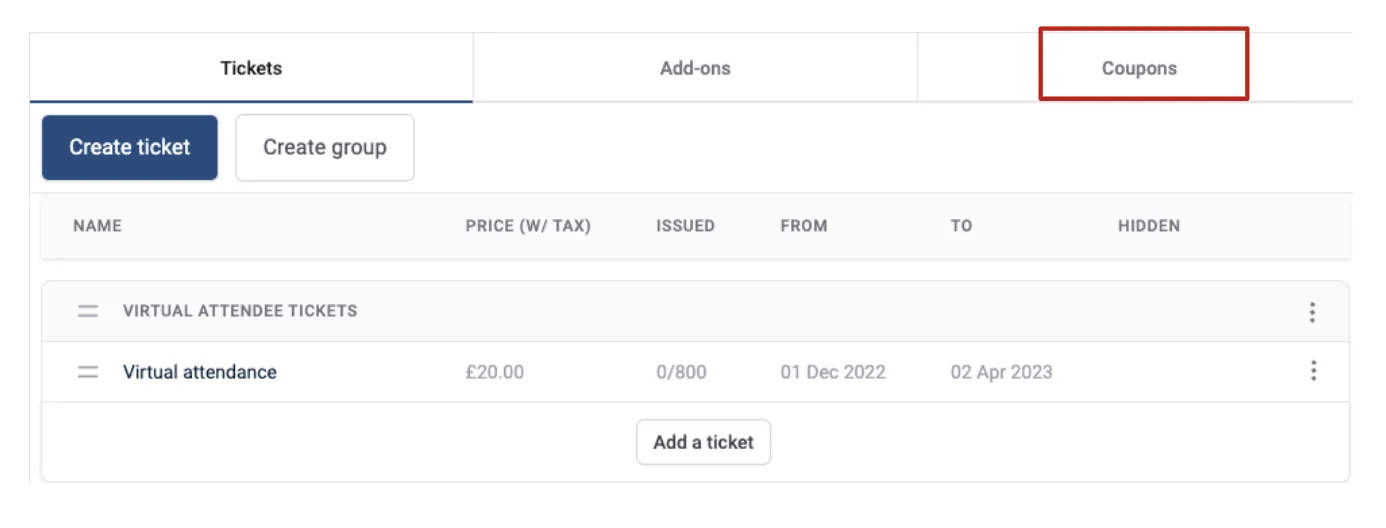
Then click on the Create Coupon Button.
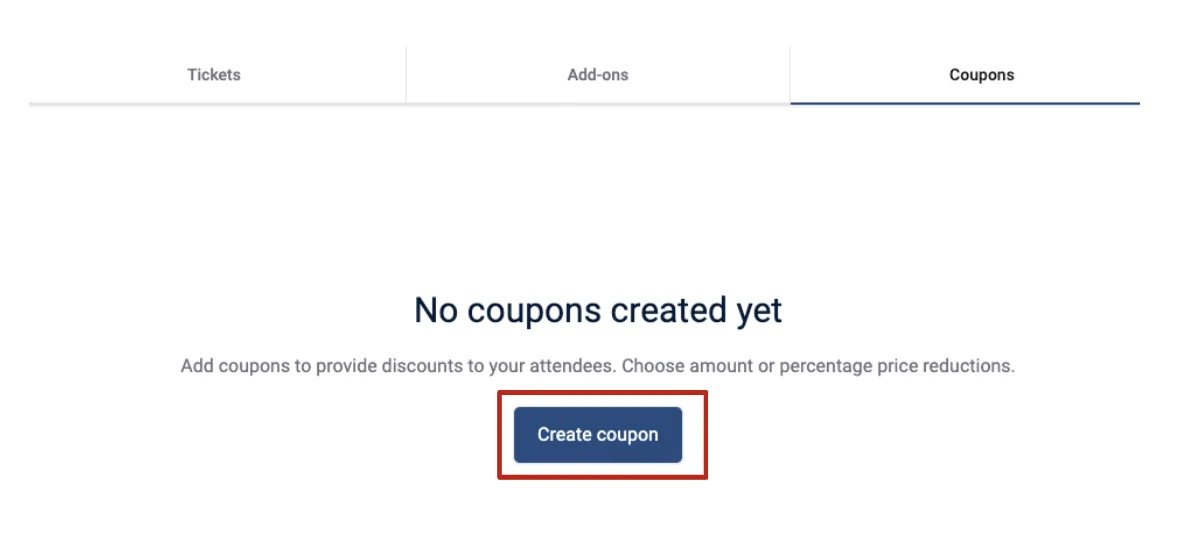
A pop-up screen will appear to the right of the screen.
You’ll need to add the following information:
- Coupon code - this is what attendees type at checkout, i.e. SPEAKER50
- Discount amount, and a Discount type of either Percentage (%) or Amount - so you can take 10% off, or a flat sum off
- Quantity available - how many times this coupon code can be used
- Available from and Available to - the dates the coupon is active
You can also switch a coupon off at any time without deleting it, using the Deactivate coupon toggle.
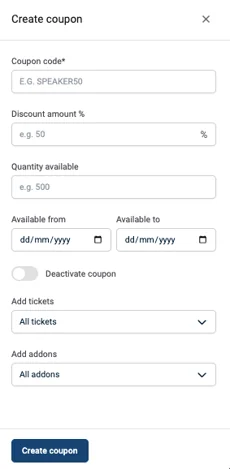
You can limit which tickets and add-ons the code works on, using Available with selected tickets and Add addons. Both default to everything.
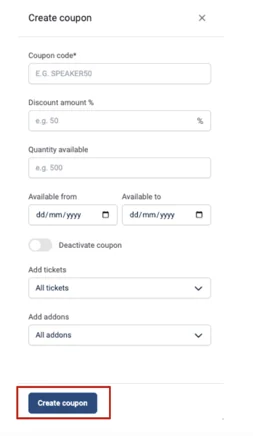
When all this information is complete, click Create coupon at the bottom of the panel.
If you require further assistance please contact our Support Team via the Contact Form.
Was this article helpful?
Contact supportRelated
Still stuck? Send us a ticket
Tell us what you're trying to do and one of our support team experts will come back to you promptly with the solution.