
Opening and closing submissions (deadlines)
In order to make the submission system live, you must open submissions.
Note
Before you open your call for abstracts, it is advisable to complete a test submission.
Go to Event dashboard → Abstract management → Submissions → Form & setup
Click the form status button at the top of the page. This opens the Form status panel, which holds three separate switches:
- Open for new submissions — allow all new submissions
- Allow edits to complete submissions — submitters can edit abstracts they have already completed
- Allow edits to incomplete submissions — submitters can go back and finish incomplete ones
They are independent, so you can have any combination of the three.
When all three are off, the status reads Form closed.
Your deadline closes submissions for you#
You do not need to close the form by hand when your deadline arrives. Set the submission deadline on Event dashboard → Event setup → Event details, under Deadlines, and submissions close automatically when it passes.
Deadlines are set per stage, so a multi-stage event has a submission deadline for each stage.
Note
A deadline given as a date runs to the end of that day — a deadline of 1 April closes at 23:59 on 1 April, not at the start of it. The exact closing time and the timezone it uses are shown by clicking the time on your dashboard.
Use the switches above when you want to do something other than that: close the call early, reopen it, or keep edits open after the deadline has closed the form to new submissions.
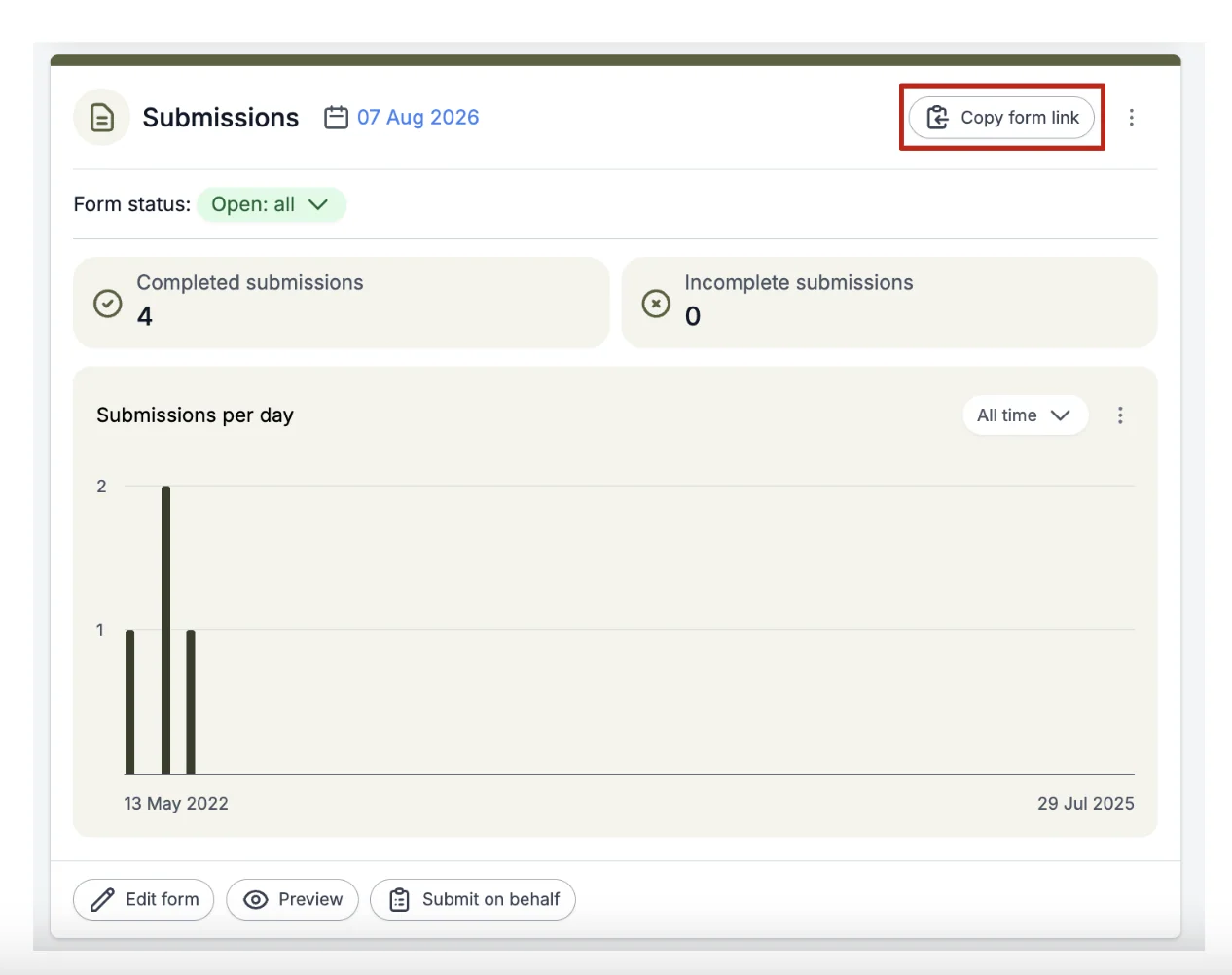
Your Event dashboard also shows Form status on the Submissions panel, so you can see at a glance whether the form is open without coming to this page.
Note
Before you promote you call for abstracts, it is advisable to complete a test submission, by following these steps.
- Open your call for abstracts.
- Open the submission link, preferably in an incognito window or browser and using an email address that is not associated with any admin rights (ie. not an event admin or a client admin), create an account and complete a dummy form.
- Go back to the event as an admin and check, using the submissions table, whether the responses to the questions are in the format you expected.
Where to find the Submission Form Link
On the Form & setup page, click Copy submission link. On your Event dashboard, the same link is behind Copy form link on the Submissions panel.
This copies the URL required to access the submission system. This link should be published on the relevant website and/or emails to invite submissions to be made.
How do I allow for reworking and late-breaking abstracts?#
Common questions#
How do I change the deadline/ notification date for submissions?#
See Event details. Changing the submission deadline also changes when submissions close, because the deadline closes them for you.
I want to close submissions, but allow those who have already submitted to edit their submissions. How do I do that?#
In the Form status panel, switch off Open for new submissions and leave Allow edits to complete submissions and Allow edits to incomplete submissions on.
Nobody can then start a new submission, but everyone who has already submitted can still edit what they sent.
Was this article helpful?
Contact supportRelated
Still stuck? Send us a ticket
Tell us what you're trying to do and one of our support team experts will come back to you promptly with the solution.