
Permanently delete or archive your event
In this article you will learn how to permanently delete, archive your event and unarchive your event.
Or scroll down to read the instructions.
From your client dashboard, click on Events in the left-hand column.
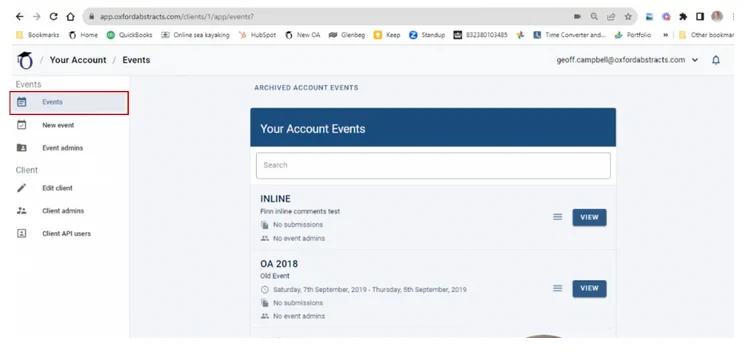
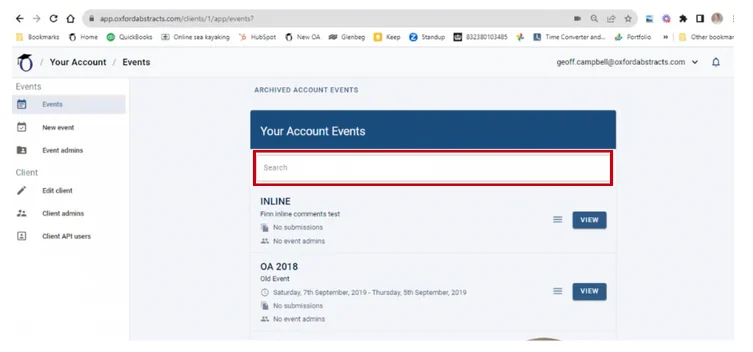
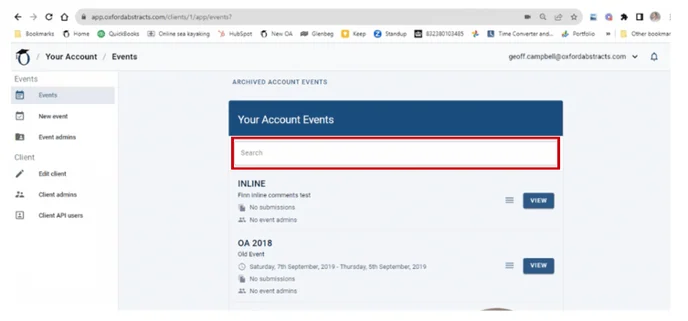
On the next screen, find the event you wish to permanently delete by scrolling down the list or using the search bar at the top.
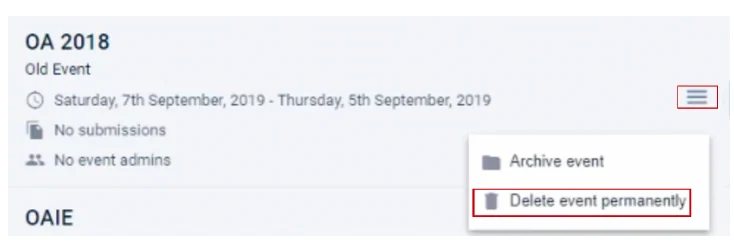
When you have found the event, click on the three lines to the right of it and select Delete event permanently.
On the next screen that follows, you’ll need to add the event abbreviation into the Confirm Event Abbreviation box and your password into the Confirm Password box.
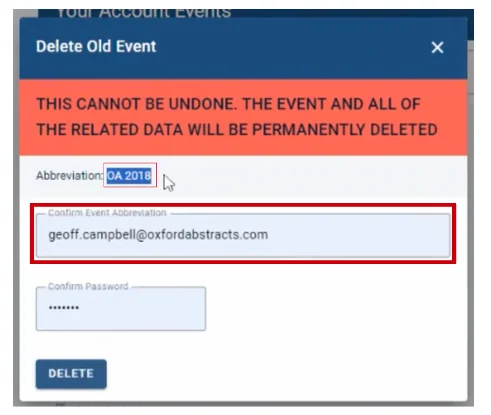
The event abbreviation can be found above this box.
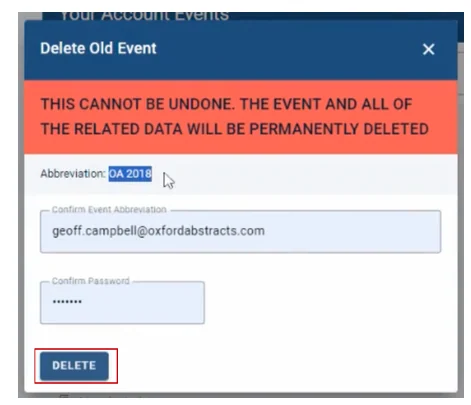
Once you have done the above actions, you click on the delete button and your event will be permanently deleted.
How to archive your event
From your client dashboard, click on Events in the left-hand column.
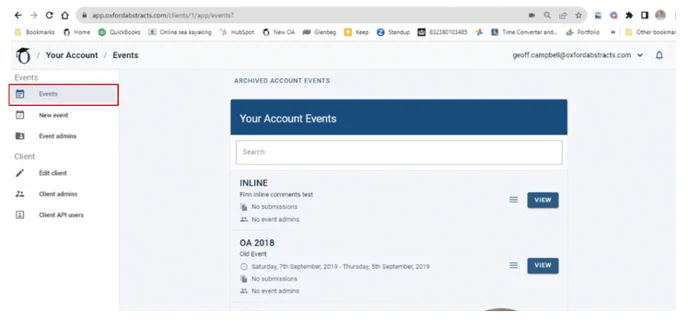
On the next screen, find the event you wish to archive by scrolling down the list or using the search bar at the top.
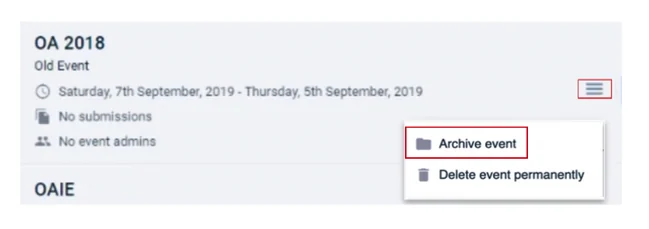
When you have found the event, click on the three lines to the right of it and select Archive Event.
How To Unarchive Your Event
From your client admin dashboard you will see a list of events you are admin too.
At the top of the list click on the tab titled Archived Account Events.
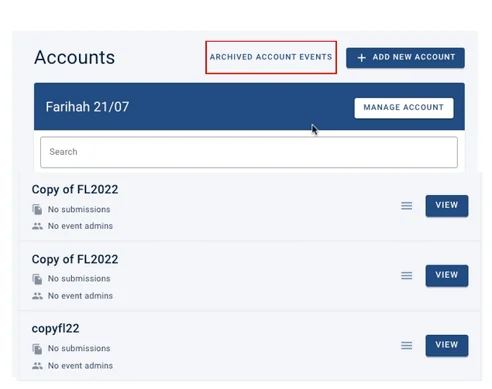
This will show a list of events that have been archived. Click on the Unarchive button next to the event you want to unarchive.
Only a client administrator can archive or unarchive an event. If you are an event administrator you will not see the Archived Account Events tab at all, and cannot restore an event yourself — ask one of your client administrators, who can do it in a moment.
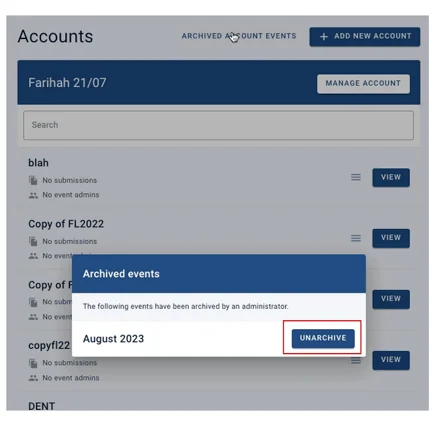
Archiving does not delete anything. The event, its submissions, reviews and data are all still there; archiving only takes it out of your everyday list. Unarchiving puts it back exactly as it was.
If you need further assistance, please contact our Support Team via our Contact Form.
Common questions#
My submitters are being told "this event is archived"#
Their link points at last year's event, which has since been archived. It is almost always an old submission link still sitting on a conference website or in an email template. Take the current link from this year's event and share that instead — the event does not need unarchiving to fix it.
How long do you keep the data for an event?#
Oxford Abstracts will store conference data for at least a year after the conference start date unless the customer deletes the event. This allows customers to look back at a previous year’s conference when setting up a new conference.
In order to comply with GDPR regulation, events will be deleted 6 years after the start date of the conference. All records of deleted events will be removed from Oxford Abstracts servers and clients should ensure that they have kept suitable backups before the 6 years have elapsed.
Was this article helpful?
Contact supportRelated
Still stuck? Send us a ticket
Tell us what you're trying to do and one of our support team experts will come back to you promptly with the solution.