
Professional Conference - sponsors
This feature is only available in the Professional Conference package.
Go to Event dashboard → Conference → Program →Builder
then
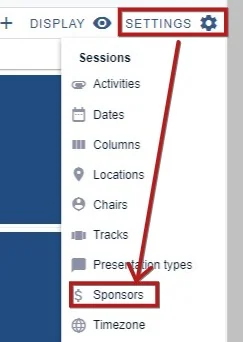
Settings ➞ Sessions ➞ Sponsors
1) Overwrite the label, if you wish
2) Enter the name of your first sponsor
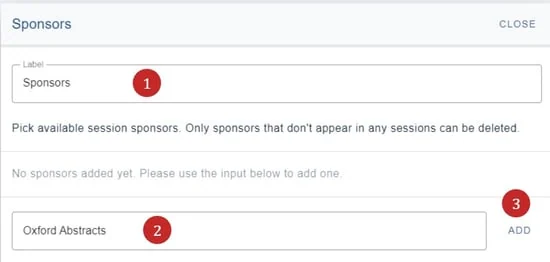
3) Click ADD
You can then begin adding details - all of which are optional.
4) Add a url
5) Add a logo to be displayed in individual sessions
6) Add a logo to be displayed in the program menu
All changes are saved automatically.
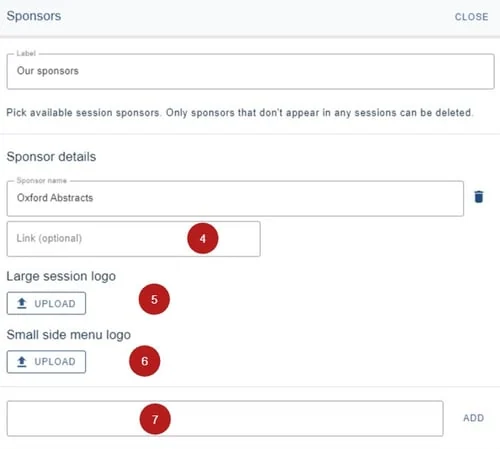
You can also add another sponsor by entering their name in 7) and clicking Add
Displaying the logo in the menu#
In order to display the logo in the program menu, you will need to go to the Branding feature.
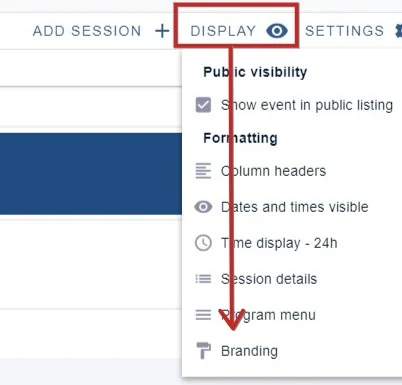
Click Display → Branding
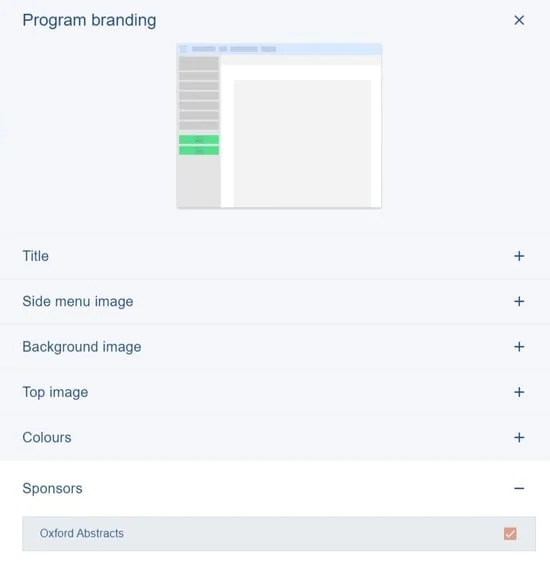
Expand the Sponsors section and check the box next to the selected logo.
Displaying the logo in a session#
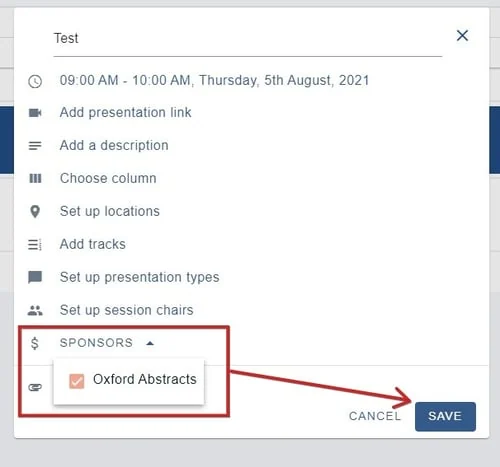
Click on the session you would like the logo to appear in. Click on the Choose session sponsors section and check the box next to the selected logo, then click Save.
Was this article helpful?
Contact supportRelated
Still stuck? Send us a ticket
Tell us what you're trying to do and one of our support team experts will come back to you promptly with the solution.