
The decisions table
The decisions table gives an overview of submissions data relating to outcome status and is used for making decisions on submissions.
Note
To become familiar with the decisions table layout and tools, see An overview of tables.
Go to How to email submitters from tables.
Navigate to Event dashboard Abstract Management → Decisions → Table
Navigate to the Columns section of the table in the top right corner.
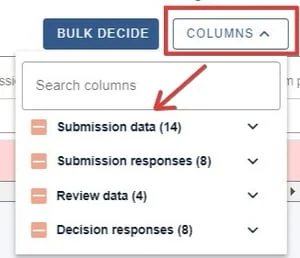
The options will appear grouped into submission data, and submission responses, review data and decision responses.
Note
The decision responses group will be the group that are editable - ie where you enter your decision, determined by the decision form.
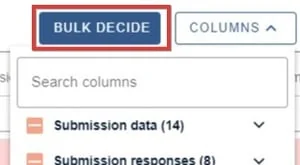
Bulk decide will enable you to make bulk decisions on submissions. See Recording a decision (accepting/ rejecting/ withdrawing a submission)
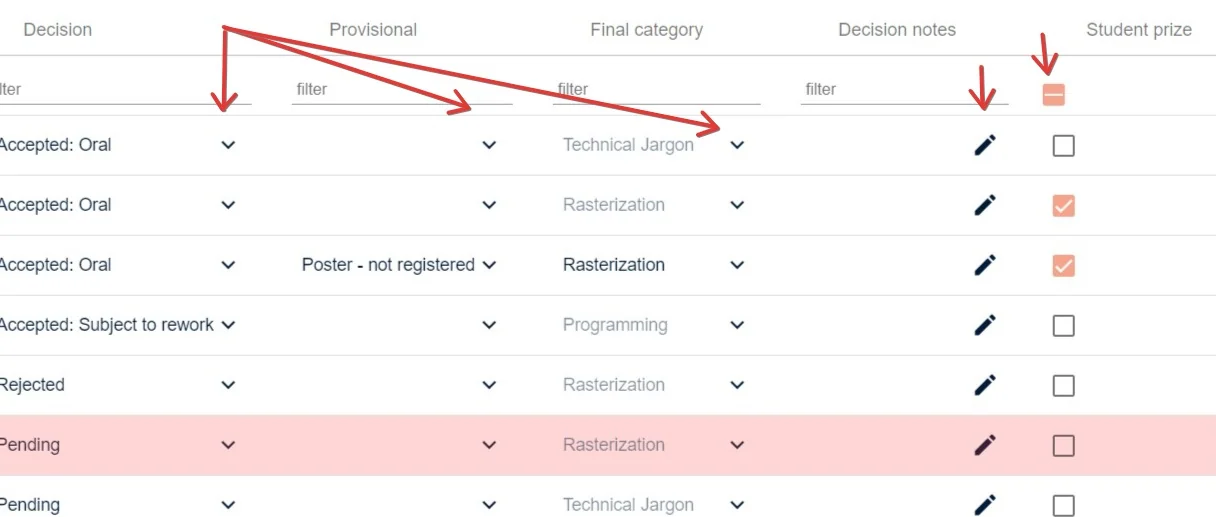
All the fields to the right hand of the table are editable, and denoted by editing icons (dropdown, checkbox or pencil icon). The fields in this area are determined by the questions in the decision form.
Administrators can always edit them. Whether committee members can is something you control, and it is set in two places on Abstract management → Decisions → Form & setup:
- Form status → Open for committee must be on. While it is off, committee members can read the decisions table but not enter anything.
- Each field on the decision form is separately set to Enabled, Read-Only or Hide. A field set to Read-Only or Hide stays uneditable for committee members even when the form is open to them.
Note
If a committee member reports that they can see decisions but not record them, it is almost always one of these two, not a fault or a permissions problem with their account.
Was this article helpful?
Contact supportRelated
Still stuck? Send us a ticket
Tell us what you're trying to do and one of our support team experts will come back to you promptly with the solution.