
Other reports
Beyond abstract books you can download country reports, indexed reports and the files your submitters uploaded.
Go to Event dashboard → Abstract management → Reports & downloads
Scroll to the lower part of the page.
File upload question files#
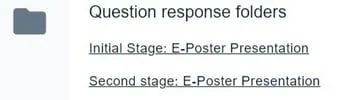
If you have a file upload question in your submission form, you will be able to download a zip file of all responses, here.
Bulk upload file question responses
If you download question response folders from the links above and edit the files in them you can update the responses using the buttons below. You must zip/compress the folder with the edited file responses before uploading. You must not change the names of the downloaded files and you are limited to uploading a maximum of 100 files at a time.

Country reports
These contain details of the submitters' or presenters' country, depending on which report is selected. You can choose a report that contains all submissions or only accepted ones.
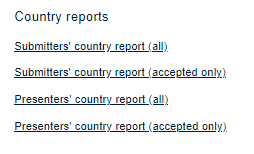
Click on any report title to download it as an Excel document.
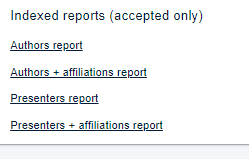
Indexed Reports contain details of the authors or presenters depending on which report is selected. You can choose a report that also contains the authors'/ presenters' affiliation details. Click on any report title to download it as a Word document.
Custom spreadsheets and books
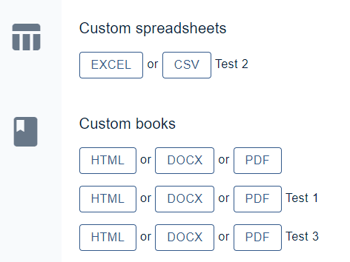
If you need a spreadsheet that is not in the standard downloads, build it yourself at Advanced → Spreadsheet builder — choose the table and the fields you want. It is currently in beta, so it may change. Once we have created them, they will appear in this section. Note - they will update automatically with any subsequent data.
Was this article helpful?
Contact supportRelated
Still stuck? Send us a ticket
Tell us what you're trying to do and one of our support team experts will come back to you promptly with the solution.