
Review question types
As well as the default questions, you can add supplementary questions, should you require. They are split into various types.
Go to Event dashboard → Abstract Management → Review → Forms & Setup
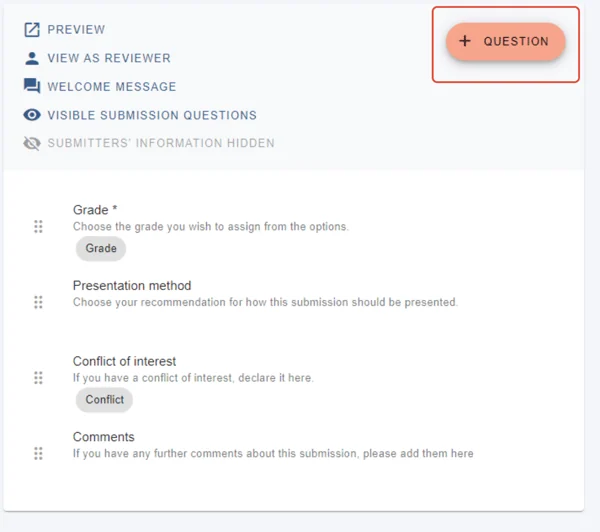
Click the +Question button.
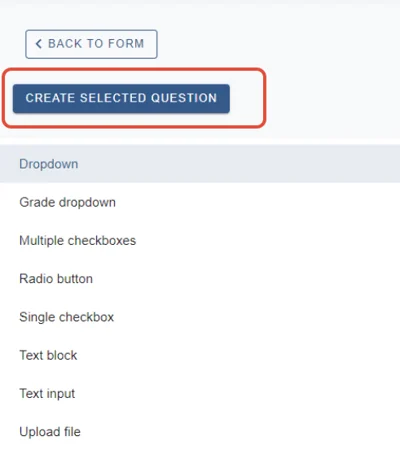
Select the type you wish to create and then click Create selected question
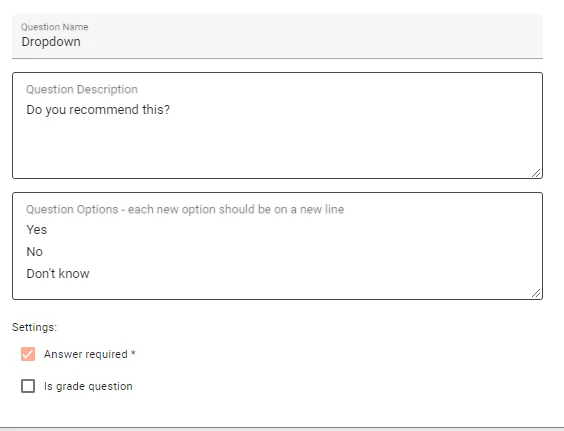
Dropdown (Presentation question on default form )
The question will provide options in dropdown form, only one of which the reviewer can pick.
Grade dropdown (The grade question on default form)
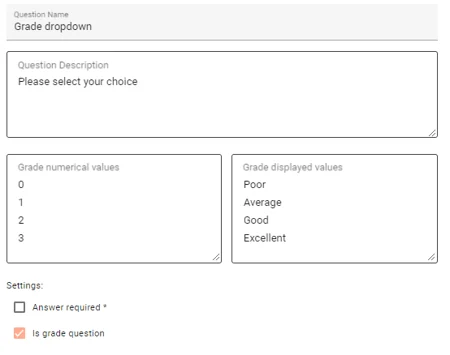
This question will provide grade options, with the option to display descriptive choices to the reviewer, with numerical values in the background. For example, the value of 2 will be applied to the choice, 'Good':
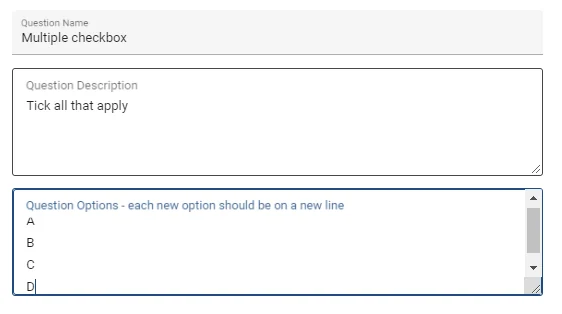
Multiple checkbox question
The question will appear in checkbox form and the reviewer can check as many boxes as relevant.
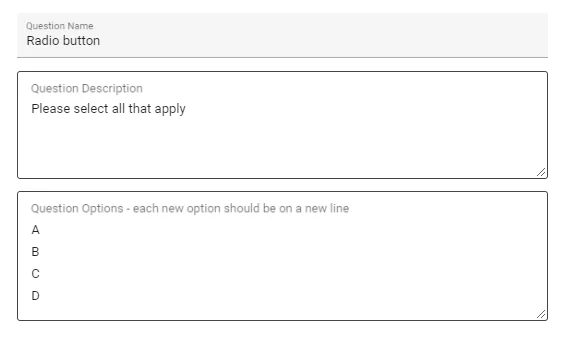
Radio button
A radio button question is similar to the dropdown - the reviewer can choose just one from a list of options.
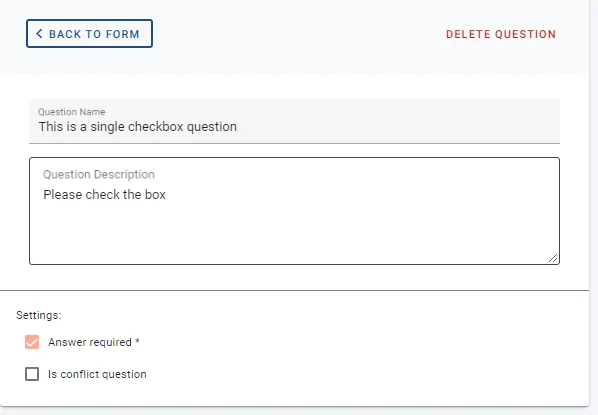
Single checkbox
Provides a single checkbox for the reviewer to check, e.g. for permission, confirmation etc.
Tip
Remember to check the Answer required box if the question is mandatory.
Text block question
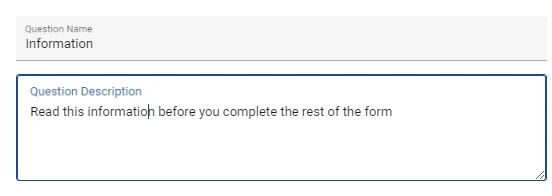
Used for giving information or instructions to the user and doesn't require a response.
Text input
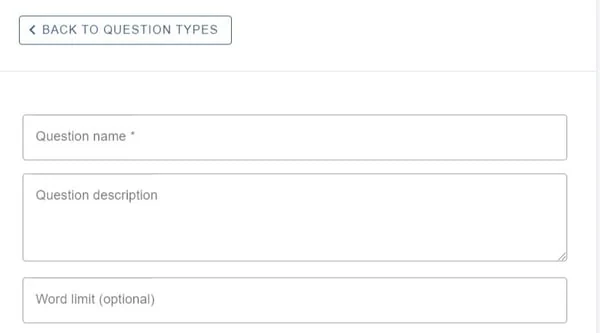
This question allows for free text. You can add a word limit, if you require.
Upload file
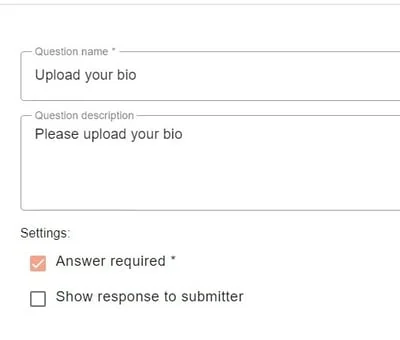
This question can be used if you require the reviewer to upload a file of any type.
Was this article helpful?
Contact supportRelated
Still stuck? Send us a ticket
Tell us what you're trying to do and one of our support team experts will come back to you promptly with the solution.