
Restricting who can submit by email
If you wish, you can restrict submission to your event to a specific group of people by adding their email addresses. It is not available in the FREE package.
Note
The instructions below show how to manually add emails to a restricted list of submitters. This process can also be done automatically through API. If you have a list of email on a system, you can post these to a specific stage using API.
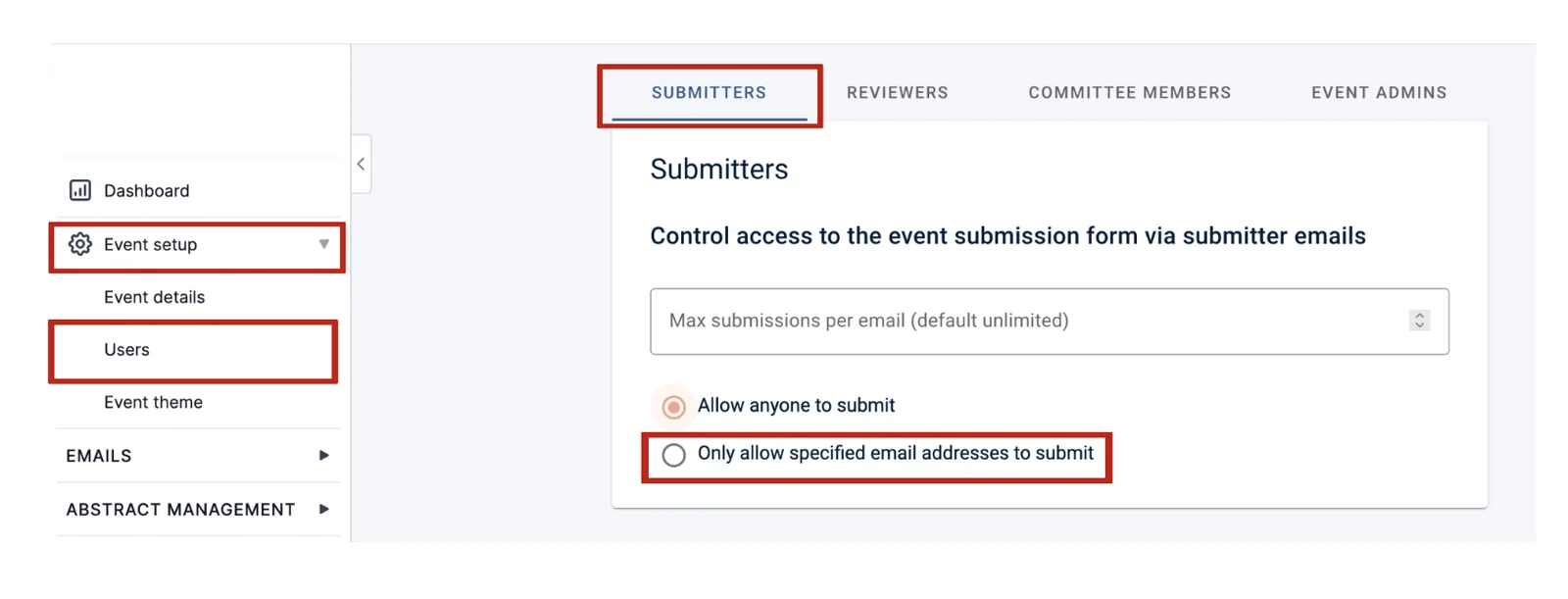
Go to Event dashboard → Event setup → Users → Submitters.
This tab controls two separate things: who may submit, and how much any one person may submit.
Limiting how many submissions one person can make#
Max submissions per email caps the number of submissions any single email address can make. It is unlimited by default, so leave it alone unless you want a cap.
This is counted per email address, so somebody with two addresses can submit under each. It is a way of keeping one enthusiastic person from filling your program, not a way of enforcing eligibility — for that, restrict who can submit at all, below.
Restricting who can submit at all#
Select only allow specified email addresses to submit.
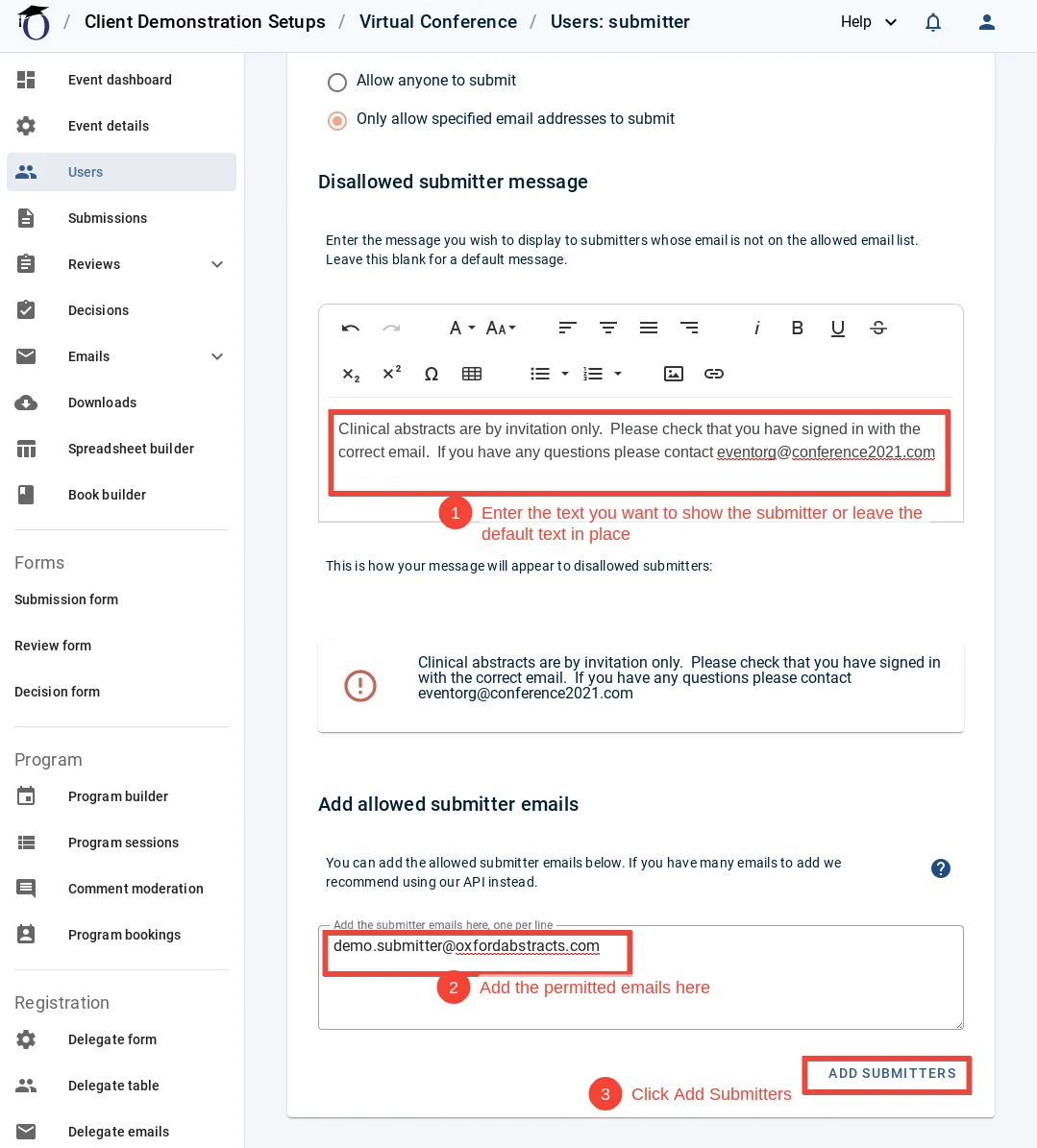
Once you have selected Only allow specified email addresses to submit scroll down for the following
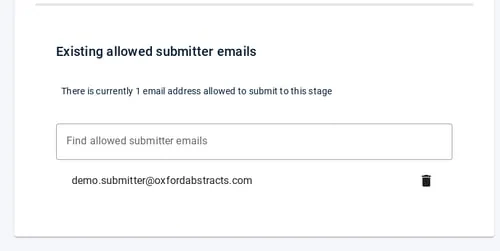
Once you have added the submitters they will appear in a searchable list at the bottom of the page from where you will be able to delete the emails if you wish.
Was this article helpful?
Contact supportRelated
Still stuck? Send us a ticket
Tell us what you're trying to do and one of our support team experts will come back to you promptly with the solution.