
Follow the link provided by the Event Administrator to submit a symposium.
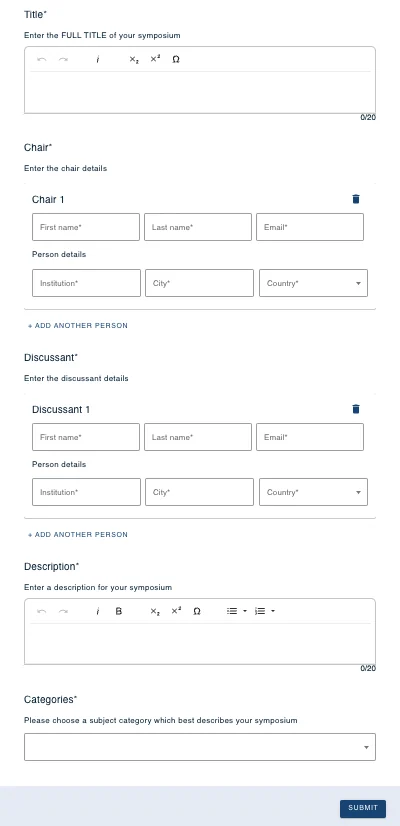
Complete the questions in the form, note that mandatory questions are denoted with a * then click Submit when complete.
Attaching submissions to a symposium
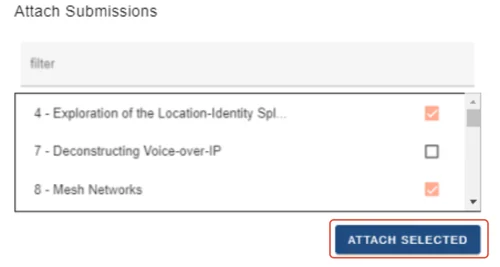
In the Attach Submissions area you will see a list of submissions that are available to be attached to your symposium. Click the checkbox to the right of the submission you wish to attach then click ATTACH SELECTED.
You can also submit your own abstract to your symposium by clicking the button below.

Inviting submitters to submit to your symposium
Any submitter can submit to a public symposium event. If the event organisers have set the symposia submissions for the event as private and you want other submitters to be able to submit to your symposium, you must invite them.
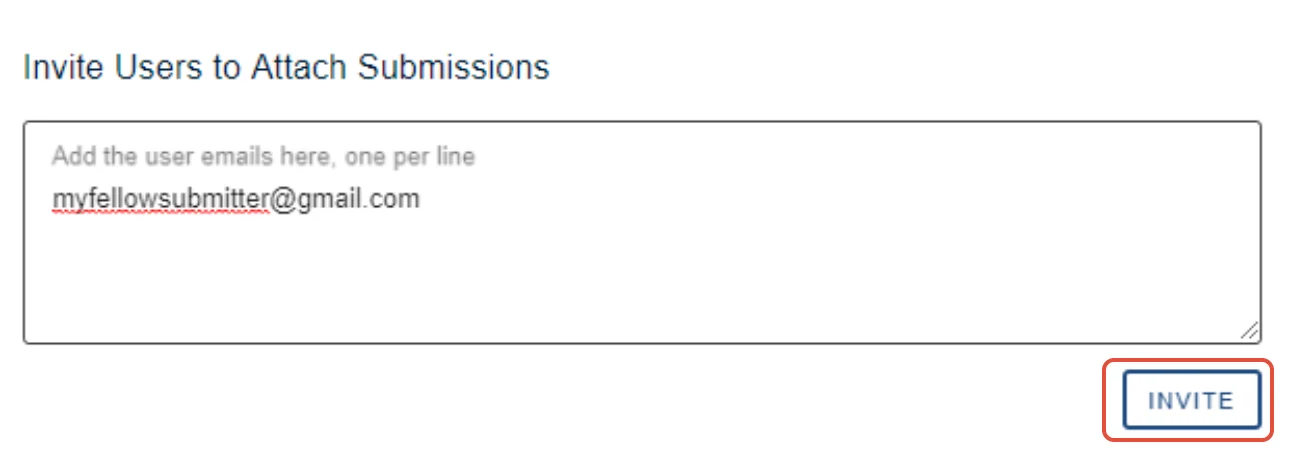
When creating or editing your symposium, enter the email addresses of those you wish to invite in the box shown below then click INVITE.
Removing invited submitters
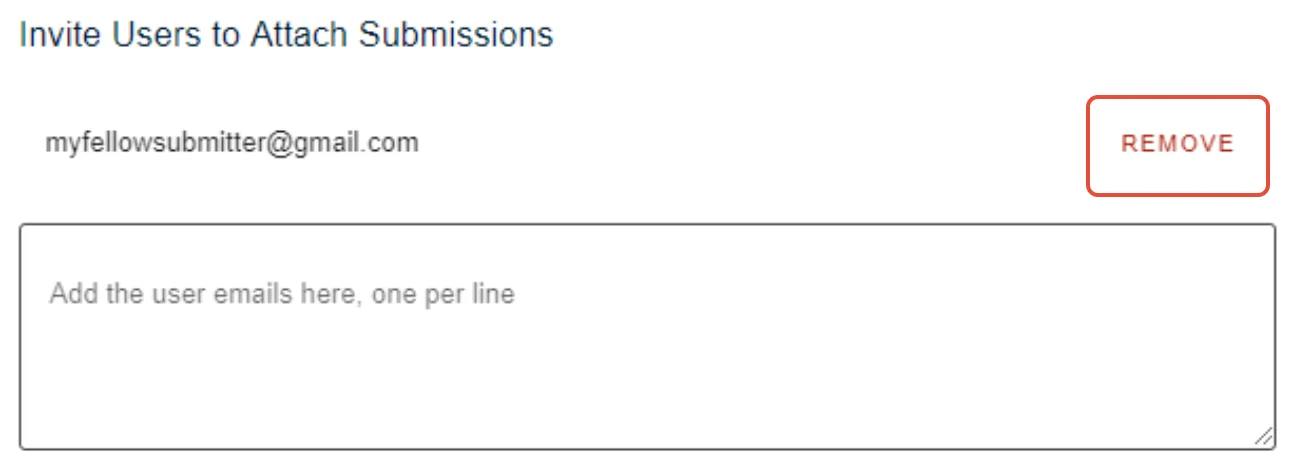
You can remove invited submitters from the list by clicking the REMOVE button next to their email address.
Creating additional symposia

Additional symposia can be created by clicking on the New Symposium button in the event listing in your personal dashboard.
Should you require any further assistance, please contact our support desk via our Contact Form.
Was this article helpful?
Contact supportRelated
Still stuck? Send us a ticket
Tell us what you're trying to do and one of our support team experts will come back to you promptly with the solution.