
Deleting, restoring or withdrawing a submission
An account or event administrator can delete or withdraw any unwanted submissions.
Go to Event dashboard → Abstract Management → Submissions → Table
Deleting a submission#
In the Submissions table, select the submissions you wish to delete by ticking the checkbox(es) on the left of each submission ID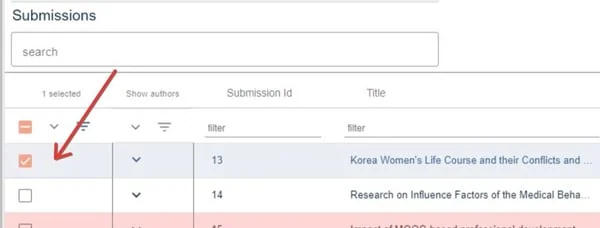
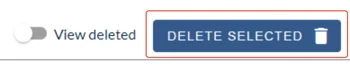
Once selected, click on the Delete Selected button in the top right hand corner of the table.

The deleted submissions can be viewed by clicking on View deleted
The Deleted Submissions table will display all submissions which have been deleted.
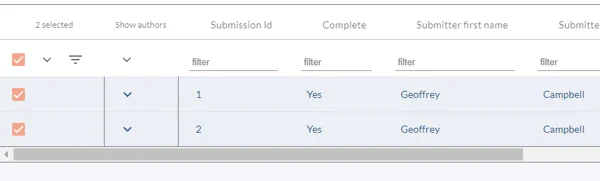
Restoring deleted submissions
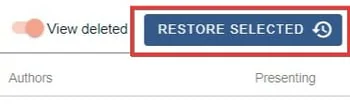
To restore a deleted submission, in the Deleted Submissions table, select the submissions you wish to restore by ticking the checkbox on the left of each submission ID and click Restore Selected
The restored submissions will now be restored to the main submission table.
Withdrawing a submission#
To withdraw a submission, go to Event dashboard → Decisions →
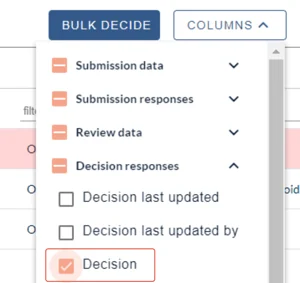
Ensure the Decision column is visible (in the Decisions responses section_.
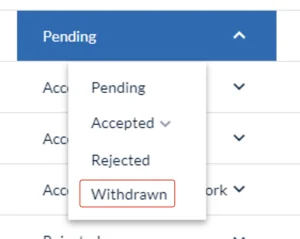
Navigate to the Decision column in the table. Click on the dropdown menu in the relevant row and select Withdrawn.
Note
Withdrawing a submission isn't the same as deleting, as it will still remain in the submission and review tables.
Common questions#
How do I withdraw or delete a submission as an administrator?#
To withdraw (as an administrator), see Recording a decision (Accepting/ rejecting/ withdrawing a submission). To delete a submission instead, follow the steps above.
If you are a submitter, contact the event administrator. You will see the email in the relevant event on your dashboard.
Was this article helpful?
Contact supportRelated
Still stuck? Send us a ticket
Tell us what you're trying to do and one of our support team experts will come back to you promptly with the solution.