
Amending, deleting and copying a session
If you wish to edit a session, click on your chosen session and continue as with creating a session.
You will notice the four icons to the top right of each session. From left to right:
1) Preview - click to see how the session will look to a user.
2) Move session
3) Copy session
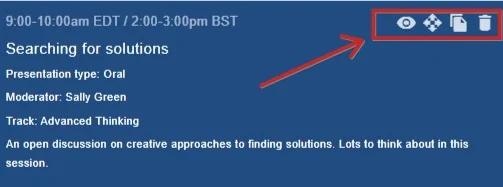
4) Delete session
Move a session#
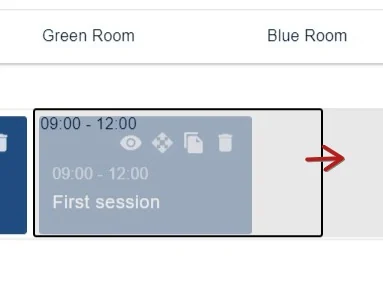
To extend the session across columns, click on the Move icon, then drag the side border(s) to your required time slot. The session must be dragged to an empty time slot.
Copy a session#
The thrd icon is the copy icon. This is a quick way to create a new session if several of the details can be duplicated.

Click on the icon.
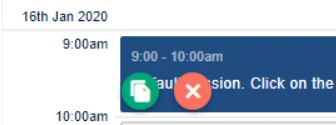
Click in the time slot where you would like the session to be copied to. Click the green copy icon when you're done, or the red cross to cancel.
Deleting a session#
To delete a session, click on the bin icon. NB - you cannot delete a session with abstracts attached to it.

Was this article helpful?
Contact supportRelated
Still stuck? Send us a ticket
Tell us what you're trying to do and one of our support team experts will come back to you promptly with the solution.