
Downloading invoices and receipts
Learn how attendees can download their invoices or receipts when they have purchased a ticket through delegate registration.
When an attendee is in the process of buying their tickets, when payment is completed, on the Order Details Confirmation screen they will see a dropdown box at the top right of the page called Download Receipt.
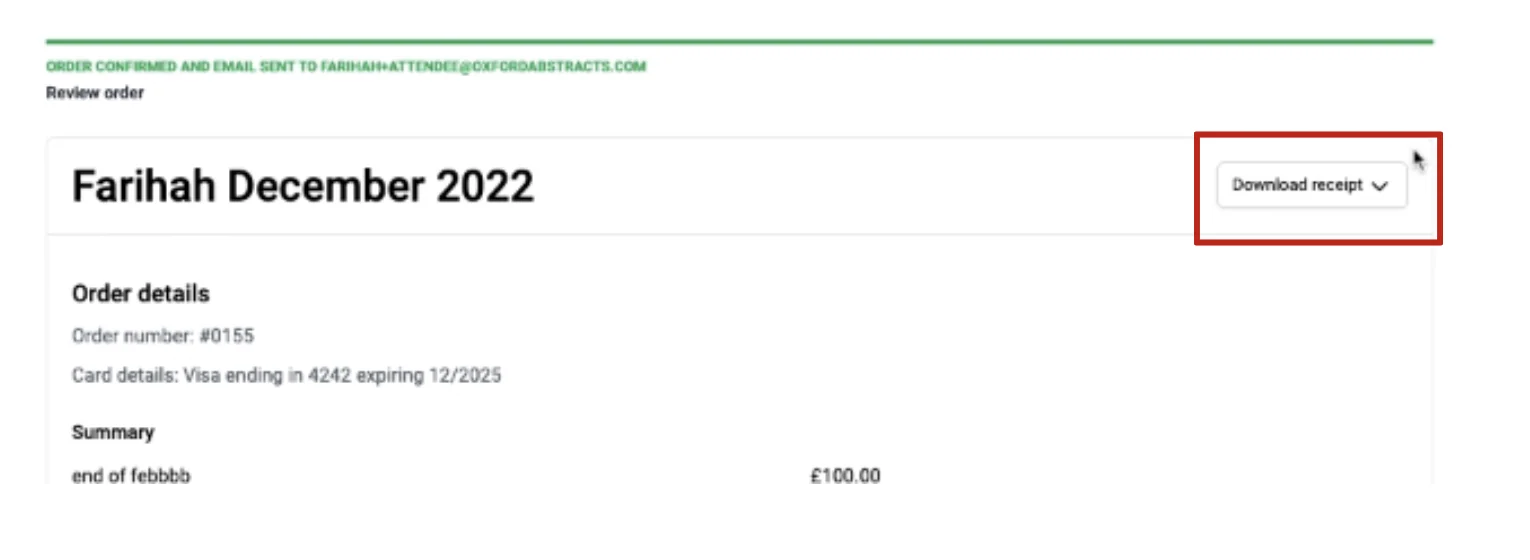
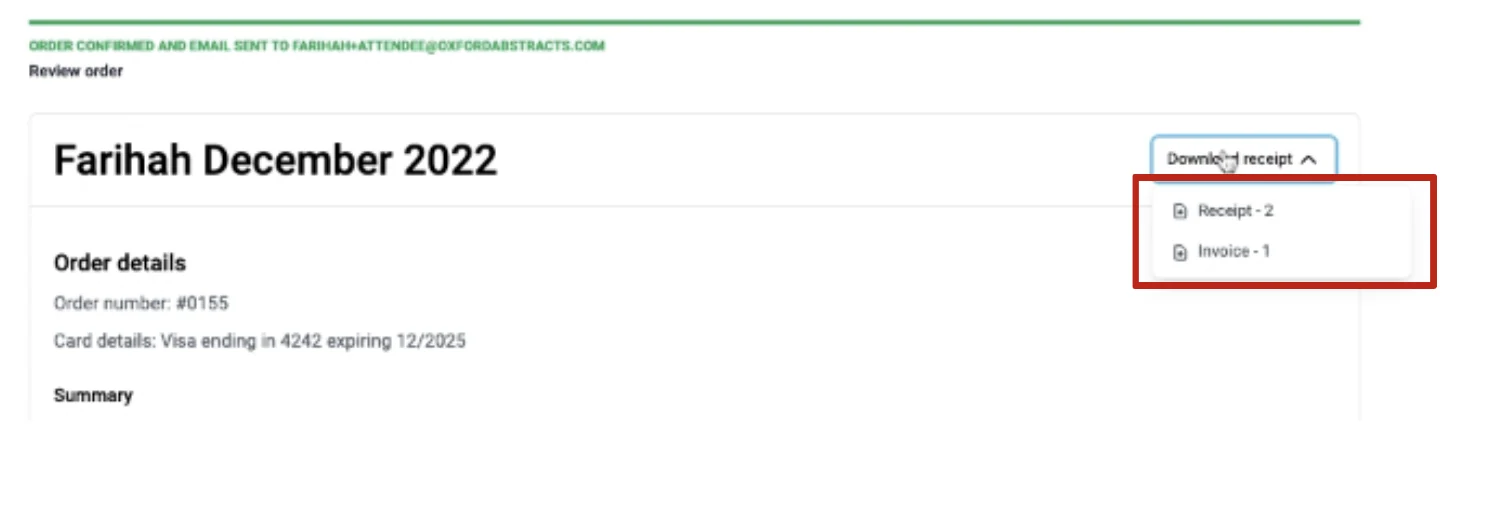
Click on this to download the receipt or invoice.
Sending it to them yourself#
Most of the time it is quicker to send it than to talk someone through finding it.
Go to Event dashboard → Registration → Registrations table, click the attendee's row, and use:
- Email to send them the Receipt or the Invoice directly
- Order downloads to save a copy for yourself
Note
An order is recorded against the buyer, who may not be the person attending. If you cannot find someone in the attendee list, they may have had a ticket bought for them. See Buyers, ticket holders and who receives what.
Note
This page is about the receipt and invoice documents. If you want to let delegates pay by invoice or bank transfer instead of by card, see Letting attendees pay by invoice or bank transfer.
How an attendee gets it themselves#
If an attendee needs to download it later, they can access it via their dashboard.
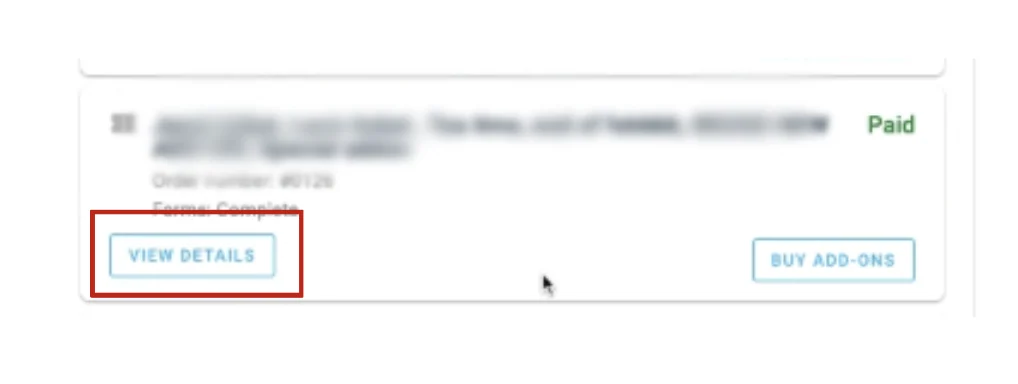
All they need to do is log into their Oxford Abstracts account with their attendee email address (the email they used to set up their attendee account), go to the box of the event they wish to obtain their invoice/receipt from, click on View Details.
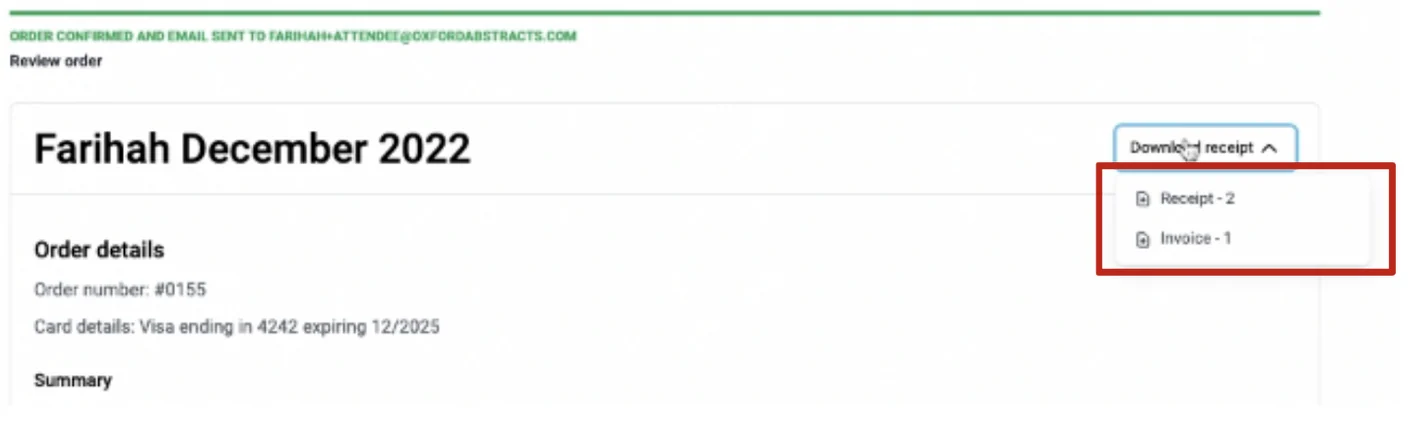
On the next screen click on the dropdown box at the top right of the page called Download Receipt. Then choose to download the receipt or invoice.
If you require further assistance, please get in touch with our Support Team via this Contact Form.
Was this article helpful?
Contact supportRelated
Still stuck? Send us a ticket
Tell us what you're trying to do and one of our support team experts will come back to you promptly with the solution.