
Creating custom emails
If you need a specific template that isn't included in the range of default emails, you can create your own.
There are two ways to create custom emails.
Go to Event dashboard → Emails → Edit & send → Abstract management
Creating a custom email from scratch#
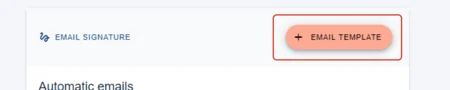
You will then see a list of template emails for the event. Click on +EMAIL TEMPLATE to create a new custom email.
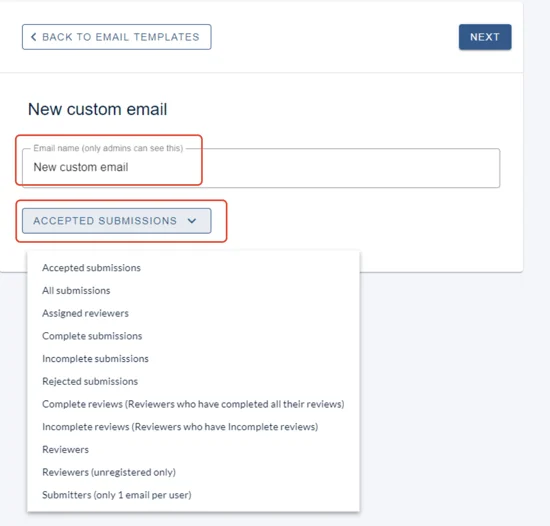
In the New custom email screen, enter a name for the email and click the recipient group dropdown to choose your required option.
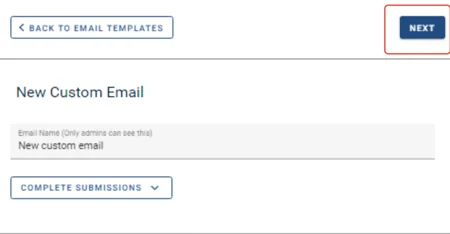
Click NEXT after entering a name and choosing a recipient group.
Follow the guidance in Amending email templates to set up your template.
You can leave the screen at any point as changes are saved automatically. You will see your new Custom Email at the bottom of the list of templates.
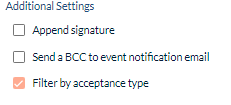
If you choose Accepted submissions as your recipient group, you will get the option to Filter by acceptance type.
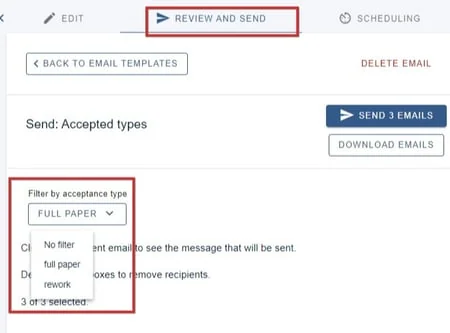
To filter recipients by acceptance types, click on Review and send and then click on the dropdown under Filter by acceptance types.
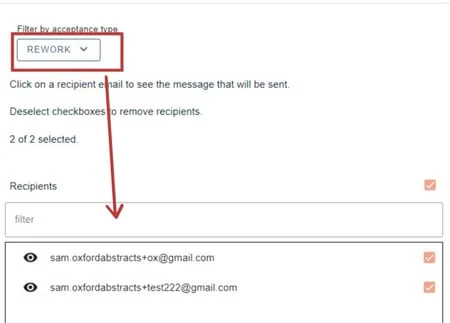
The recipients will be updated
Creating a custom email from an existing template#
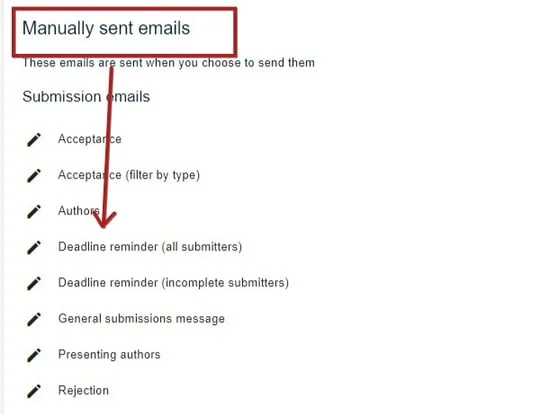
You can create copies of existing manual email templates and save them as new templates.
Click on any manual email template.
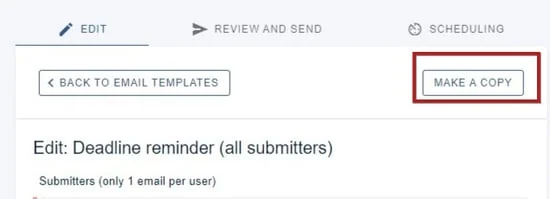
Click Make a copy
1) Enter a name for the email
2) Choose the recipient group
3) Click Next
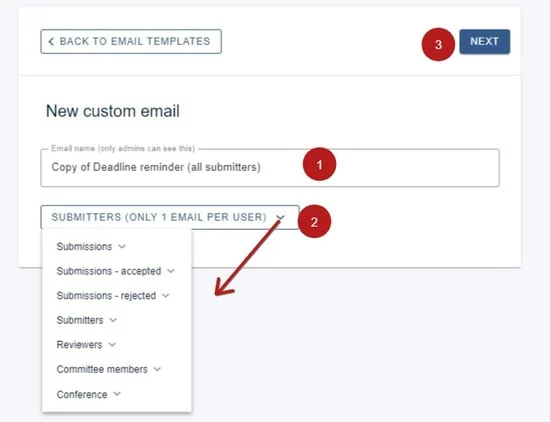
Then follow the guidance in Amending email templates to finish setting up your template.
Common questions#
What information can I include in emails?#
How can I create an email that's not on the list of templates?#
Go to Event dashboard → Emails → Edit & send → Abstract management. You can either build one from scratch or start from an existing template and change it — both are described above.
Editing email signature#
You can create your own email signature and add it as an optional feature on each email template.#
Go to Event dashboard → Emails → Edit & send → Abstract management
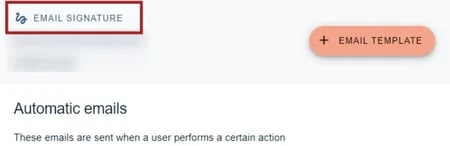
Click on Email Signature to view/edit the email signature.
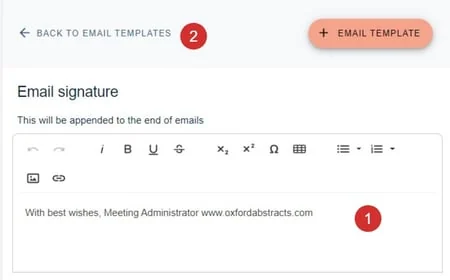
You can then -
1) make any changes required to the current email signature, then
2) click Back to email templates
All changes will be saved automatically.
To add your email signature to your emails, see Amending email templates.
Was this article helpful?
Contact supportRelated
Still stuck? Send us a ticket
Tell us what you're trying to do and one of our support team experts will come back to you promptly with the solution.