
Learn how to change the submission owner by following the instructions below#
Note
You cannot add a new submitters name.
This can only be added by the user when they register with Oxford Abstracts.
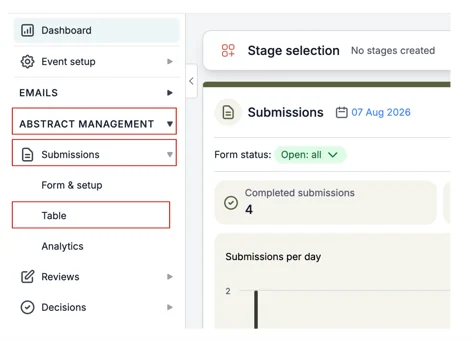
From your Event Dashboard, click on Abstract Management, then Submissions and Table.
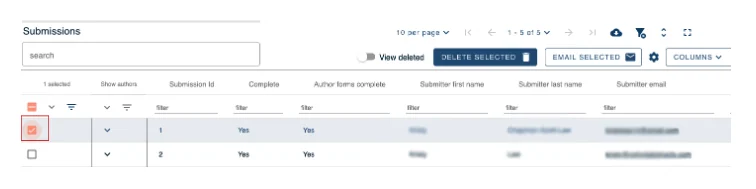
From here tick the submission/s you wish to change the owner of by selecting the box on the left-hand side.
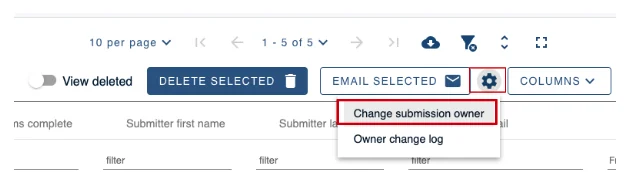
Next click on the Cog icon above the submission table, and then select Change Submission Owner.
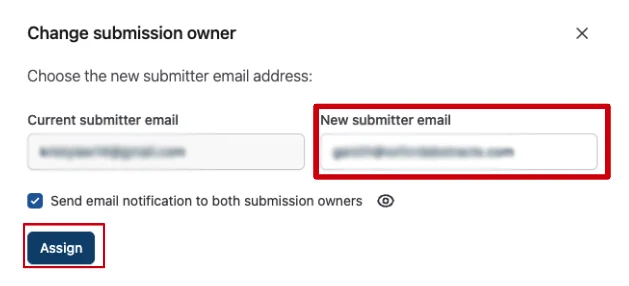
On the next screen, you’ll see a box with the current submitter's email address.
The box next to it allows you to add the new submitter's email address.
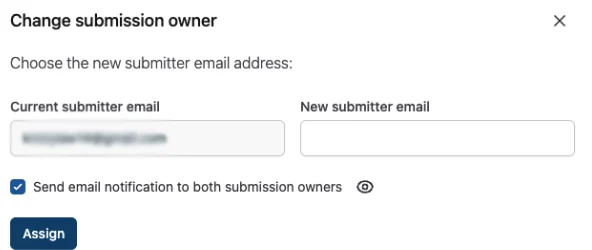
Add the new email address and click on Assign.
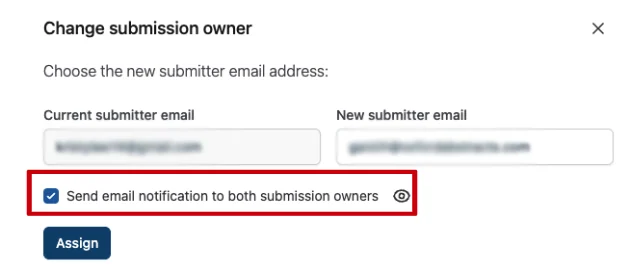
You can tick/untick the box underneath to allow an email to be sent to both email addresses updating them on this change.
You are also able to view the Change Owner Log to which submissions have change owners and who is responsible for this action.
Click the Cog icon above the table and click on the Owner Change Log.
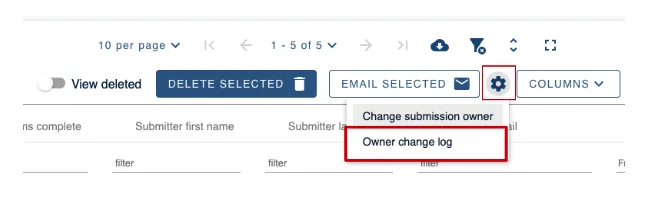
From here you can view all submissions that have changed owners.

Should you require any further assistance, please contact our support desk via our Contact Form.
Was this article helpful?
Contact supportRelated
Still stuck? Send us a ticket
Tell us what you're trying to do and one of our support team experts will come back to you promptly with the solution.