
Creating and paying for a new event
In most cases, client /account admins can create, set up and pay for a new event, without needing to contact Oxford Abstracts. The guidance below shows you how to do this.
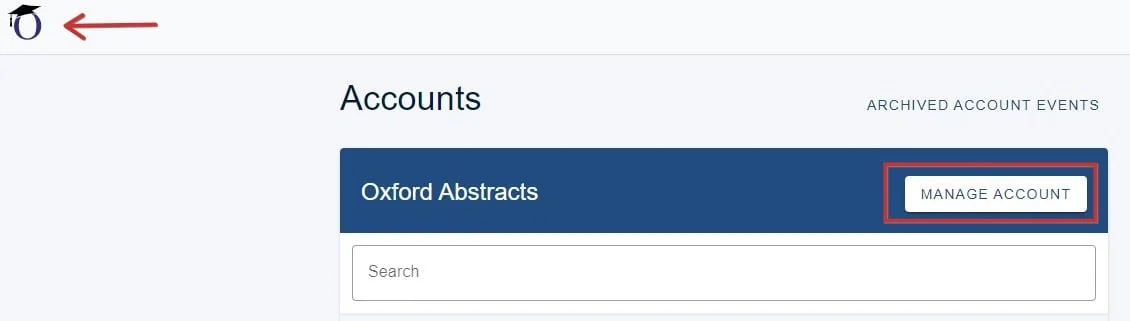
Log on to app.oxfordabstracts.com and go to your account dashboard. If you don't see a page like the one below, click on the "O" symbol in the top left of the screen. If you don't see this, please contact support@oxfordabstracts.com so we can enable this feature.
Click on Manage Account.
Click New event in the left hand menu and make your choice.
Note
You can also (3) ask Oxford Abstracts to set up your event, if you wish, but note that creating your event saves you time as, although we endeavour to respond to any queries asap, this can take up to two days.
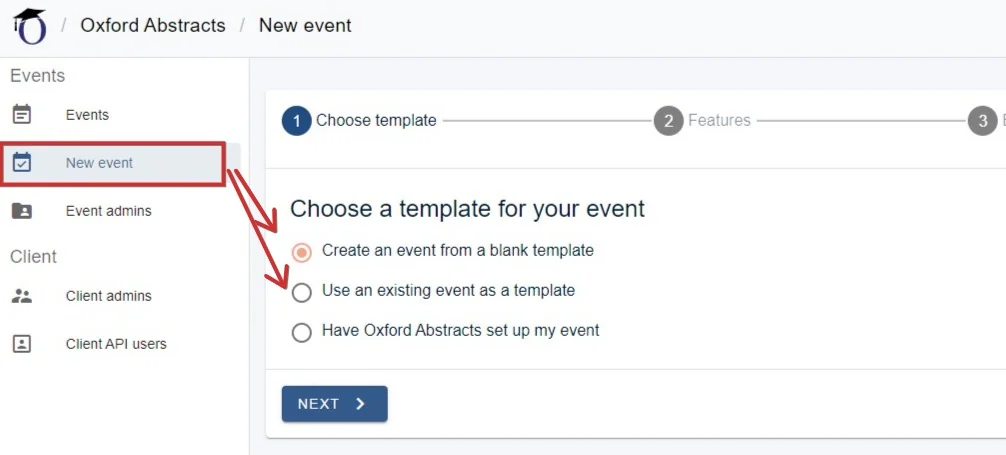
Create an event from a blank template#
1) Choose which package you require 2) Add any required bolt-ons. 3) The price will be updated with your choices. 4) Click NEXT 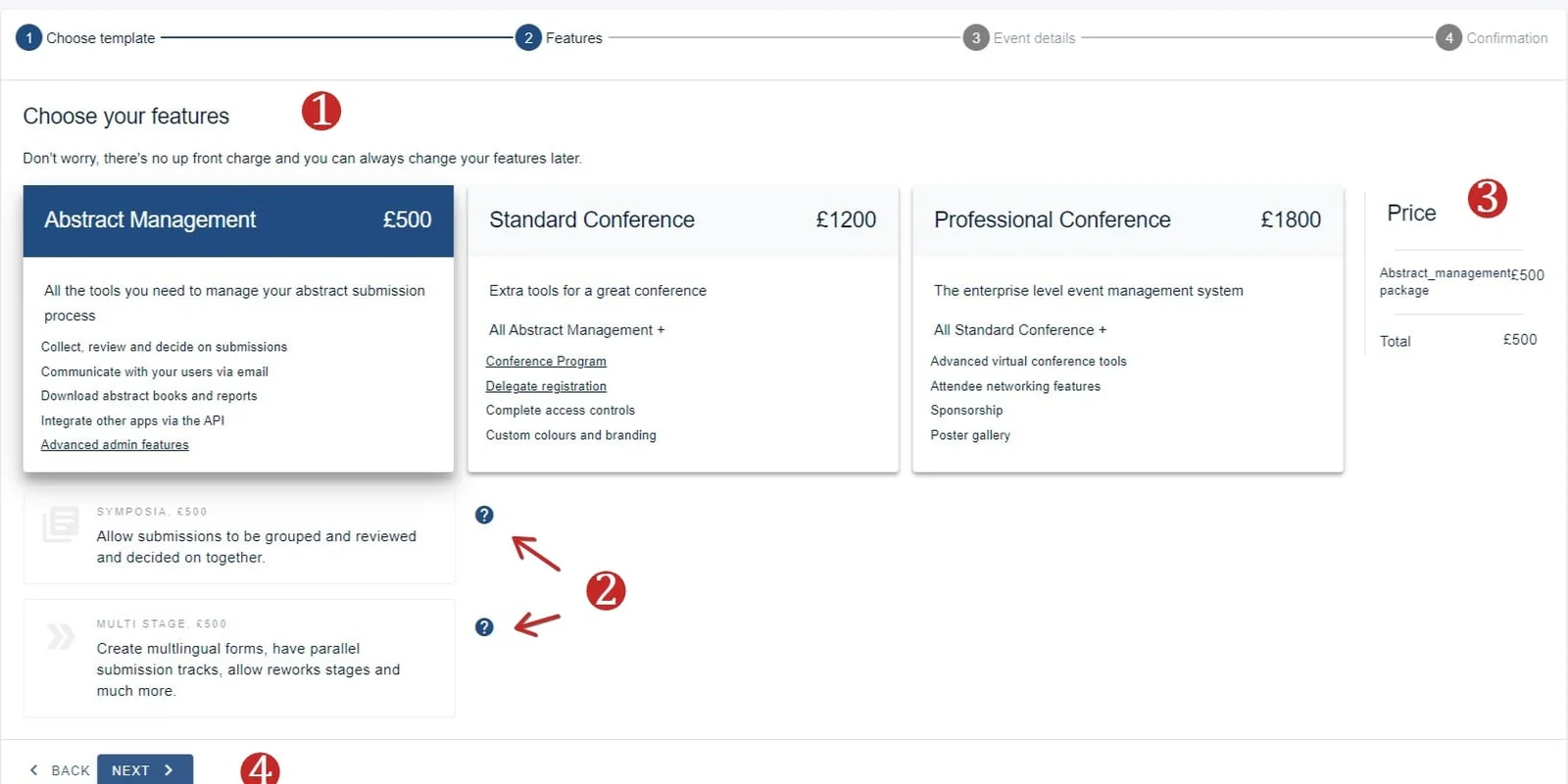
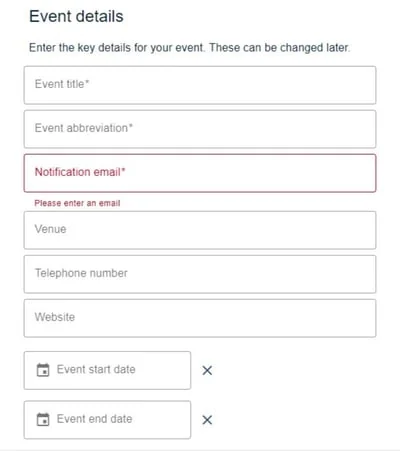
Enter event details (all fields with an asterisk are mandatory) and click NEXT.
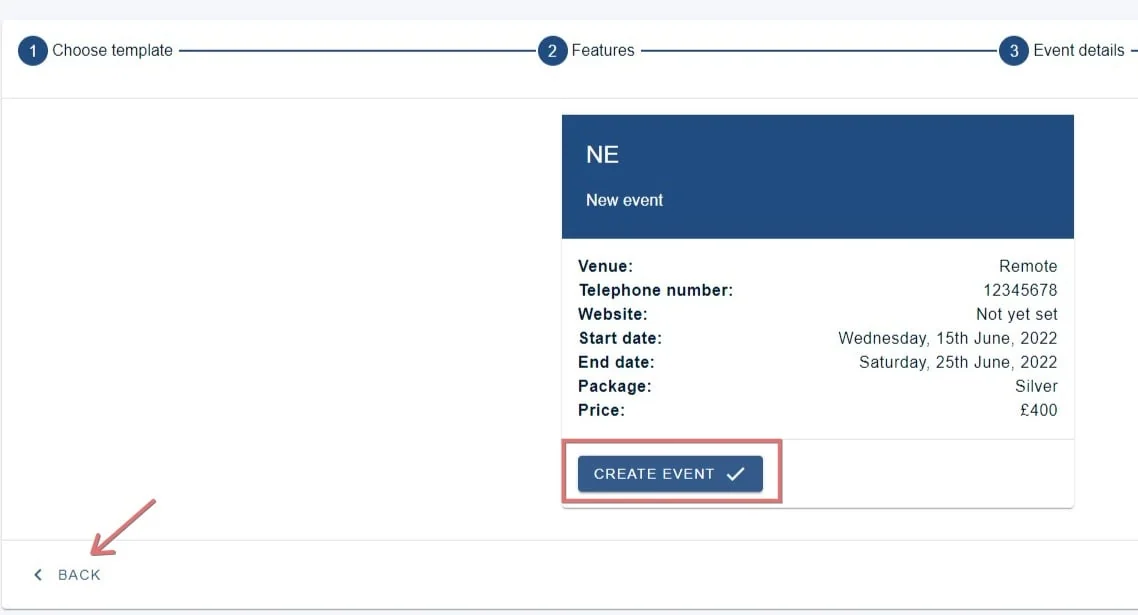
Check your details. If correct, you can then click Create event. If you need to amend, then click Back
Use an existing event as a template#
If you've chosen this option, you can 1) Search for the event you would like to copy (will search for title and abbreviation) 2) sort by date or alphabetically.
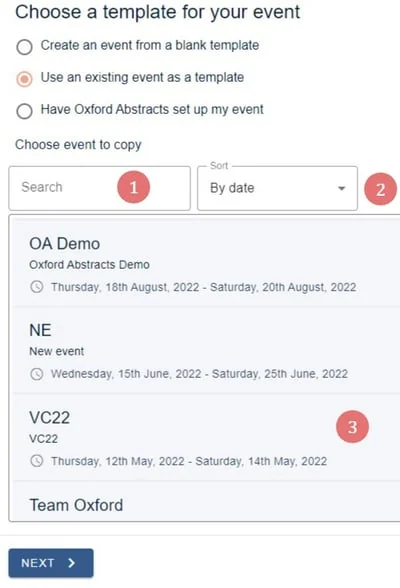
Click on the existing event you would like to copy and then Next.
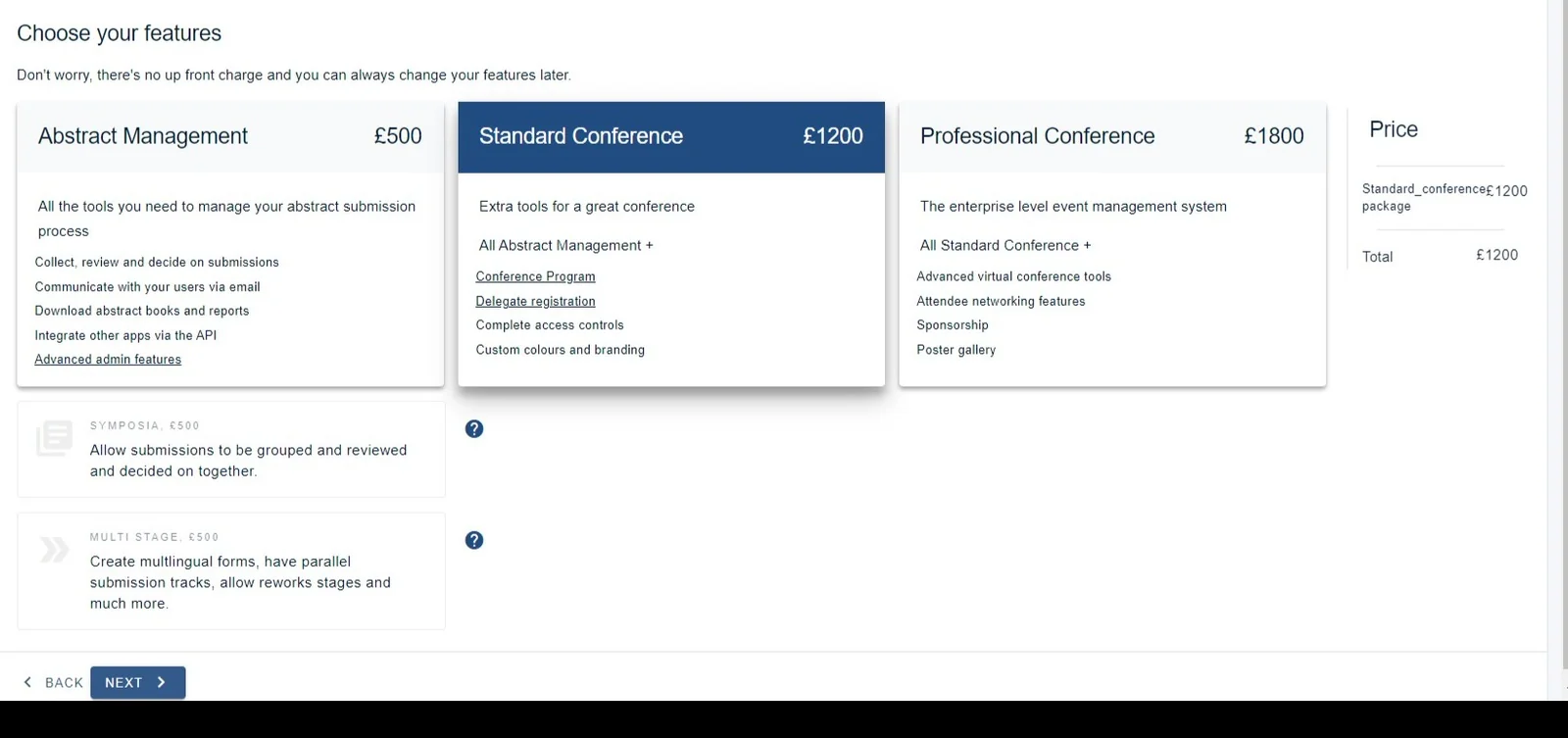
The next page will be prepopulated with the type of package and any additional tools. Click Next
You can begin using your event straight away.
Paying for your event#
After clicking create event, you can go straight to the event dashboard, where you will see the Payment pending, at the top left of the screen.
Note
You have thirty days to pay for your event.
Click the Pay for event on the left column.
Click on Pay for event, and a new screen will pop up where you can pay.
Agree to the terms and conditions and choose your payment method.
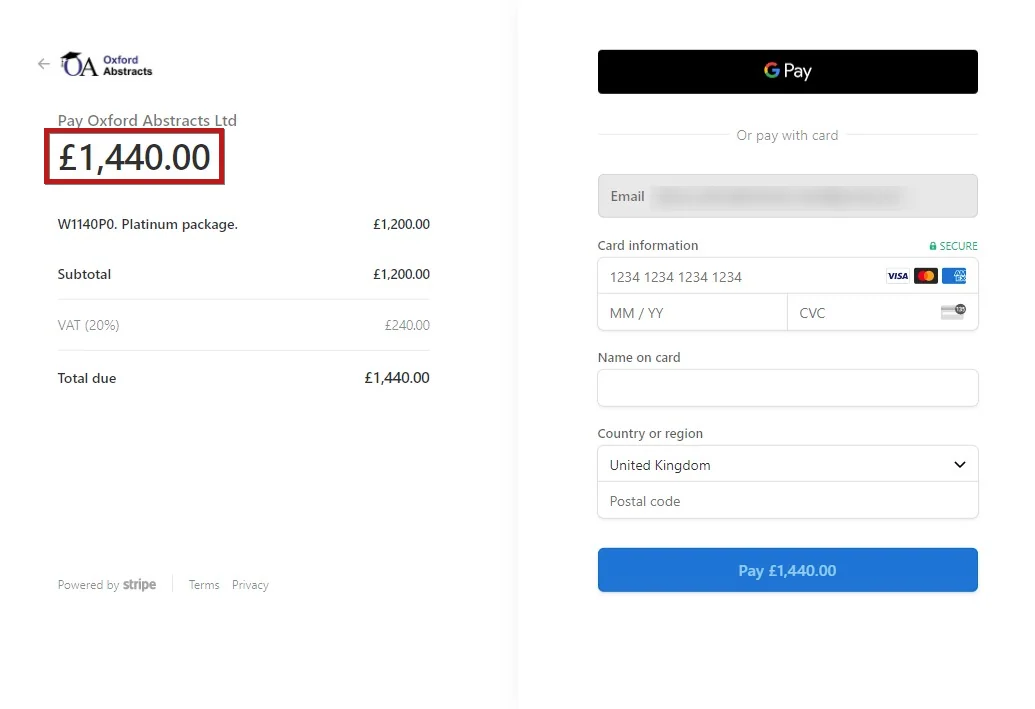
Pay by Card will take you to a Stripe payment page and VAT will be added if applicable.
If you wish to pay by an alternative currency, contact accounts@oxfordabstracts.com
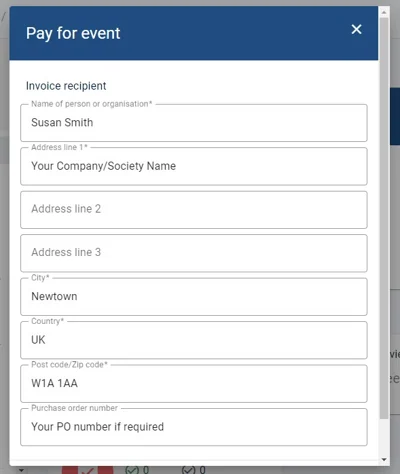
Pay by Invoice will allow you to enter the invoice details, and pay by bank transfer.
Then confirm your invoice
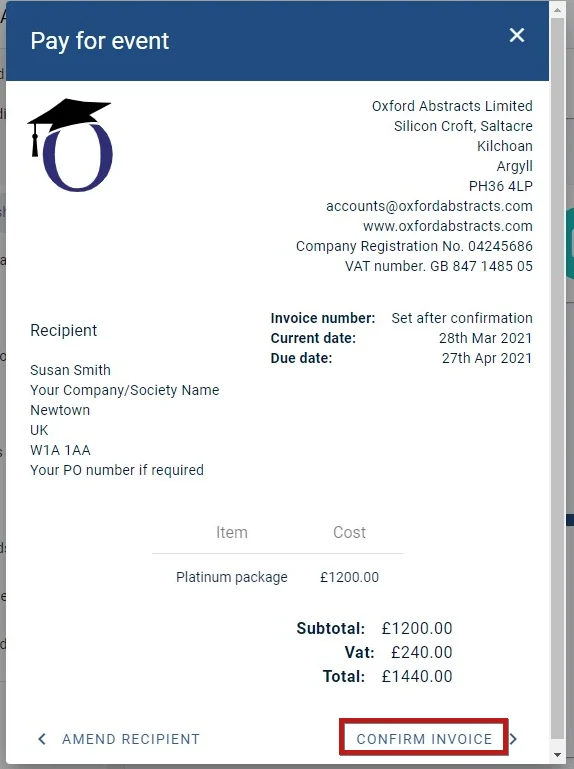
You will be emailed an invoice with details on how to pay, and you can print a copy, should you wish. You can also view your invoice using the Payments icon at the top of your screen.
Was this article helpful?
Contact supportRelated
Still stuck? Send us a ticket
Tell us what you're trying to do and one of our support team experts will come back to you promptly with the solution.