
Session bookings
Monitor bookings through the Program Bookings table, which provides a list of Chairs, Presenters and Authors - the latter which is optional - and the slots assigned to them in the program, and whether any potential clashes need to be addressed.
Note
The system will alert potential conflicts where the surname and at least the first initial are a match, so Jane Smith and J. Smith, but not Albert Jones and Bert Jones.
Go to Event dashboard → Conference → Program ➞ Bookings
The table has all the features of other Oxford Abstract tables - see An overview of the tables function. - but with a slider to include authors if required, to the left of the Columns control (where you control the visibility of all the columns on display).
In the first column, you can see that each booking has been assigned an ID.
If you look at (1) Booking ID 15, the (2) Presenter for submission 5 in the (3) Searching for solutions session has (4) one scheduled conflict. This booking clashes with (5) Booking ID 26.
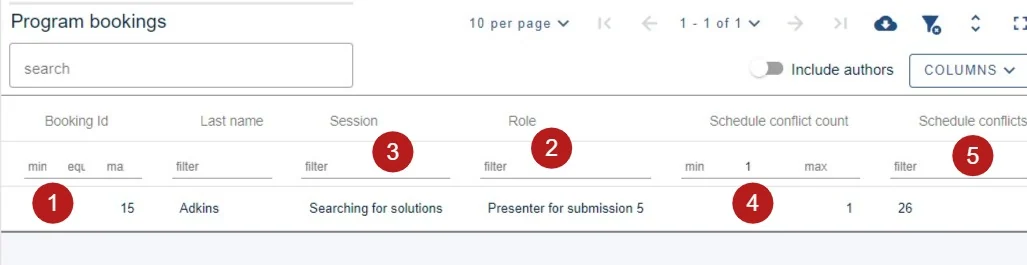
You can use the filter shown below in the Schedule conflict count column header to search for any conflicts by entering '1' in the column header.
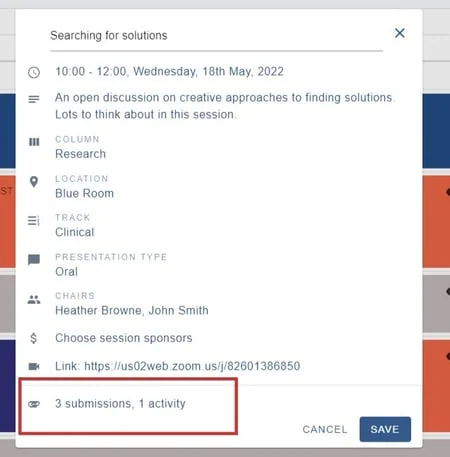
If you would like to resolve the conflict, click on the row where it occurs. You will be taken to the booking in the program builder which you can amend, by clicking on the Attach submissions section...
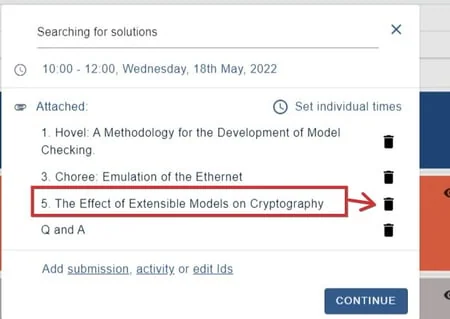
and removing the relevant submission ID (in this case submission 5 - as shown in (2) in the figure above).
Or alternatively, enter the booking ID of the scheduled conflict and amend that.
Common questions#
How can I see if there is a clash in bookings?#
The bookings table has a Schedule conflict count column. Go to Event dashboard → Conference → Program → Bookings and enter 1 in that column's header to filter for conflicts.
Click the row where a conflict occurs to open that booking in the program builder and resolve it. A clash is flagged where the surname and at least the first initial match — so Jane Smith and J. Smith, but not Albert Jones and Bert Jones.
Was this article helpful?
Contact supportRelated
Still stuck? Send us a ticket
Tell us what you're trying to do and one of our support team experts will come back to you promptly with the solution.