
Emailing session chairs from the dashboard
Learn how to email Session Chairs of your event either in bulk or individually.
If you would like to send Session Chair’s emails you can do so via your event dashboard.
Please ensure you have added the Chair's email addresses, so you can email them from the dashboard.
Go to your Event Dashboard → Conference → Program → Bookings
On the program bookings dashboard, you can see the list of users for the event.
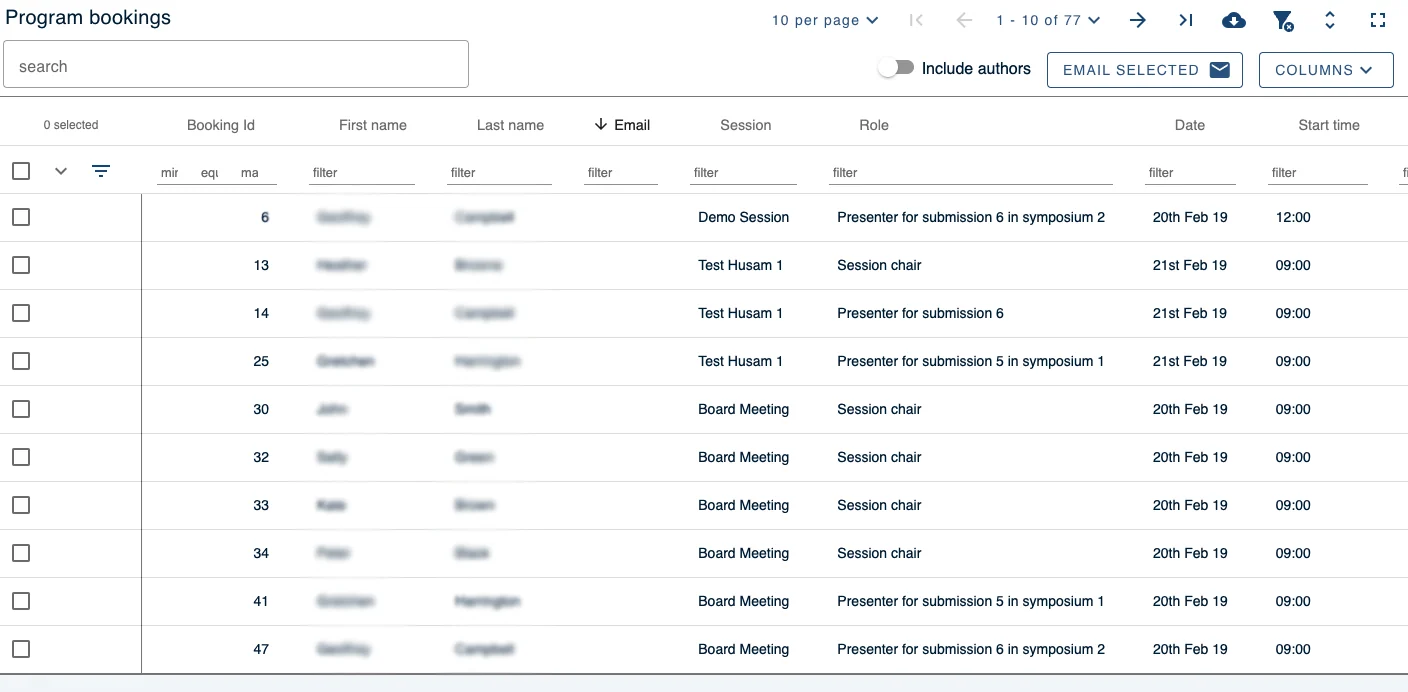
Under the column “Role” on this dashboard, you can filter who you would like to email.
Type into the filter box (found underneath the “Role” column) ‘Session Chair’ to show only your chairs for the event (see image below).
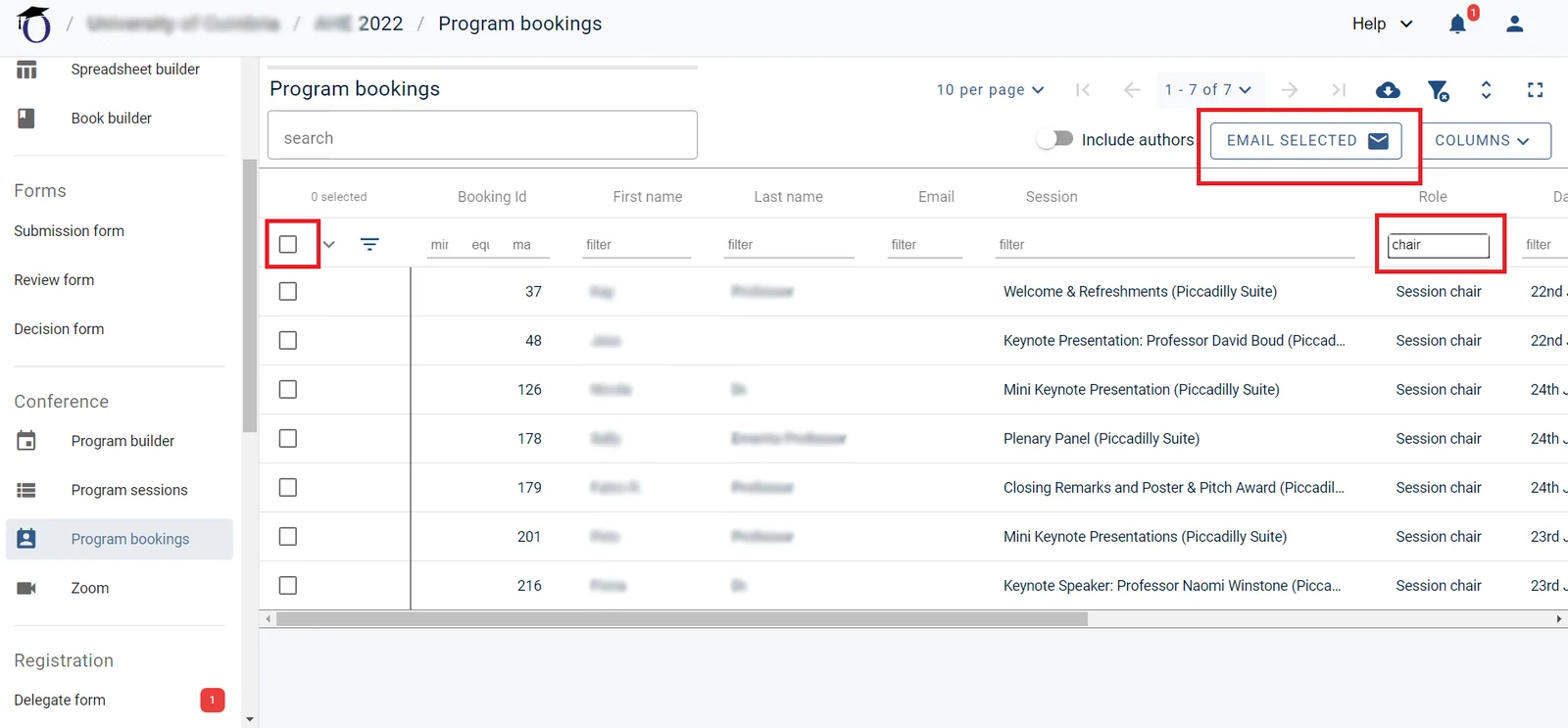
Next, go to the left-hand side of the dashboard and under “Selected” tick the box so all chairs will be selected/highlighted.
If you do not wish to email all the chairs at the same time, you can instead click on the boxes individually on the table next to the chairs you want to email (see image above).
Once you have made your selection, go to the top right of the dashboard where you will see/click the button “Email Selected” (see image above), to send an email.
See Sending emails from tables for how to send emails from tables.
Should you require further assistance, please get in touch with our helpdesk - support@oxfordabstracts.com.
Was this article helpful?
Contact supportRelated
Still stuck? Send us a ticket
Tell us what you're trying to do and one of our support team experts will come back to you promptly with the solution.