
Attaching content to sessions
Attach content that you have collected in the submission form, eg. posters, abstracts or links to live (Zoom, Google Meet etc.) or on-demand (Youtube or Vimeo etc.) content. You can also add activities such as Q&A sessions, and coffee breaks.
Go to Event dashboard → Conference → Builder
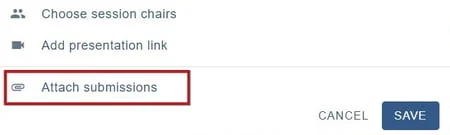
Click on a session. At the bottom of the panel, you will see Attach submissions
Note
If you have the Symposia module, you will see an option for Attaching symposia which works in the same way as attaching submissions.
Choose submission, activity or edit ids
Submission: Information collected from the submission form. You can set Individual times, should you wish.
Activity: eg, coffee breaks and Q&A sessions. ( See Setting up your program - program configuration for setting these up.)
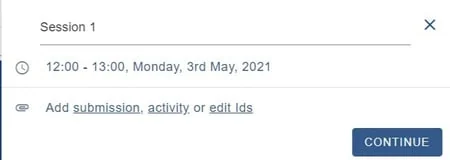
Edit Ids: For editing the submission IDs added in the Submission option.
Submissions
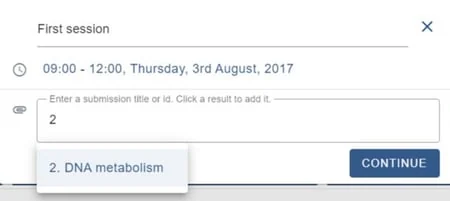
As you begin typing in the field, options are suggested. Click on your choses options to add to the session.
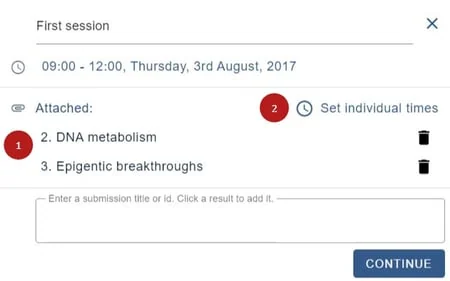
Once you have 1) added your choices, you can either click Continue to move to the next stage, or 2) Set individual times for each submission.
Setting i ndividual times
You can then choose to
1) Pick highest interval, which will distribute the time of the session into equal slots, and click Apply.
2) Schedule automatically by entering a time interval in minutes, then click Apply
3) Enter specific times
4) This will clear all entered data.
Once you have set your times, click Done. 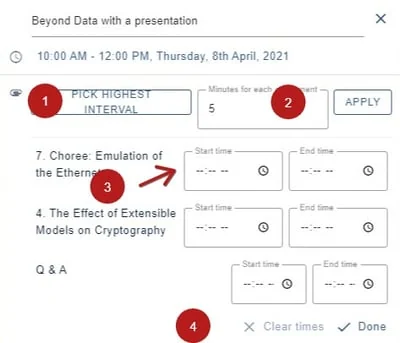
Note
Changing the session time does not update the individual time.
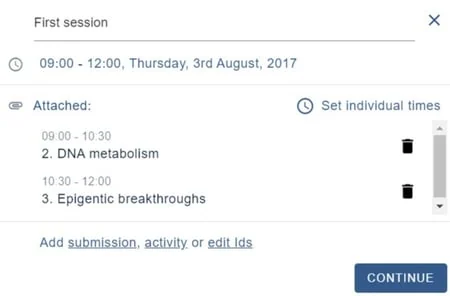
Click Continue to return to the session panel.
Adding activities
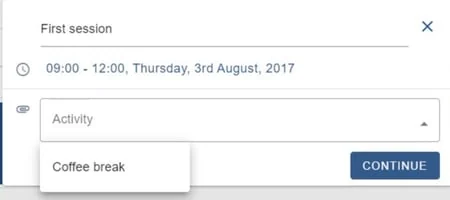
Before you add an activity, you will need to set them up. (See Setting up your program - program configuration for setting these up.) Once you have done so, just click on the chosen activity. Click continue to return to the session panel.
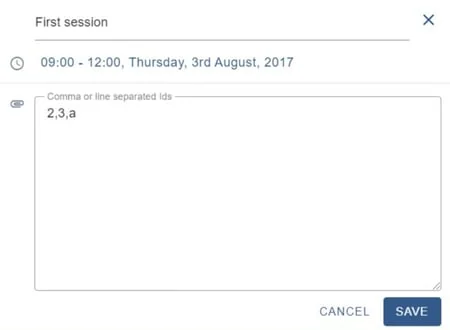
Edit IDs
Clicking on Edit IDs will allow you to manually add, delete or change the order of submissions / activities.
Was this article helpful?
Contact supportRelated
Still stuck? Send us a ticket
Tell us what you're trying to do and one of our support team experts will come back to you promptly with the solution.