
Adding chair's email addresses
Find out how to add chair email addresses for your event.
How to manually add chair email addresses, individually.#
From your Dashboard → Conference → Program → Builder
Next click on Settings towards the top right of the page.
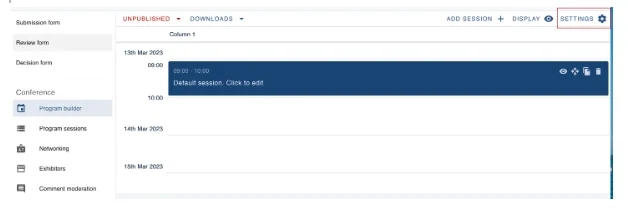
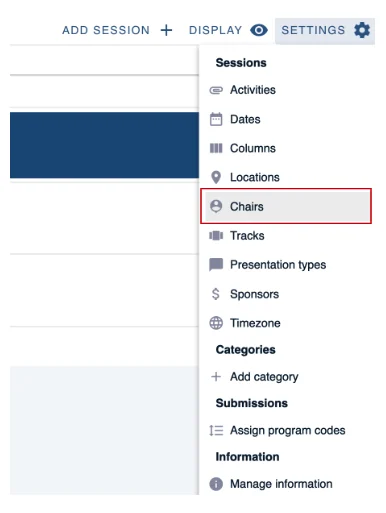
Next click on Chairs from the drop-down menu.
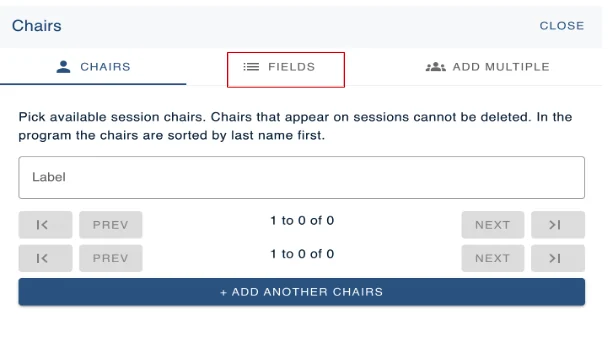
Then select Fields.
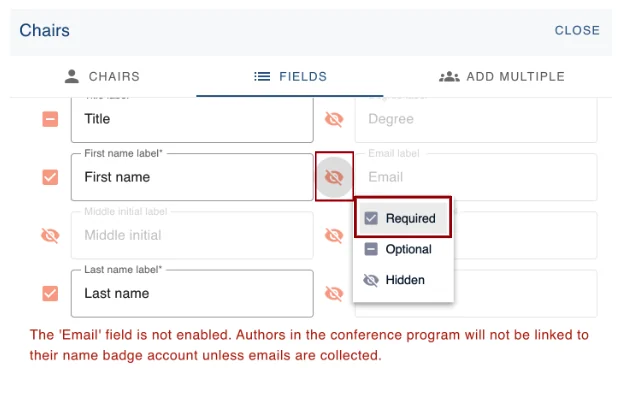
Click on the “eye” symbol next to Email and select Required.
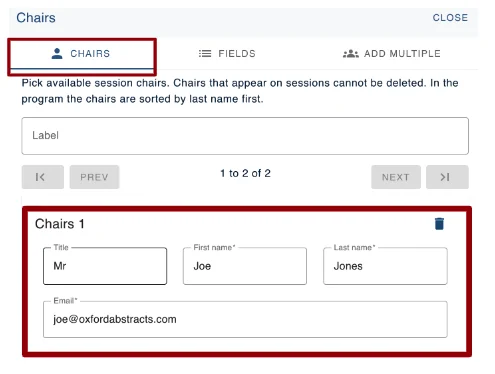
Select the Chairs tab to add the name of the chair and their email address.
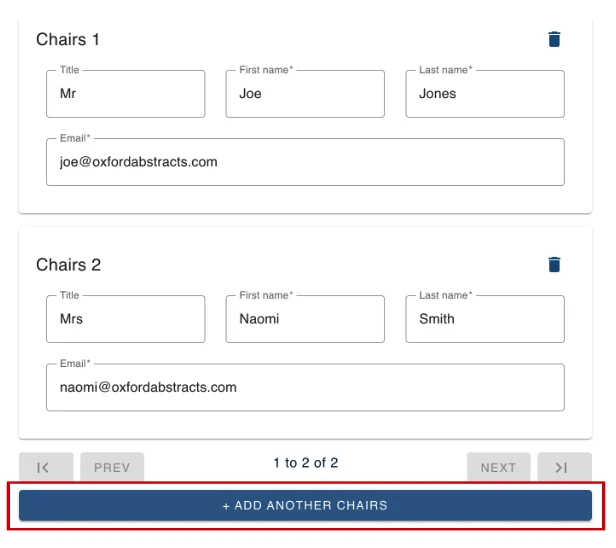
To add another Chairs details, click + ADD ANOTHER CHAIRS.
Adding multiple chairs at the same time#
From your Dashboard → Conference → Program → Builder
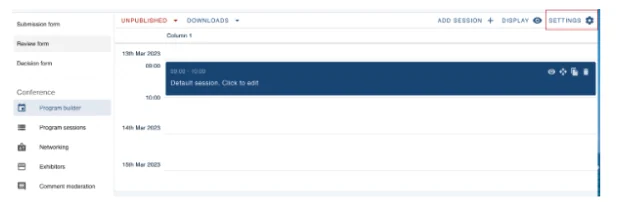
Next click on Settings towards the top right of the page.
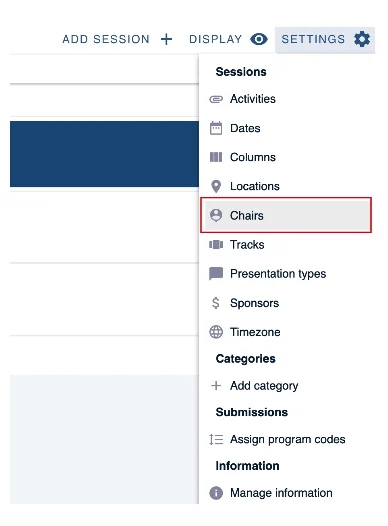
Next click on Chairs from the drop-down menu.
Select Add Multiple.
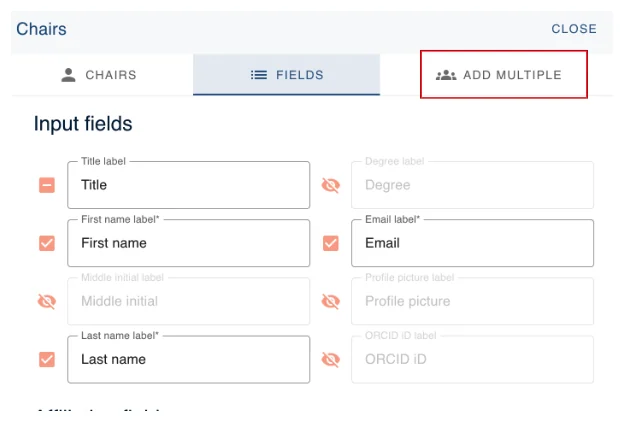
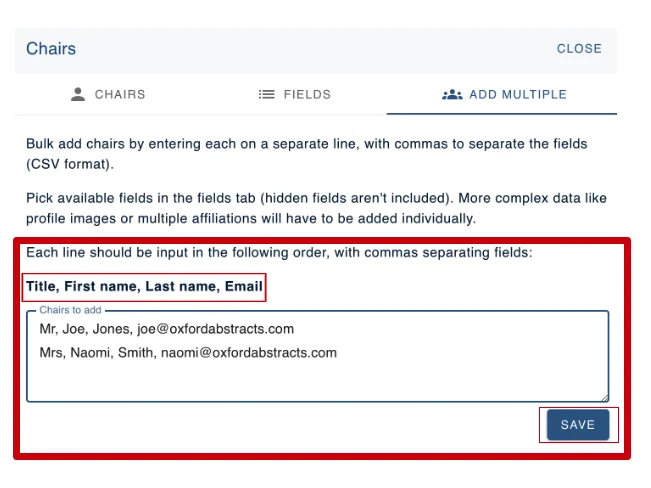
Whatever fields have been selected in the fields tab, this is what you will complete in this section (see bolded words on the image below)
Don’t forget to add the commas after each field you input e.g. Mr, Joe, Jones, (see below image).
When finished, click Save and return to the Chair tab where you will see all Chairs that you have added.
 .
If you should need further assistance, please contact our helpdesk via our Contact Form.
Was this article helpful?
Contact supportRelated
Still stuck? Send us a ticket
Tell us what you're trying to do and one of our support team experts will come back to you promptly with the solution.