
Design the decision form
The decision form questions create the columns in the decision table. As well as key data, there will be fields where data can be entered by the administrators or committee members.
Go to Event dashboard → Abstract Management → Decisions → Form & Setup
The default Decision Form will be displayed with the current default questions.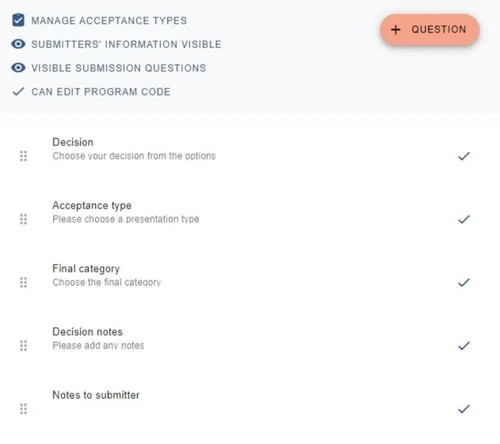
At the top, before the questions, there are four key settings
Manage acceptance types: Click to create decisions such as accepted for poster, oral etc.
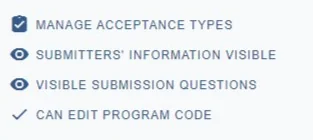
Submitters' information: Toggle on or off to enable or disable the visibility of submitters' name and email address.
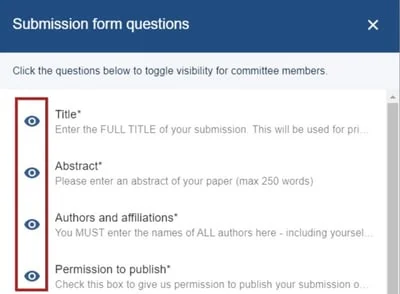
Visible submission questions: Set the visibility of each question by clicking on the eye icon next to each question.
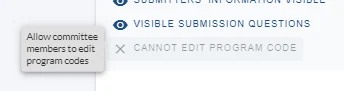
The final setting allows you to enable and disable the permissions for committee members to edit the program code (see Recording a decision.)
The default questions#
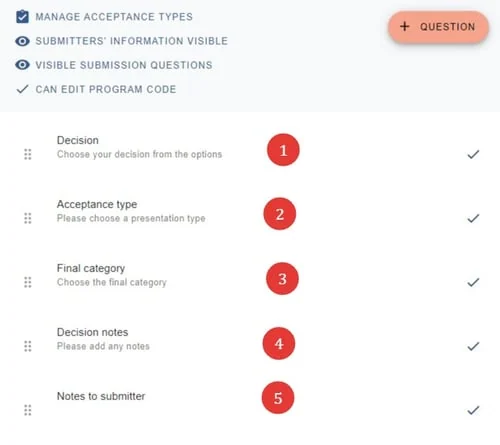
1) Decision - the options here are not editable.
2) Acceptance type - the options here are determined by acceptance types.
3) Final Category - options are determined by the categories entered in the Category question in the Submission form
4) Decision Notes - data entered here will only be viewed by admin.
5) Notes to submitter - data captured here can be shown to submitters via merge fields in emails.
Display settings#
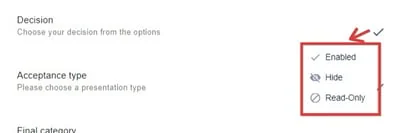
The display settings are also available on each question:
Enabled- Committee can edit responses / enter data
Hide- Committee won't see the question
Read only - Committee can read the responses, but not edit.
Adding a question
You can add a new question to the review form by clicking + Question then choosing the relevant question type from the list.
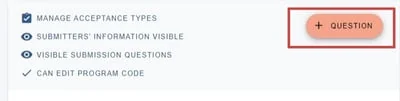
If you are on the Free Plan you cannot add any questions to the decision form.
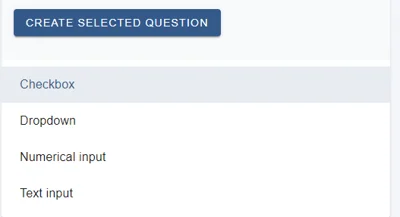
There are three options -Checkbox, Dropdown, Numerical input, Text input
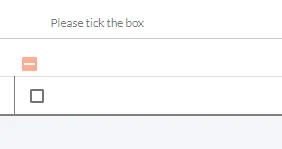
Checkbox will look like this in the decisions table. Click the option, then the Create selected question button.
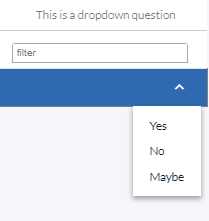
The dropdown question provides a choice of options, as below.
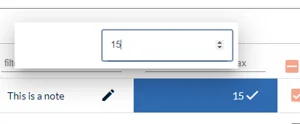
A Numericalinputquestion would provide a field to enter a number.
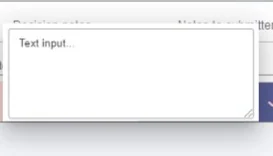
A Textinputquestion would provide a field for text input.
Deleting a question
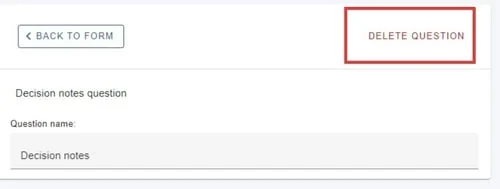
Click on the relevant question then click Delete Question in right hand corner of window.
Note
This option is only available to those questions that can be deleted. eg decision notes, notes to submitter.
Restoring a Deleted Question
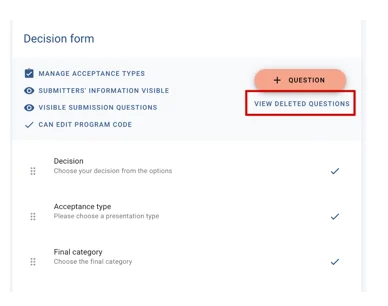
If you delete a question but would then like to restore it, go to your Decision Form & Setup page, under the +Question Button, click on View Deleted Questions
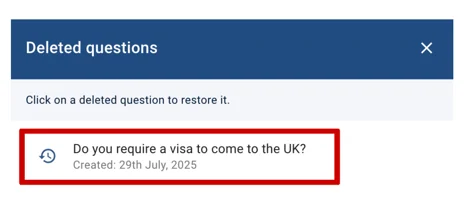
On the pop-up screen, click on the question you wish to reinstate, and it will now be back on the form.
Changing the order of questions
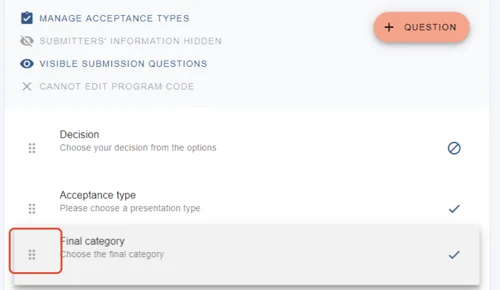
You can drag and drop the questions to change their order
Common questions#
I want to add another decision type - 'rework' - how do I do this?#
The Decision question itself is fixed — its options cannot be edited. Add 'rework' as an acceptance type instead.
Go to Event dashboard → Abstract Management → Decisions → Form & Setup and click Manage acceptance types. It is then offered in the Acceptance type column alongside your other options.
Acceptance types#
When going through the decision making process, you will first need to decide on the acceptance type - ie oral, poster etc.#
Go to Event dashboard → Abstract Management → Decisions → Form & Setup
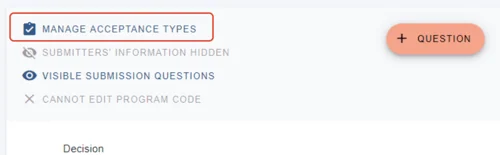
Click on Manage Acceptance Types at the top of the form.
You can 1) Overwrite the default options,
2) delete any, and
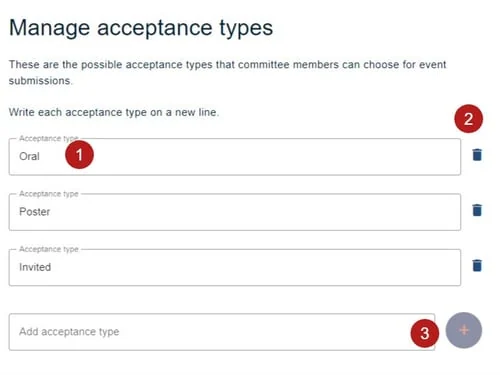
3) enter a new acceptance type and click the + button.
Changes are saved automatically.
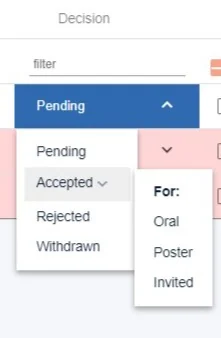
These will now appear in the Decisions column in the Decisions Table as below.
Was this article helpful?
Contact supportStill stuck? Send us a ticket
Tell us what you're trying to do and one of our support team experts will come back to you promptly with the solution.