
← Back to results
Making a session cross columns in the program timetable
For event organisersConference plansLast reviewed 28 July 2026
Learn how to make a session cross several columns in the program builder.
Submitting, reviewing or attending? This guide is for event organisers. Find help for your role.
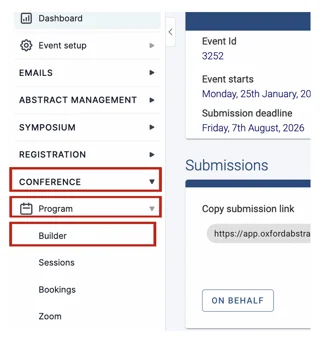
From your Event Dashboard, click on Conference → Program → Builder
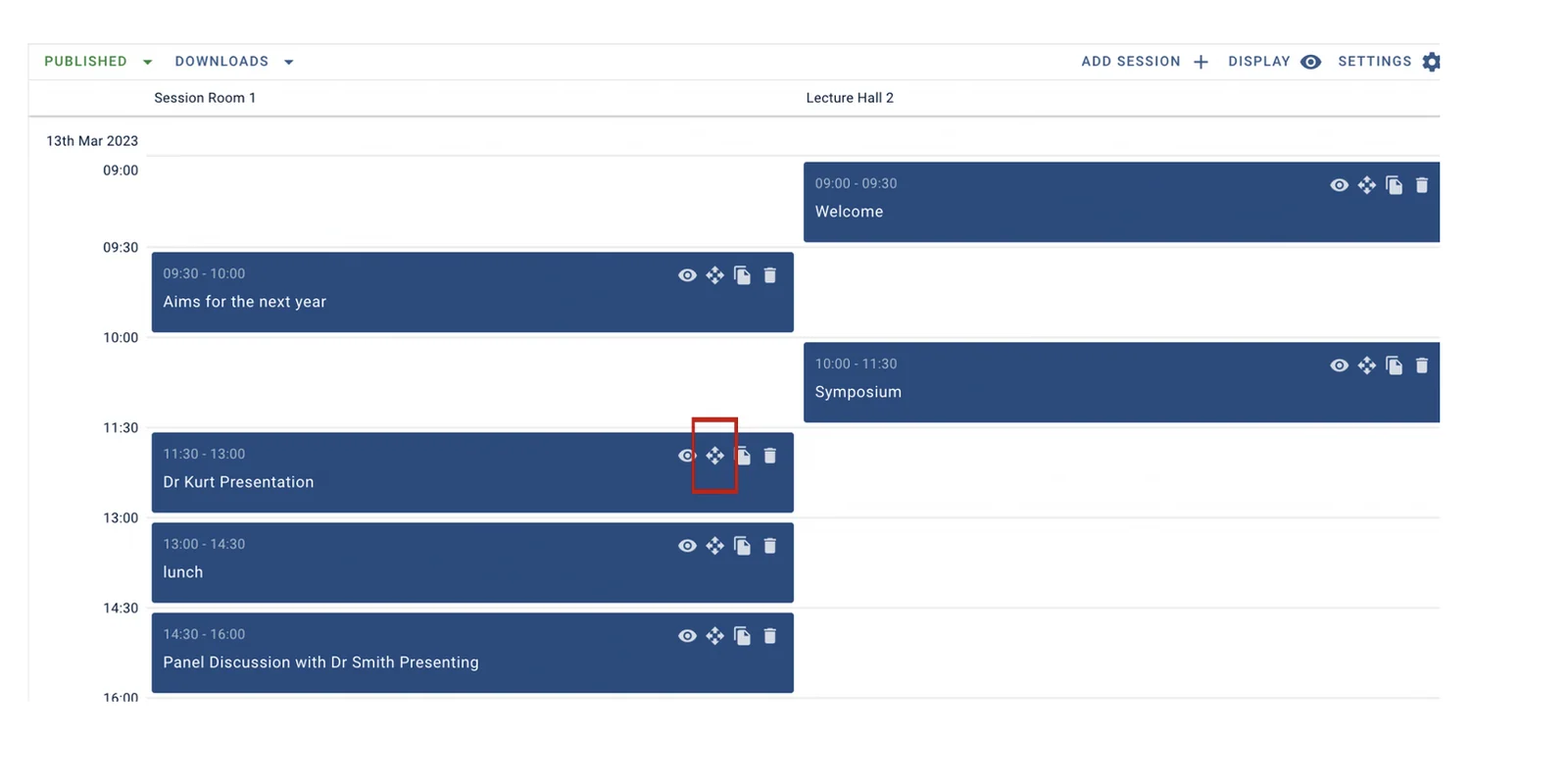
On the next screen, find the session you wish to move across both columns and click on the Move Tool.
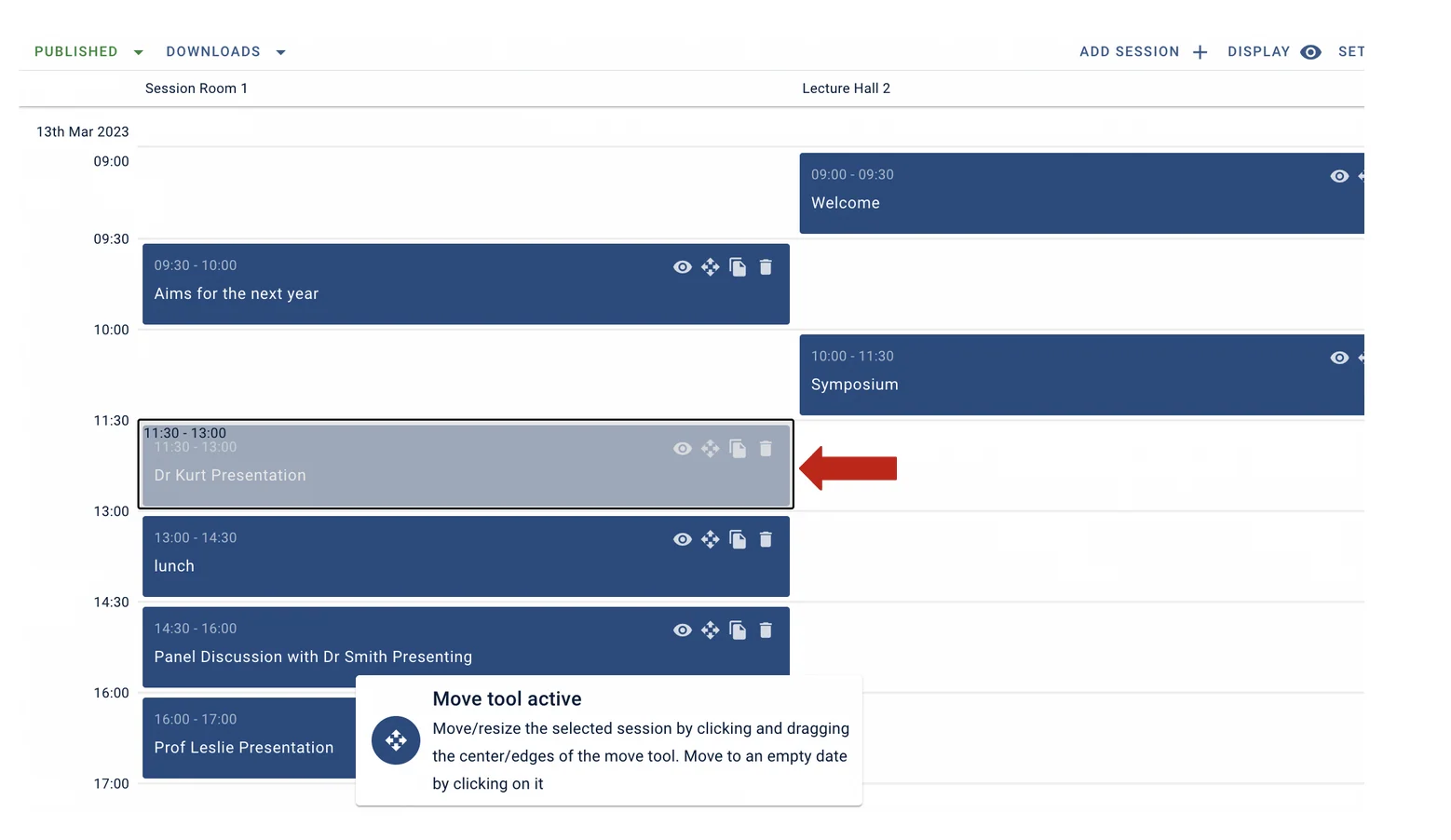
Now click on the right-hand edge of the session and drag it into the next column.
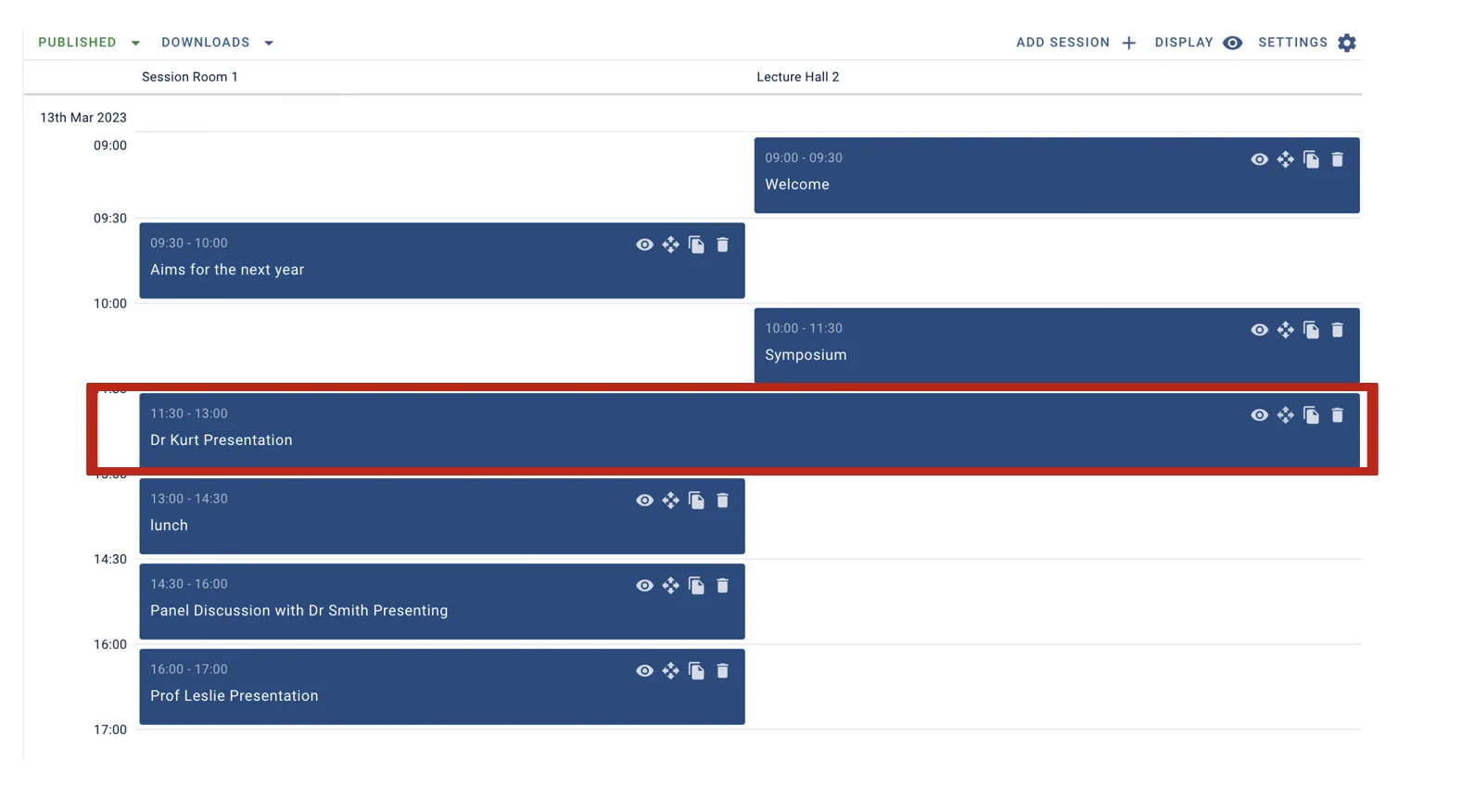
Let go of the mouse button, and your session will now straddle both columns.
If you want to undo this, click the Move Tool and drag the session back to its original column.
If you need any further assistance, then please get in touch with our Support Desk via this Contact Form.
Was this article helpful?
Contact supportRelated
Still stuck? Send us a ticket
Tell us what you're trying to do and one of our support team experts will come back to you promptly with the solution.