
Assigning categories to committee members
If you need to assign categories to specific committee members, follow the guidance below. This feature is not available in the FREE package.
Before assigning categories, you will need to add committee members to the system. See Manage users for guidance.
Go to Event dashboard → Advanced → Committee filter
This link will take you to the Assign Categories table. The table is formatted in a similar way to all tables in the system (See An overview of tables).
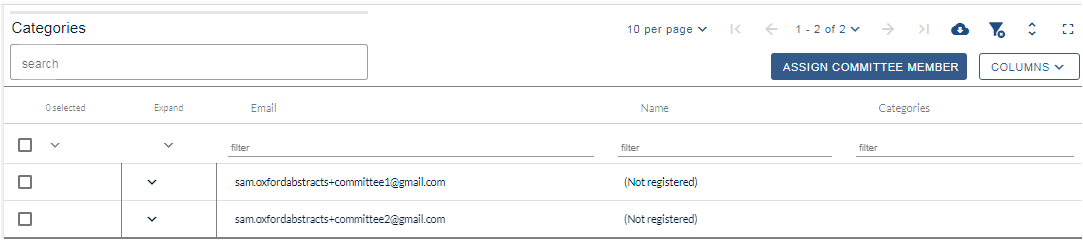
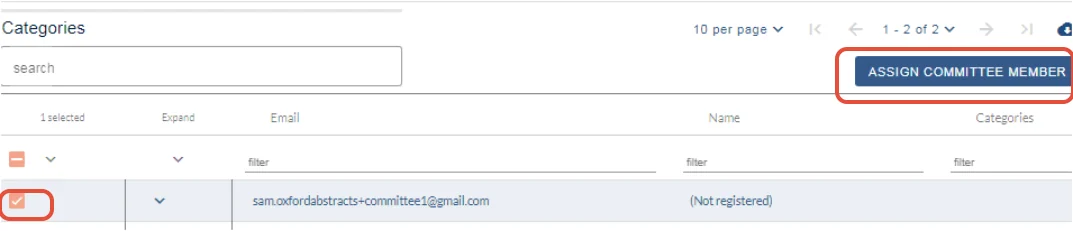
To assigncommittee members, check the box next to the chosen committee member and click the Assign committee member button.
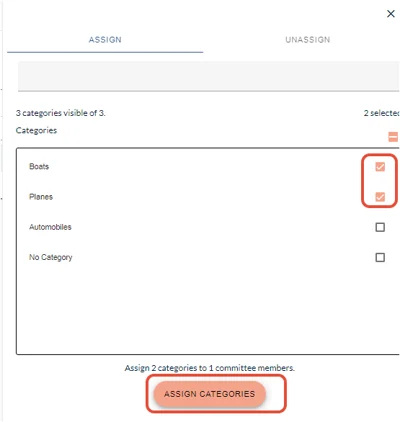
Check the box next to the chosen category (or the top one to select all), then Assign categories.
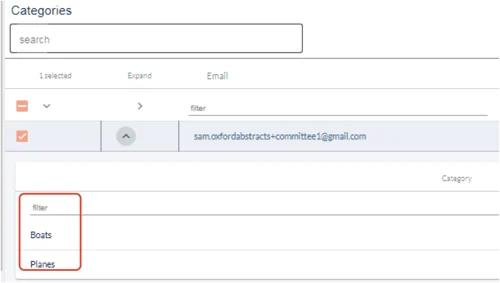
Close the window to return to the table view. You will see the categories appear in the child rows if you click the arrow in the Show categories column.
To Unassign, repeat as above, but click on the Unassign tab
In the example below, I am unassigning the category Planes from the committee member.
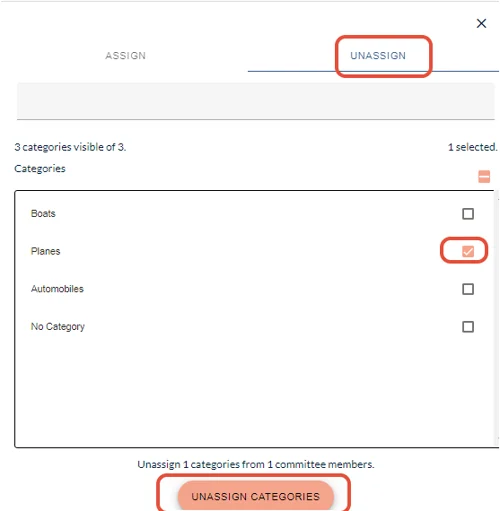
Click Unassign categories, close the window by clicking on the X in the top right hand corner and return to the table.
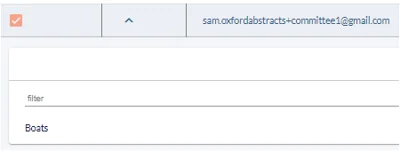
This change is then reflected in the table
When committee members login, they will only view their assigned categories.
Common questions#
I want committee members to be able to make decisions on specific categories. How do I do this?#
Go to Event dashboard → Advanced → Committee filter and assign the categories to each committee member, as described above. They will then see only the submissions in the categories you have given them.
Was this article helpful?
Contact supportRelated
Still stuck? Send us a ticket
Tell us what you're trying to do and one of our support team experts will come back to you promptly with the solution.