
Manage users
Clicking on the Users option in the menu in the event dashboard allows you to view, add and remove reviewers, committee members, event administrators, and API users.
Go to Event dashboard → Event Setup → Users.
Note
There are tabs for each user type, which will vary according to which package you have.
The Submitters tab is for restricting who is permitted to submit.
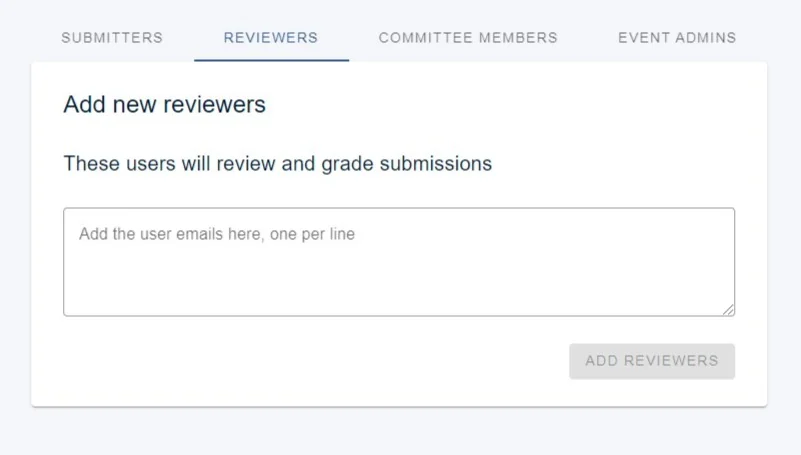
Reviewers
In the Reviewers section, enter or paste the email address of the person(s) you wish to invite as a reviewer. To invite multiple reviewers, list their emails on separate lines.
To enable Committee Members to also become Reviewers, please follow these steps.
Note
This will add the user as a reviewer but not notify them. You must trigger email notification of reviewers in the emails system.
If you wish to remove any reviewer, just click on the Remove button under the chosen reviewer.
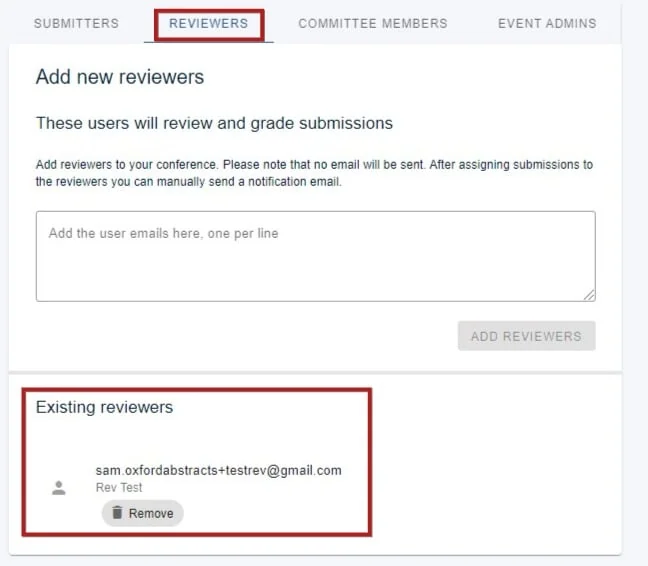
If a user has been invited but has not yet registered on the Oxford Abstracts system, only their email will be visible and Not registered will be shown under their email address. Once they have signed up, their first and last names will be shown and the Not registered text will disappear.
Committee, Event admins, API users#
Adding these users is done in a similar way. Using the Committee Member, Event Admin or API User tab :
1) Enter the email subject for registered users.
2) Enter the email subject for unregistered users.
3) Enter the message.
4) Add the email addresses of your committee members.
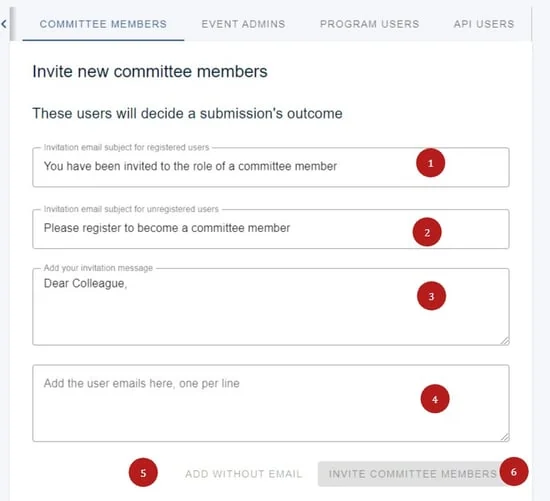
You then have the option to either 5) add them without emailing them a message, or 6) sending the message.
Event admins works in the same way except there is no option to add without sending a message.
Should you require any further assistance, please contact our support desk via our Contact Form.
Common questions#
How do I add committee members to the software?#
Go to Event dashboard → Event Setup → Users and open the Committee Member tab. Add the email addresses one per line, then choose either to add them without a message or to send them one. The full steps are under Committee, Event admins, API users above.
How do I give someone admin rights to the event?#
Use the same screen — Event dashboard → Event Setup → Users — and the Event Admin tab. It works the same way as adding committee members, with one difference: there is no option to add an event admin without sending them a message.
For the difference between an event administrator and an account administrator, see Different types of users in the system.
Was this article helpful?
Contact supportRelated
Still stuck? Send us a ticket
Tell us what you're trying to do and one of our support team experts will come back to you promptly with the solution.