
Viewing transactions on the attendee table
Learn how to view and download all transaction information from the transaction table.
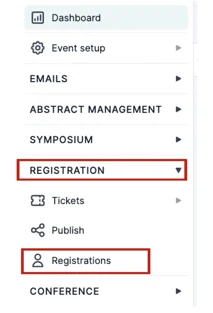
From your main dashboard, go to the left-hand column and click on Registration → Registrations
Then select Transaction at the top right of the screen.
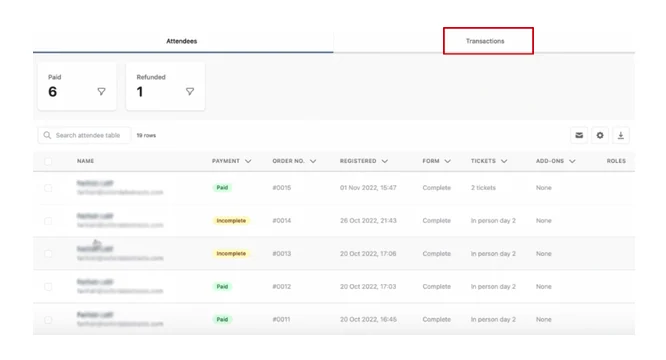
You will find a breakdown of all the transactions, including payments and refunds.
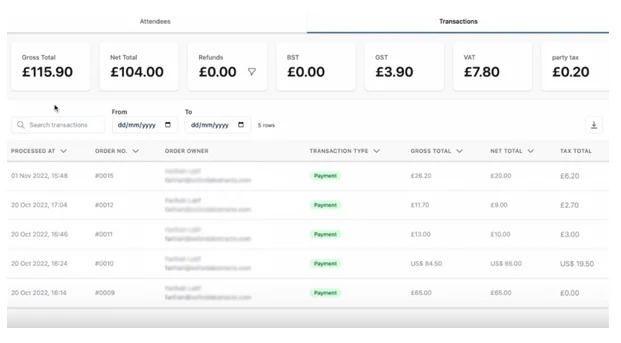
Gross = Total amount that includes tax.
Net = Total amount that does not include tax.
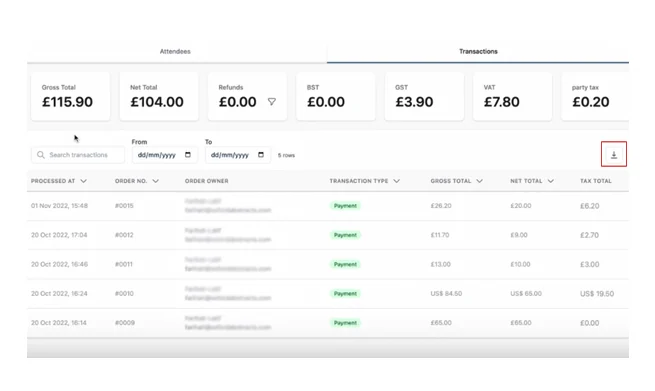
If you want to download this information, you can click on the download arrow to the right of the screen.
Transaction Type Meaning
Paid: order is fully paid.
Partially paid: order amended and awaiting payment from attendee.
Pending payment: attendee has been invoiced and hasn't paid yet.
Or the attendee has abandoned cart. For such order, there will be no payment type.
Pending refund: order amended and awaiting refund.
Refunded: order has been fully refunded.
Should you require any further assistance please get in touch with our Support Team via our Contact Form.
Was this article helpful?
Contact supportRelated
Still stuck? Send us a ticket
Tell us what you're trying to do and one of our support team experts will come back to you promptly with the solution.