
Text editor types
When creating or editing questions that require longer text responses - eg for abstracts or biographies - you can select different text editor types, depending on your requirements.
Go to Event dashboard → Abstract management → Submissions → Form & setup
The default abstract question is an example of a formatted text editor quesion.
The options are below, with formatting options listed.
Text boxes on forms will appear as below for each option. 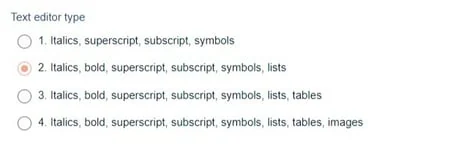
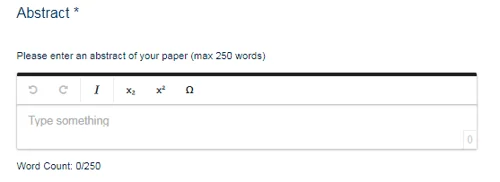
Type 1 permits italics, superscript, subscript and symbols.
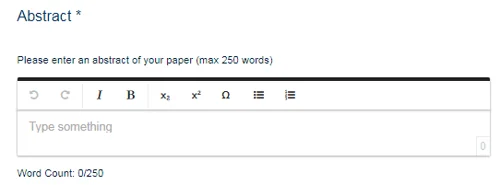
Type 2 permits italics, bold, superscript, subscript, symbols and lists (bullet points and numbered).
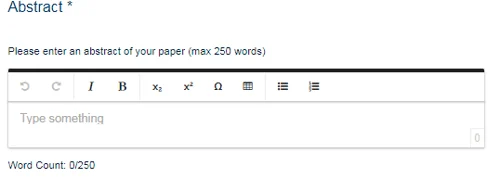
Type 3 permits italics, bold, superscript, subscript, symbols and lists (bullet points and numbered) and tables.
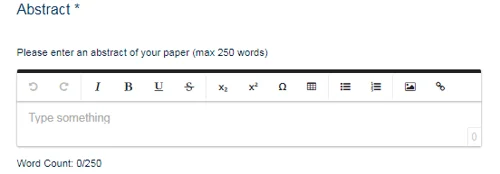
Type 4 permits italics, bold, superscript, subscript, symbols and lists (bullet points and numbered), tables and images.
Note
The Description box you write the question in has more formatting than this — underline, strikethrough, links, fonts and colours. That is for your wording of the question, not for the answer. What the submitter can use is set entirely by the text editor type you choose above, so check that rather than the toolbar in front of you.
When answering long text questions, usually for abstracts, we always recommend submitters copy and paste from WORD or similar, for formatting consistency.
Was this article helpful?
Contact supportRelated
Still stuck? Send us a ticket
Tell us what you're trying to do and one of our support team experts will come back to you promptly with the solution.