
Finding your ticket and changing your answers
Find your QR ticket and name badge, and correct your registration answers if the organiser allows it.
Finding your ticket#
Your registration email has your QR code and a PDF ticket attached, plus a name badge if the organiser uses them. To get them again:
- Sign in and, on your dashboard, click View on the event.
- In the Registration box, click View details. (If it says Make payment, you haven't finished paying.)
- Each ticket shows its QR code, with Ticket and Badge buttons to download PDFs. Tickets and Badges at the top download them for everyone on the order.
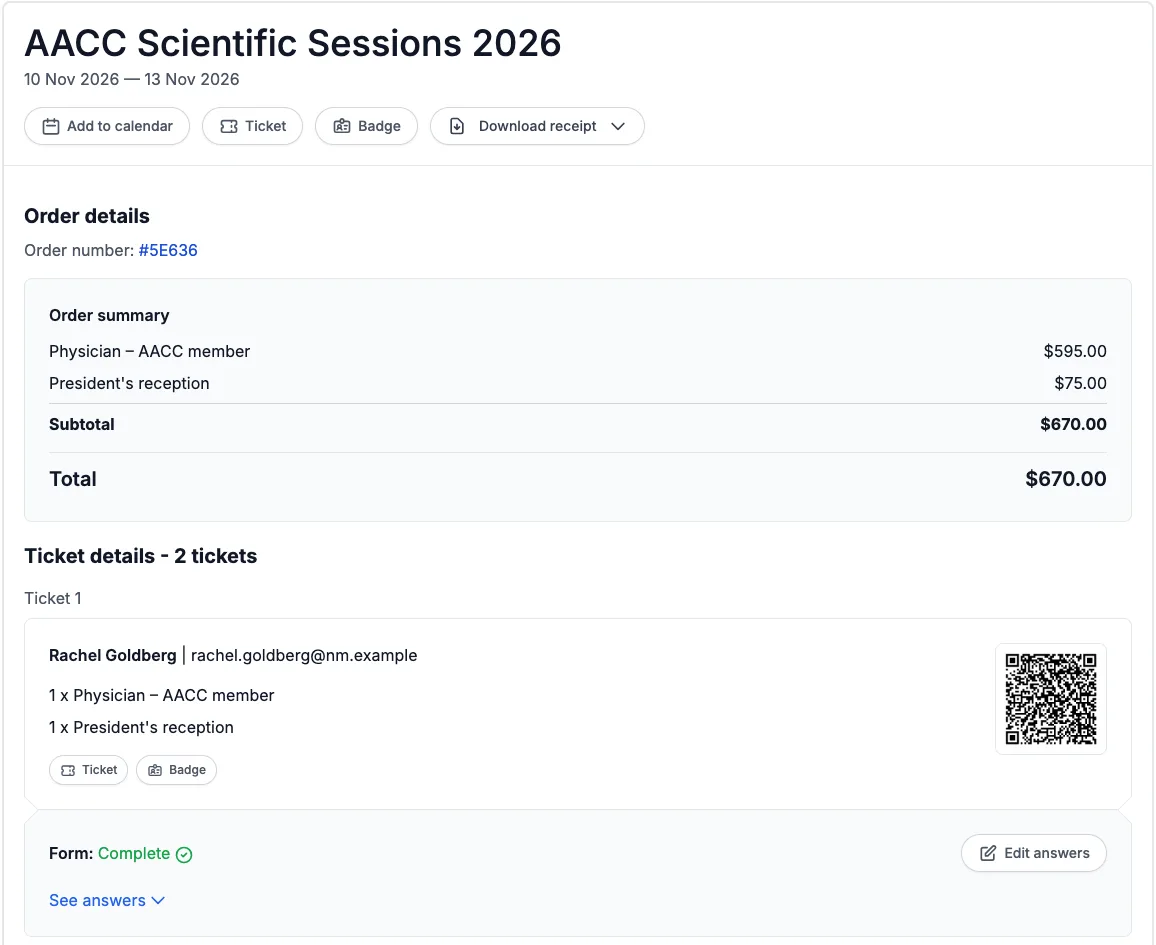
At the venue, show the QR code on your phone or bring a printout. No QR code? The event may not use QR check-in yet; it appears on your order once the organiser switches it on.
Note
A ticket belongs to the email address it was booked for. If you can't see it, or you're told "you do not have permission to view this order", sign in with the address your confirmation was sent to.
If someone else paid, see Completing registration when someone bought your ticket.
Changing your answers#
- On your order, under the ticket, click See answers to check what was entered, or Complete form if it hasn't been filled in.
- Click Edit answers, make your changes and click Save.
If there's no Edit answers button, or a question says "You need to contact your event organiser to change this answer.", contact the organisers.
For receipts and invoices, see Downloading invoices and receipts.
Was this article helpful?
Contact supportRelated
Still stuck? Send us a ticket
Tell us what you're trying to do and one of our support team experts will come back to you promptly with the solution.