
Checking attendees in on the day
Scan tickets or search for attendees at the door, on a phone, tablet or laptop.
The check-in desk is where organisers and their check-in assistants check people in, in the web browser on a phone, tablet or laptop.
Open it from your invitation email (Go to check in) or the link the organiser shared, and sign in with the email address you were invited with. "Check-in not live" means the organiser hasn't opened the desk yet. "You don't have check-in access for this event" means you're signed in with a different address, or haven't been added as an assistant.
Scanning a ticket#
- Click Scan ticket and allow the browser to use your camera.
- Hold the attendee's QR code up to the camera. They're checked in when the scan works.
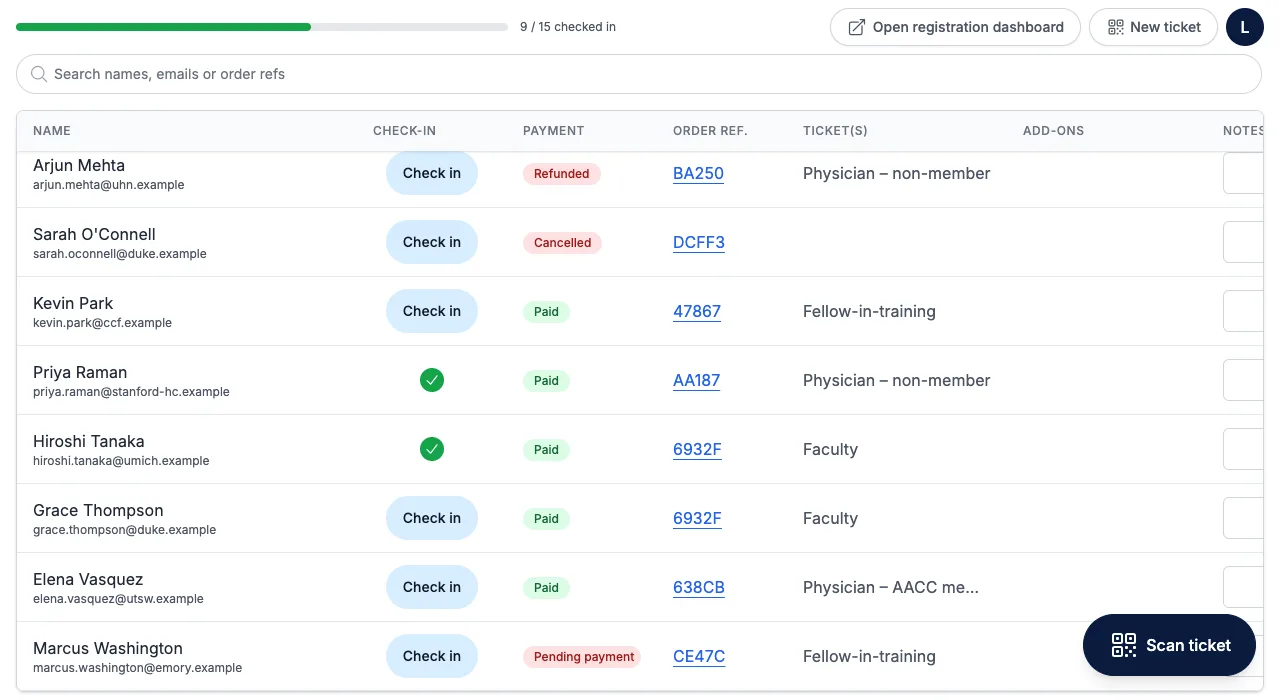
If you see "Ticket not recognised", they may have registered recently: try again in a minute, or search for them. "Payment outstanding" means the order isn't fully paid.
Checking someone in without a ticket#
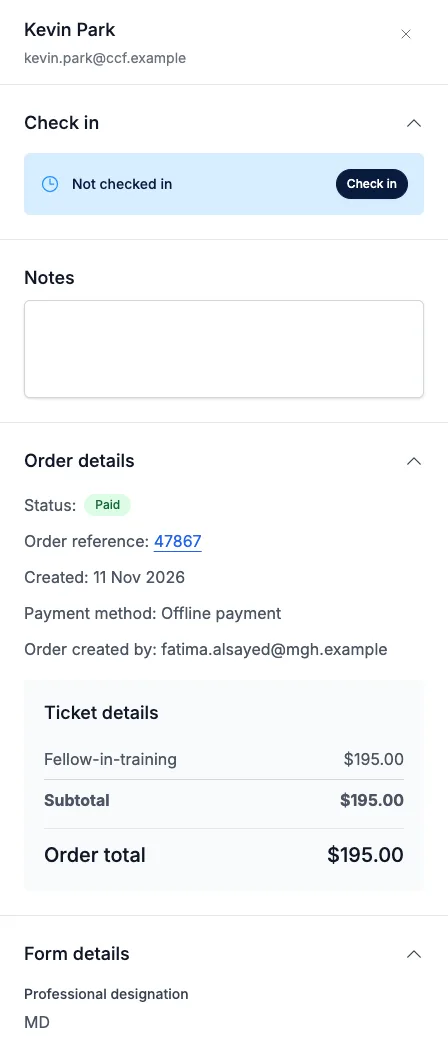
- Type in Search names, emails or order refs.
- Click the person, then click Check in.
Cancel check in undoes a check-in. If their details say "Payment incomplete", they can scan the Payment QR code with their phone to pay.
To sell a ticket at the door, click New ticket and let them scan the Registration QR code.
Note
If the connection drops, keep going. Check-ins are saved on your device and sync when you're back online.
Was this article helpful?
Contact supportRelated
Still stuck? Send us a ticket
Tell us what you're trying to do and one of our support team experts will come back to you promptly with the solution.