
Assigning categories to reviewers
Give reviewers the categories they review, so auto assign can match them to the right submissions.
Categories let auto assign send reviewers submissions in their area. They come from the category question on your submission form, so add that first.
Reviewers can pick their own by answering the Categories question on the reviewer recruitment form (paid plans). To set them yourself:
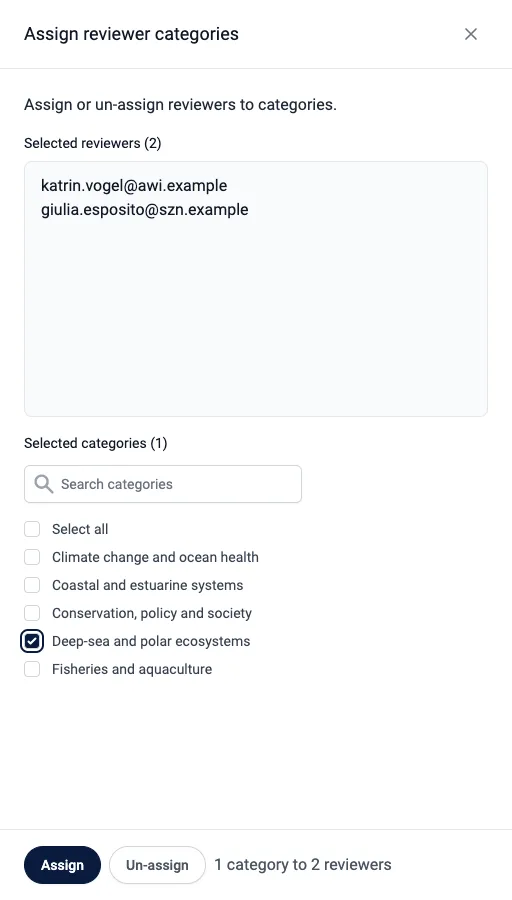
- Go to Event dashboard → Abstract management → Reviews → By reviewer and click Assign Categories.
- Tick the reviewers, or type their email addresses one per line.
- Tick the categories and click Assign (or Un-assign to take them away).
You can also use the Categories column in Event setup → Manage reviewers, or the CSV template when you add reviewers.
Categories don't assign anything by themselves. Choose how they're used under Category assignment when you run auto assign.
Common questions#
Why does auto assign say "No categories found for submissions or reviewers"?#
Category matching needs both. Check that submitters have answered your category question and that your reviewers have categories.
What happens if I remove a reviewer's category?#
Submissions already assigned to them stay assigned (you'll see Category in use). Un-assign them if needed.
Was this article helpful?
Contact supportRelated
Still stuck? Send us a ticket
Tell us what you're trying to do and one of our support team experts will come back to you promptly with the solution.