
Letting attendees edit their registration answers
Let attendees correct chosen answers after registering, and see what they changed.
You can let attendees change chosen answers after they've registered, for example their dietary requirements, and see what they changed.
- Go to Event dashboard → Registration → Form and open a question attendees may change.
- Switch on Allow editing (attendees can edit their answer) and click Save. Repeat for each question.
- Switch on Allow attendee to edit responses at the top of the Form page. It's greyed out until at least one question allows editing.
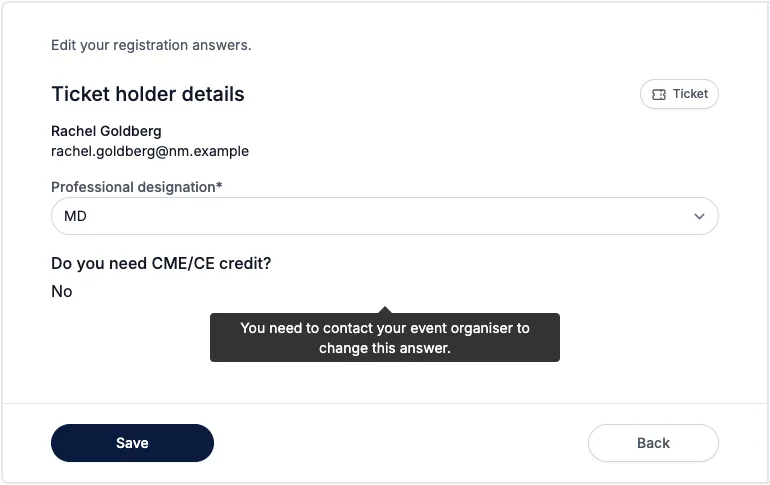
Attendees then click Edit answers on their order. Other questions tell them to contact you.
Seeing what changed#
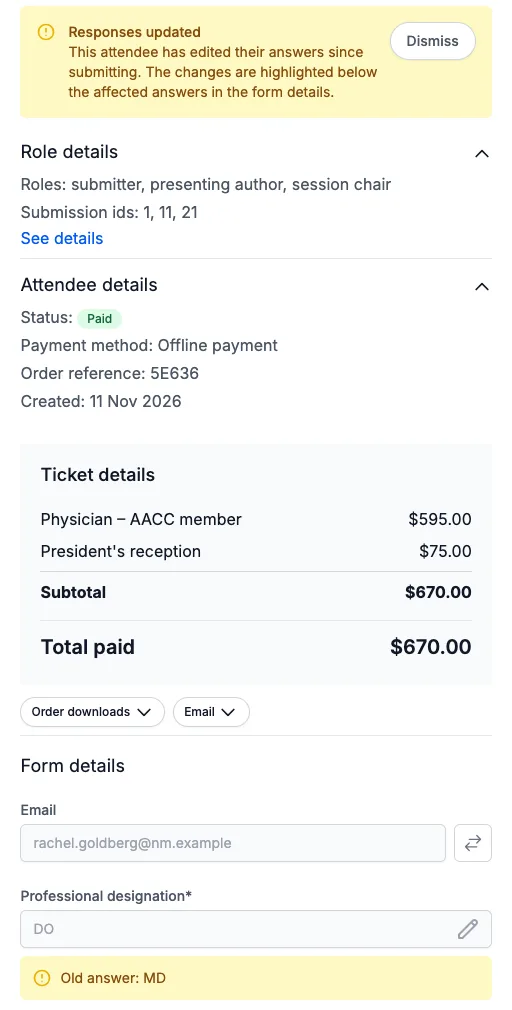
In the Registrations table, click the attendee. Their panel shows Responses updated, with each previous answer under Old answer:. Click Dismiss once you've seen it. You can change any answer yourself with the pencil next to it.
Common questions#
Can attendees change their ticket or email address?#
No. Change their tickets with Edit or refund order (see How admins can amend existing delegate registration orders), and move a ticket to another email address with Re-assign attendee (see Changing the email address on a registration).
Was this article helpful?
Contact supportRelated
Still stuck? Send us a ticket
Tell us what you're trying to do and one of our support team experts will come back to you promptly with the solution.