
Uploading your program from a spreadsheet
Build or replace your whole program by filling in an Excel template and uploading it.
Fill in our Excel template and upload it to create every session at once. Uploading replaces your whole program. Only accepted submissions and symposia can be added to sessions.
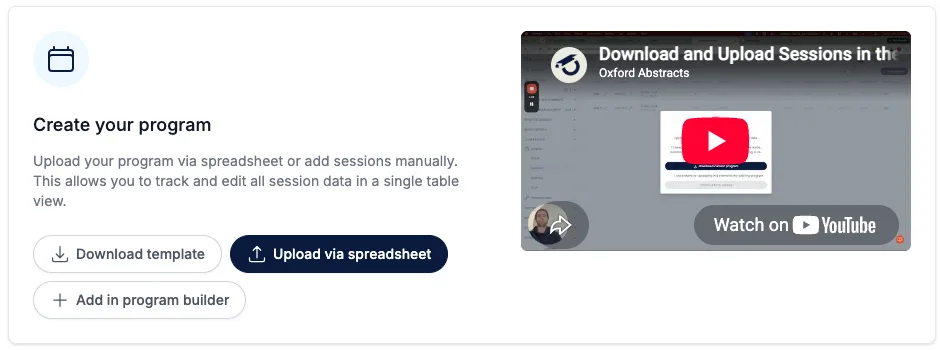
- Go to Event dashboard → Conference → Program → Sessions and click Download template.
- On the Sessions sheet, add one row per session. Unique ID, Session title, Date (YYYY/MM/DD), Start time and End time (HH:MM) are required. Leave all three date and time cells blank to upload a session as Unscheduled.
- In Content, list submission IDs, activity letters and speaker email addresses, separated by commas, each with an optional time:
3 15:00-15:30, a 15:30-15:45. - To add a new column, track or other option, add a row to its own sheet. Existing options must match exactly.
- Click Upload via spreadsheet and choose your file. Only .xlsx files work, not CSV.
If a row has a problem, the upload stops and lists each one, for example "Row 4: unknown track 'Fisheries'". Fix the spreadsheet and upload it again. Afterwards, check for clashes.
Changing an uploaded program#
- In Table actions (the ⋮ button), choose Download for re-upload.
- Edit the spreadsheet, keeping each session's Unique ID the same.
- Choose Upload program from Table actions, tick I understand re-uploading will overwrite my existing program and upload the file.
Important
Any session missing from the spreadsheet is deleted, including sessions built by hand.
Note
If you see "Your program is live", unpublish the program in the program builder before uploading, then publish it again.
Was this article helpful?
Contact supportRelated
Still stuck? Send us a ticket
Tell us what you're trying to do and one of our support team experts will come back to you promptly with the solution.