
Limiting how many submissions each reviewer gets
Set an overall limit in auto assign, or let each reviewer tell you how many submissions they can take.
Auto assign can stop reviewers getting more submissions than they can manage. Set one limit for everyone, a limit for each reviewer, or both.
One limit for everyone#
When you run auto assign, enter a Maximum under Number of submissions per reviewer. See Assigning and unassigning a submission to a reviewer.
A limit for each reviewer#
- Go to Event dashboard → Event setup → Manage reviewers and open the Form tab.
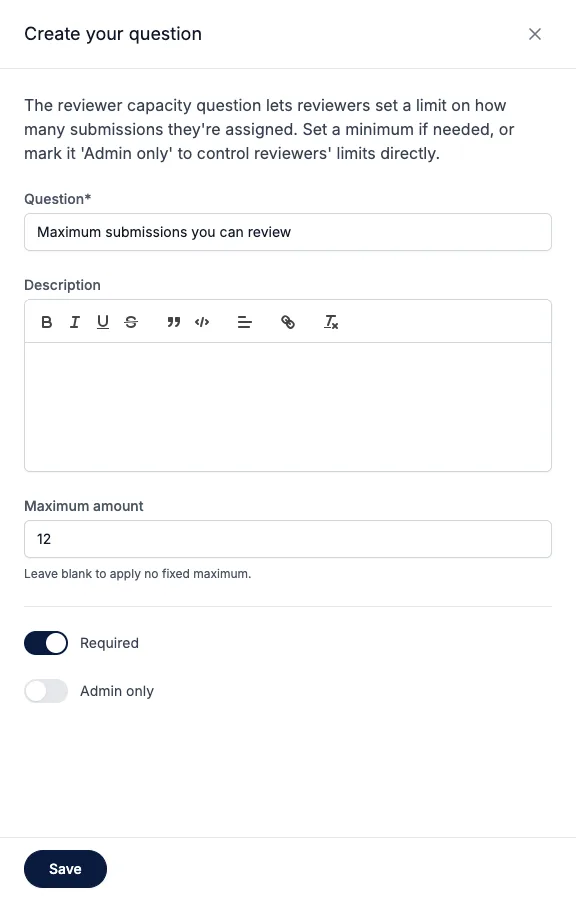
- Click Add question and choose Review capacity. Reviewers see it as Maximum submissions you can review.
- To cap what reviewers can enter, set a Maximum amount.
- To set the limits yourself, turn on Admin only. Reviewers won't see the question, and you fill in each limit from their row on the Reviewers tab.
- Click Save.
Auto assign won't take a reviewer past their own limit, counting submissions they already have. If you also set an overall Maximum, the lower one applies. A reviewer who leaves the question blank gets the overall Maximum, or no limit.
Note
Limits only apply to auto assign. Assigning by hand ignores them, so check the Reviews column in Abstract management → Reviews → By reviewer first.
Was this article helpful?
Contact supportRelated
Still stuck? Send us a ticket
Tell us what you're trying to do and one of our support team experts will come back to you promptly with the solution.