
Finding and fixing session conflicts
See where people, rooms or times clash in your program, and fix or ignore each conflict.
Oxford Abstracts flags clashes in your program, such as a room booked twice or a chair in two places at once.
- Go to Event dashboard → Conference → Program → Sessions. A yellow bar says how many sessions need attention, and a warning triangle marks each conflict.
- Click Filter to errors to show only the sessions with conflicts.
- Hover over or click a triangle to see the conflict, such as a Location conflict, Chair conflict or Time conflict (overlapping items within one session).
- Click Go to session, or edit the table, and change the session's time, column, location or people.
When all are fixed, the bar says "All conflicts resolved."
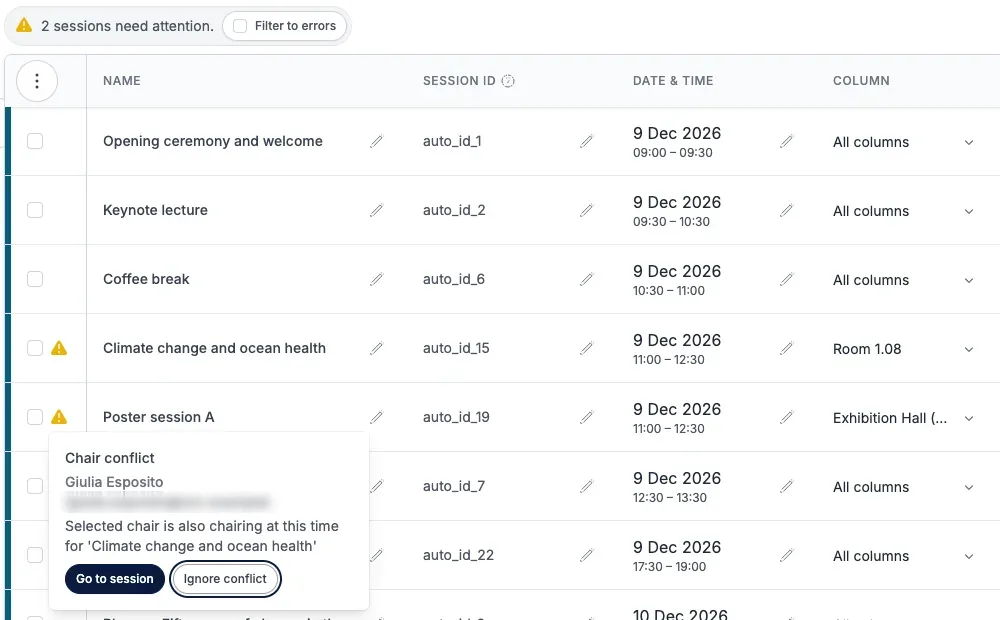
If an overlap is deliberate, such as a chair running between neighbouring rooms, choose Ignore conflict instead. It comes back if the session moves or its people change.
Common questions#
Why isn't a clash showing?#
People are matched by email address, so anyone without one isn't checked; see Adding session chairs and their email addresses. The conflict may also have been ignored, or the person may only be in a symposium, which isn't checked yet.
How is this different from "Bookings"?#
Bookings flags people whose names match in two overlapping sessions. Conflicts also cover rooms and overlapping items within a session. See Session bookings.
Was this article helpful?
Contact supportRelated
Still stuck? Send us a ticket
Tell us what you're trying to do and one of our support team experts will come back to you promptly with the solution.