
Sending tickets and printing name badges
Resend QR tickets, download tickets or badges to print, and attach printable name badges to emails.
Everything here needs QR check-in switched on; see Setting up QR check-in for your event. Registration emails then carry each attendee's QR code and PDF ticket, and attendees can download it again from their order page.
Sending or resending tickets#
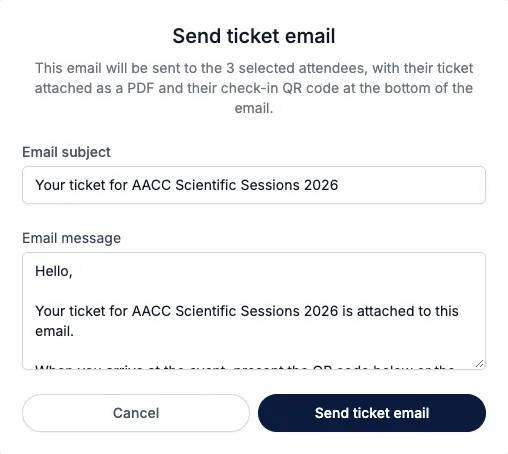
- Go to Event dashboard → Registration → Registrations table and tick the attendees.
- Click the envelope (Email attendees) and choose Send ticket email.
- Change the Email subject and Email message if you like (this needs a paid plan), then click Send ticket email.
Printing tickets or badges#
In the Registrations table, click the download button and choose Tickets (.pdf) or Name badges (.pdf). You get one page for each attendee you've ticked, or for everyone if you haven't ticked any.
Attaching name badges to emails#
- Go to Event dashboard → Registration → Name badge (marked Beta).
- Switch on Attach name badges to registration and ticket emails.
- Choose the Paper size.
- Click Preview badge, then Save.
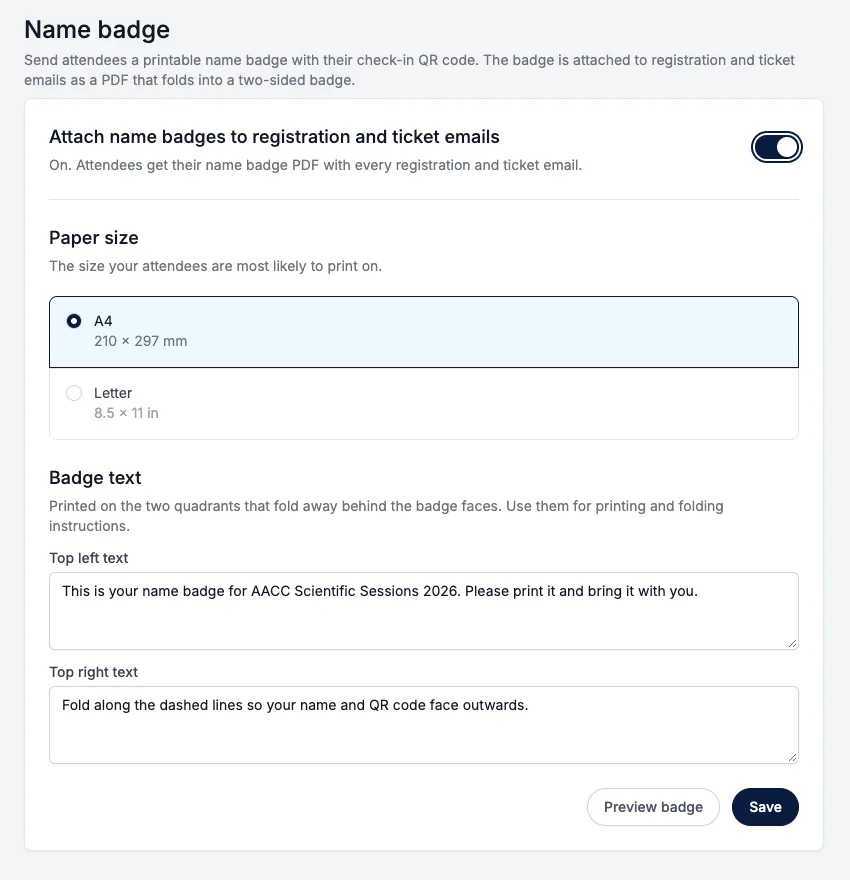
To print job titles and companies, add the Job title and Company questions from the Name badge group on Registration → Form.
Was this article helpful?
Contact supportRelated
Still stuck? Send us a ticket
Tell us what you're trying to do and one of our support team experts will come back to you promptly with the solution.