
Emailing presenters and authors directly
It is possible to create new templates to send out messages to presenters and authors. This article will show you how.
Note
It's important to be able to distinguish between submitters, authors and presenters.
Submitters: There can only be one submitter for every submission. These are the people completing the submission form.
Authors: Authors are listed by submitters in the authors and affiliations question. The author is often the submitter, but often multiple authors are allowed.
Presenter: Presenters can also be the same as both the submitter and the author, but often only one presenter is allowed where there are multiple authors. These are tagged in the authors and affiliations question, and will be denoted in bold or underlined in the program and abstract books.
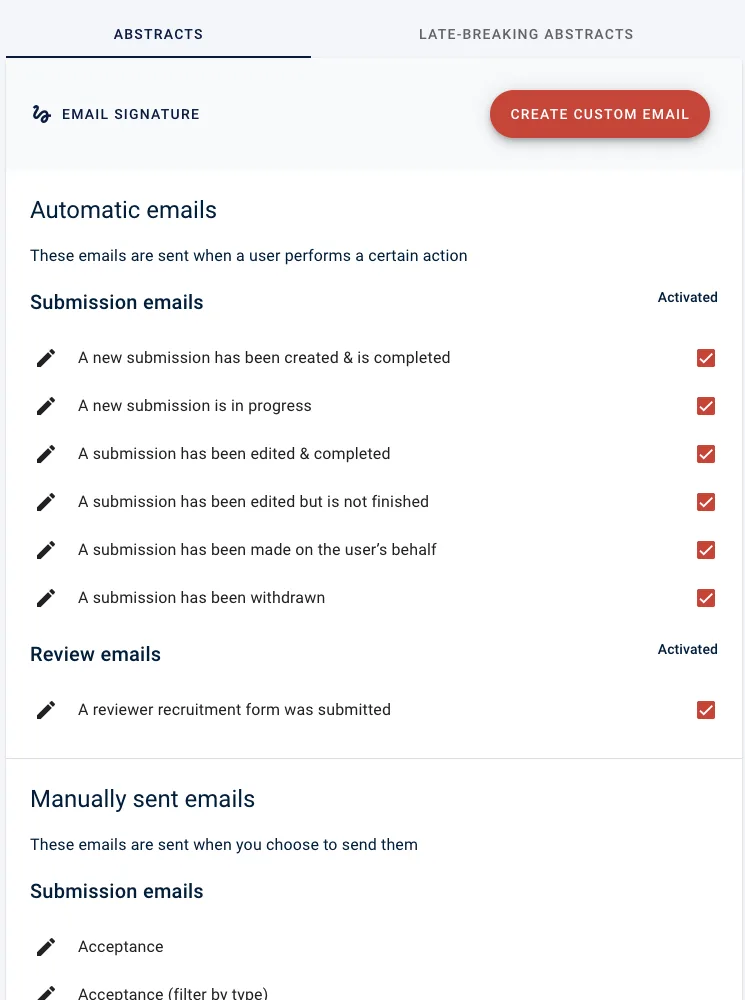
Go to Event dashboard → Emails → Edit & send → Abstract management
You will then see a list of template emails for the event. Click on Create custom email to create a new custom email.
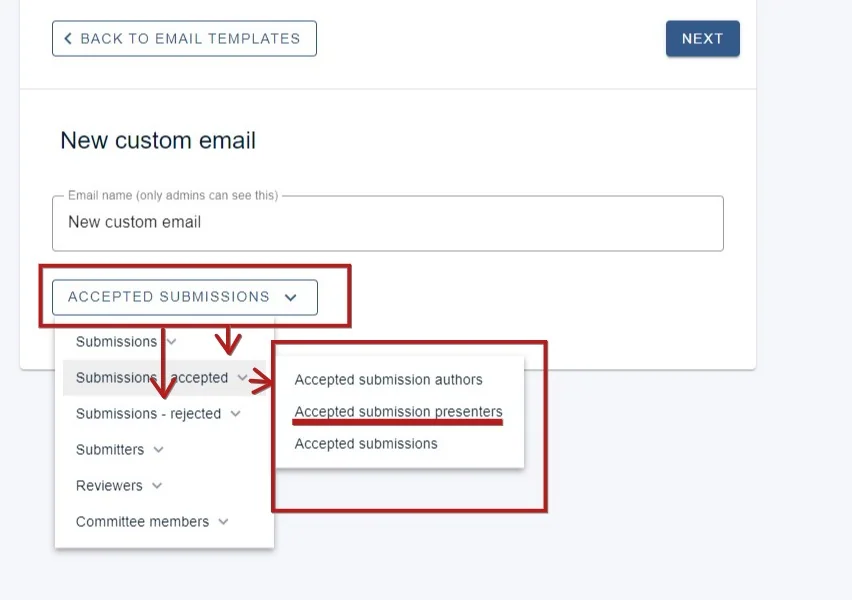
In the New Custom Email screen, enter a name for the email and click the RECIPIENT GROUP dropdown.
You will see sub categories under Submissions - accepted and Submissions - rejected
If emailing those presenters whose submissions are accepted, click on the one shown below.
You can then create your custom email.
Common questions#
I want to send emails to just the presenters - how do I do this?#
Go to Event dashboard → Abstract management → Submissions table, tick the submissions, click 'Email' (under 'More' if it isn't showing) and choose 'Presenters', or 'Unregistered presenters' for those who haven't registered. See Sending emails from tables.
You can also go to Event dashboard → Emails → Edit & send → Abstract management and create a template addressed to presenters, following the steps above.
Was this article helpful?
Contact supportRelated
Still stuck? Send us a ticket
Tell us what you're trying to do and one of our support team experts will come back to you promptly with the solution.