
Reminding presenters to register
Find the presenters who haven't registered for your conference yet, and email them.
The 'Submissions table' shows which presenters have registered for your conference, and can email those who haven't. Presenters are matched to registrations by email address.
Finding them#
On the event dashboard's 'Registration' panel, click 'Unregistered presenters (accepted)' or 'Unregistered presenters (other)'. The 'Submissions table' opens with every stage's submissions that have a presenter who hasn't registered.
Or go to Event dashboard → Abstract management → Submissions table and filter 'Presenters registered' to 'At least one presenter not registered'. Click a cell, such as '1 of 2', to see who has registered.
Emailing them#
- Tick the submissions, or choose 'Select all' from 'Table actions'.
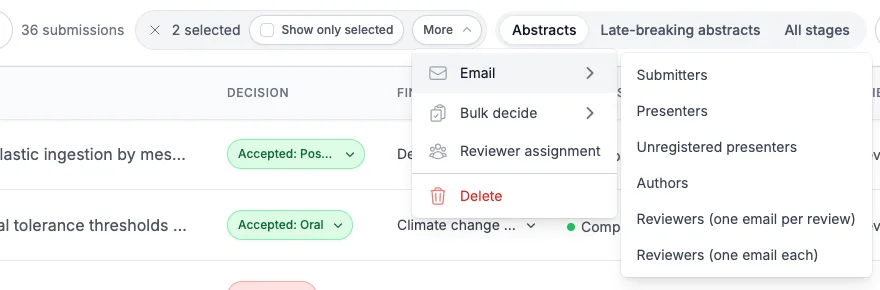
- Click 'Email' (under 'More' if it isn't showing) and choose 'Unregistered presenters'. Presenters who have registered aren't emailed.
- Write your email and click 'Preview and send'. See Sending emails from tables.
Note
Emailing from tables isn't available on the Free plan.
Common questions#
A presenter says they've registered, but shows as not registered#
They probably registered with a different email address from the one on the submission. Check the registrations table, then correct the address on the submission or ask them which one they used.
Do registrations from another system count?#
Yes, they show as 'Registered externally'. Cancelled and refunded registrations don't count.
Was this article helpful?
Contact supportRelated
Still stuck? Send us a ticket
Tell us what you're trying to do and one of our support team experts will come back to you promptly with the solution.