
Upgrading your plan or adding an add-on
Move your event to a bigger package, buy an add-on, or pay for a free trial.
To compare the packages, see What are the differences between the free package and paid packages?.
Upgrading or adding an add-on#
- On the event dashboard, scroll down to the bottom right and click View plans in the Upgrade your package panel (Manage your plan on a paid package).
- Choose a package under Packages and any add-ons under Add-ons, then click Upgrade. Add-ons are only available with paid packages.
- In Pay for event, tick I agree to the terms and conditions, then choose Pay by card or Pay by invoice. See Paying for your event.
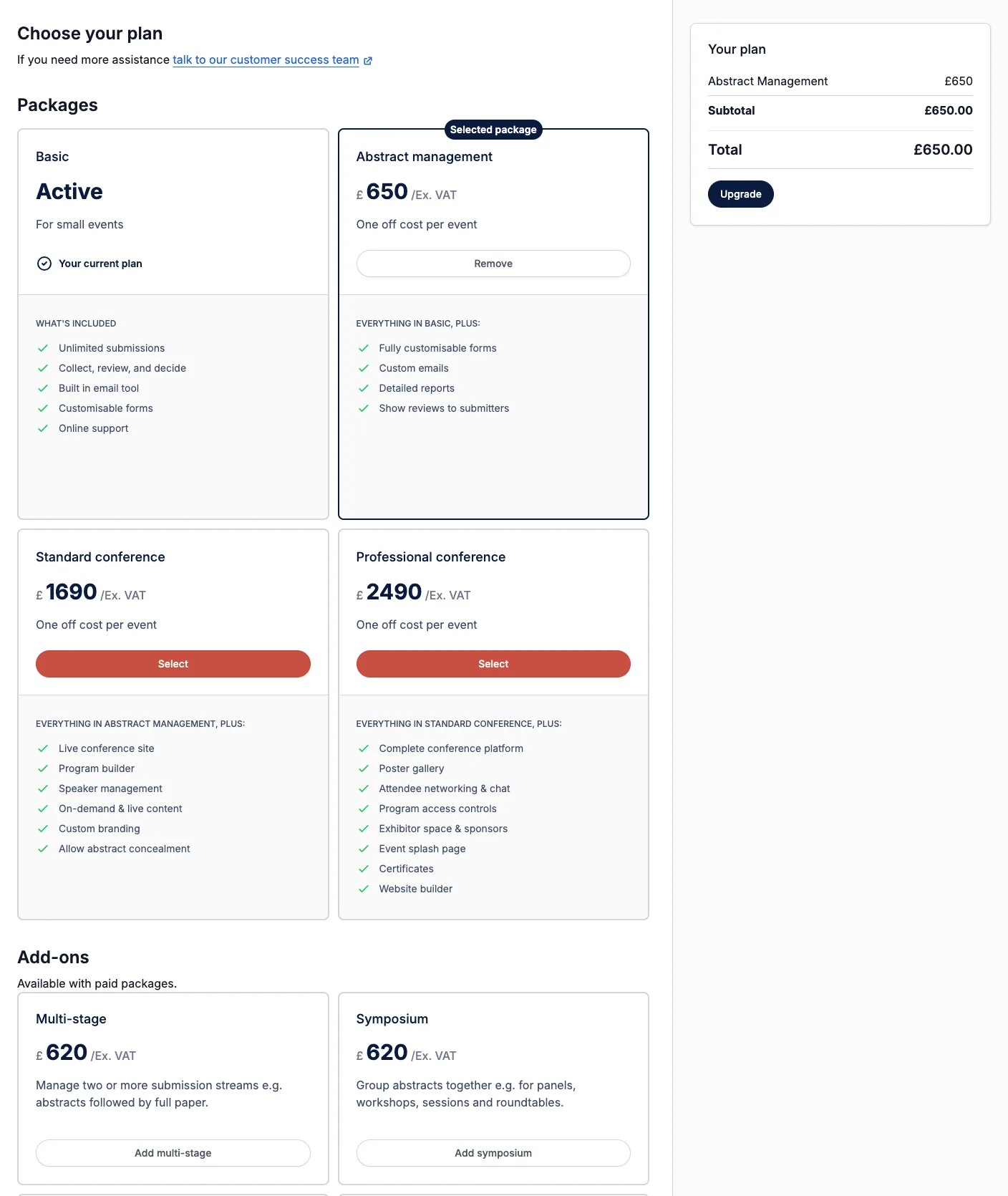
Your event moves to the new package once you pay by card or confirm the invoice. Certificates paid by invoice are switched on by our team, so they may take a little longer.
To move to a smaller package or remove an add-on, contact our support team. Moving to the free package needs a new event ("New event setup required").
Paying for a free trial#
- On the event dashboard, click Pay for plan.
- Check the package and add-ons, then click Pay. To pay for a different package, click Change plan instead.
When the trial ends, the event's menu is locked until you pay, but everything you've set up is kept. To extend a trial, contact the customer success team.
Was this article helpful?
Contact supportRelated
Still stuck? Send us a ticket
Tell us what you're trying to do and one of our support team experts will come back to you promptly with the solution.