
Viewing transactions on the attendee table
Learn how to view and download all transaction information from the transaction table.
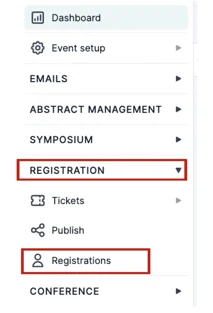
From your main dashboard, go to the left-hand column and click on Registration → Registrations table
Then select Transaction at the top right of the screen.
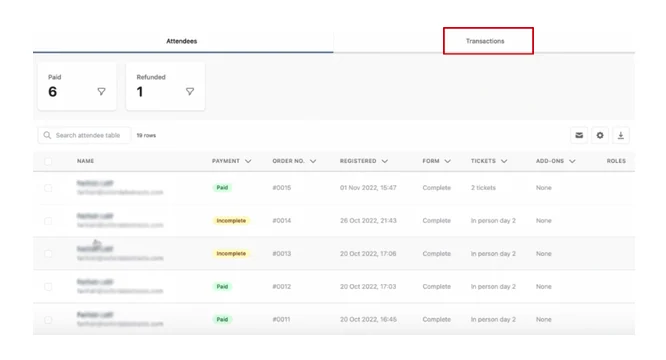
You will find a breakdown of all the transactions, including payments and refunds.
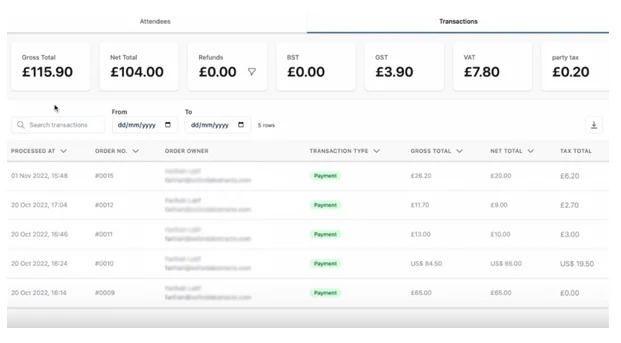
Gross = Total amount that includes tax.
Net = Total amount that does not include tax.
If you want to download this information, you can click on the Export button to the right of the screen and choose a report.
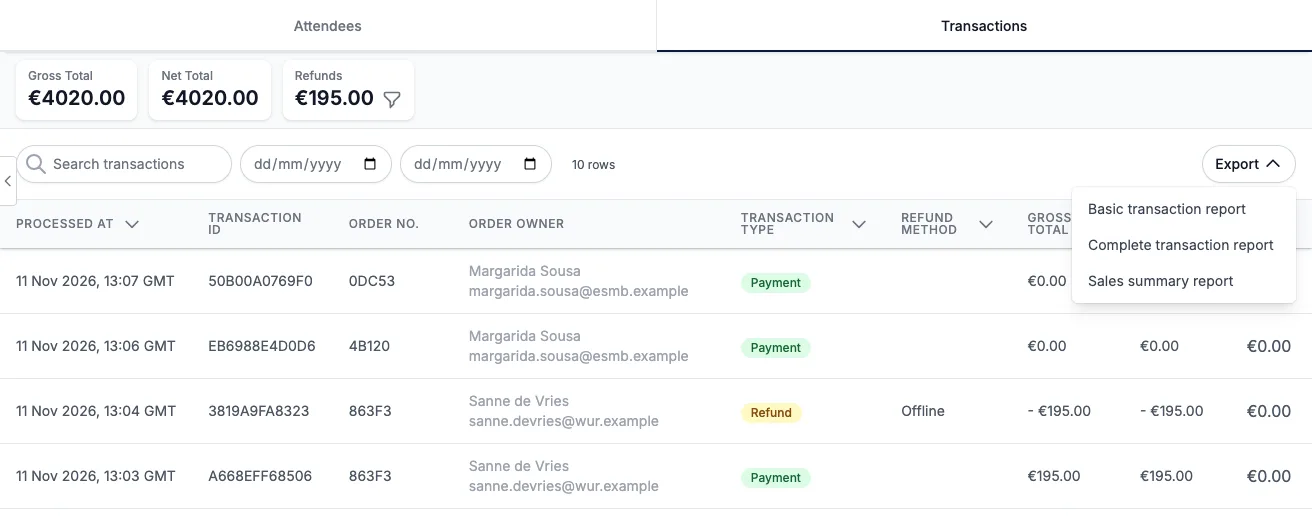
Transaction Type Meaning
Payment: a payment received for an order.
Refund: money returned for an order, through Stripe or offline (shown under Refund Method).
Failed: a payment that did not go through.
Should you require any further assistance please get in touch with our Support Team via our Contact Form.
Was this article helpful?
Contact supportRelated
Still stuck? Send us a ticket
Tell us what you're trying to do and one of our support team experts will come back to you promptly with the solution.